
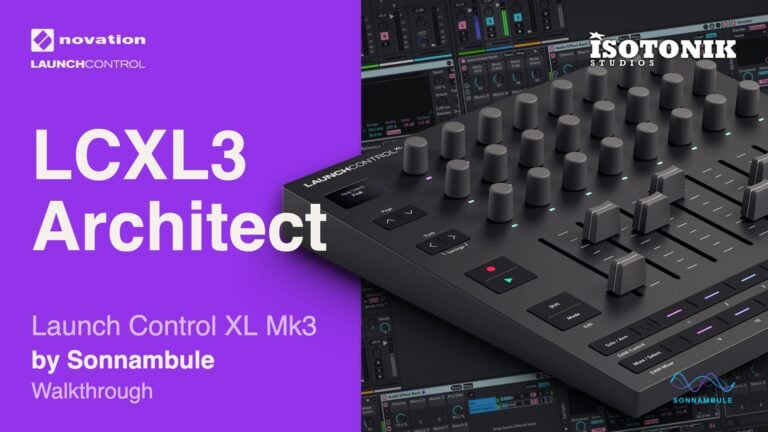
LCXL3 Architect by Sonnambule
CONTROL YOUR INSTRUMENT'S DEPTH, NOT JUST THE SURFACE LCXL3 Architect is a custom Ableton Live 12 control surface script for the Novation Launch Control XL 3, built for live performance. It extends Novation's native integration rather than replacing it, adding whole-surface modes, a visible session ring, dual-device encoder control, a chain mixer, and Master-Link, all without requiring Max for Live. Structure your session around it, and the controller becomes your instrument. • Whole-Surface Modes: One mode change reconfigures encoder rows, button rows, and navigation buttons all at once, rather than switching rows separately. • Session Ring: A highlighted rectangle in Live's Session View shows which seven tracks the controller holds, with faders 1 to 7 following the ring and fader 8 permanently assigned to the master. • Dual-Device Control: The right encoder block holds the device after the appointed one, so two successive devices in a chain are controllable simultaneously. • Chain Mixer: When the appointed device is a Rack, the top encoder row becomes a live mixer for its first seven chains, with only populated chains lighting up. • Master-Link: Return track volumes can be bound to the master fader and follow it in real time, with linked state preserved when the feature is toggled off. • Tap Tempo: The Master Control button sets tempo by tapping, and its LED pulses with the beat as a constant visual reference on stage.
Buying for someone?Send a gift card →
Overview
Control your instrument's depth, not just the surface
Every performer knows the gap between what the hardware shows and what is actually happening inside the Set. LCXL3 Architect is a custom control surface script for the Novation Launch Control XL 3 that closes it, reading the internal structure of your Live Set and putting it directly under your hands. Whole-surface modes, a visible session ring, and dual-device encoder control mean the controller reflects your session rather than sitting on top of it.
In DAW Control mode the left encoder block holds the appointed device and the right block holds the next one in the chain, so two successive devices are live at once without menu diving. Put your performance effects into a Rack, name the macros, and those eight encoders become a purpose-built instrument. The faders stay live throughout, so the mix is never out of reach while you work a device.
- Whole-surface modes reconfigure encoder rows, button rows, and Page and Track buttons in one step, rather than switching sections separately
- Visible session ring in Live’s Session View frames the seven tracks the controller currently holds; selecting a track in Live brings the ring to it, but moving the ring leaves the selection undisturbed
- Faders 1 to 7 follow the session ring; fader 8 is permanently assigned to the master, which is why the ring is seven tracks wide
- DAW Control mode places parameters 1 to 8 of the appointed device on the left encoder block and parameters 1 to 8 of the next device in the chain on the right, giving simultaneous hands-on control of two successive devices
- Chain Mixer: when the appointed device is a Rack, the top encoder row becomes a volume mixer for its first seven chains; only populated chains light up, so the row reads out the shape of the Rack at a glance
- A dedicated Novation button crosses the surface to the return tracks, right-justified toward the master as on a mixing console; ring position and track selection are remembered on each side
- Master-Link binds return track volumes to the master fader in real time, with per-return toggle buttons and a global enable that preserves which tracks are linked when switched off
- Tap Tempo on the Master Control button with a beat-synced pulsing LED as a constant visual tempo reference on stage
- Group fold: a second press on a group track’s select button folds or unfolds the group
- In Session View, Play launches the selected scene and advances the selection to the next, ready for the following launch; Record steps the selection back a scene without firing it, and Shift + Record steps it forward
- Colour-coded visual feedback across all modes (green, yellow, orange, turquoise, blue, white, cyan) with the XL 3’s native 3-line display showing track range, device name, parameter values, chain names, and send names live
- Includes the Launch_Control_XL_3_Architect control surface script, a 17-page illustrated PDF manual, a demo Live Set saved in Live Standard 12.3.8, and a licence file
- .als project / demo
- User manual (PDF)
- Ableton control surface script (Remote Script)
Reviews
No reviews yet. Be the first to review this product.
DAW Mixer Mode
ONE CONTROLLER, THE WHOLE MIXER
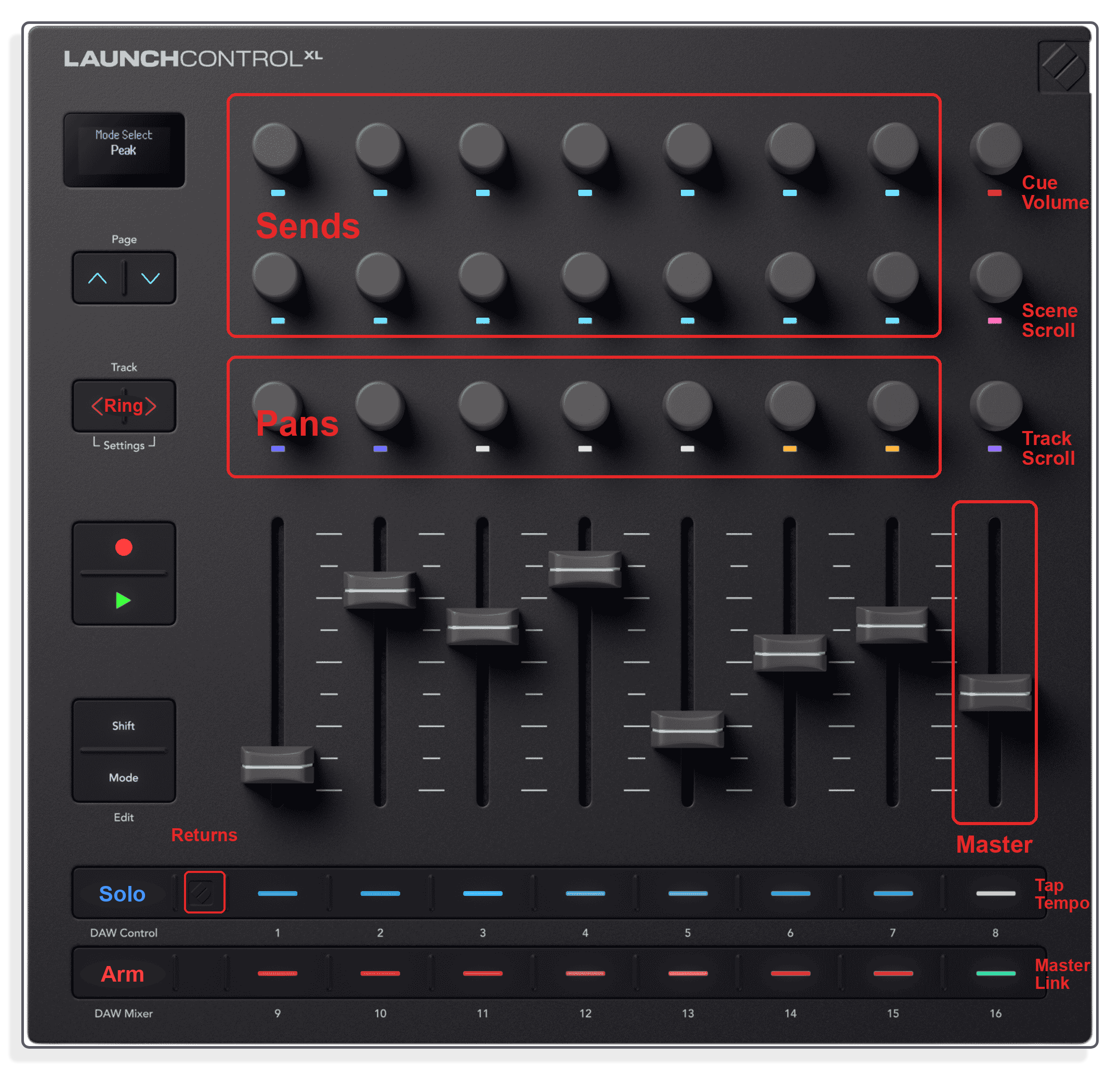
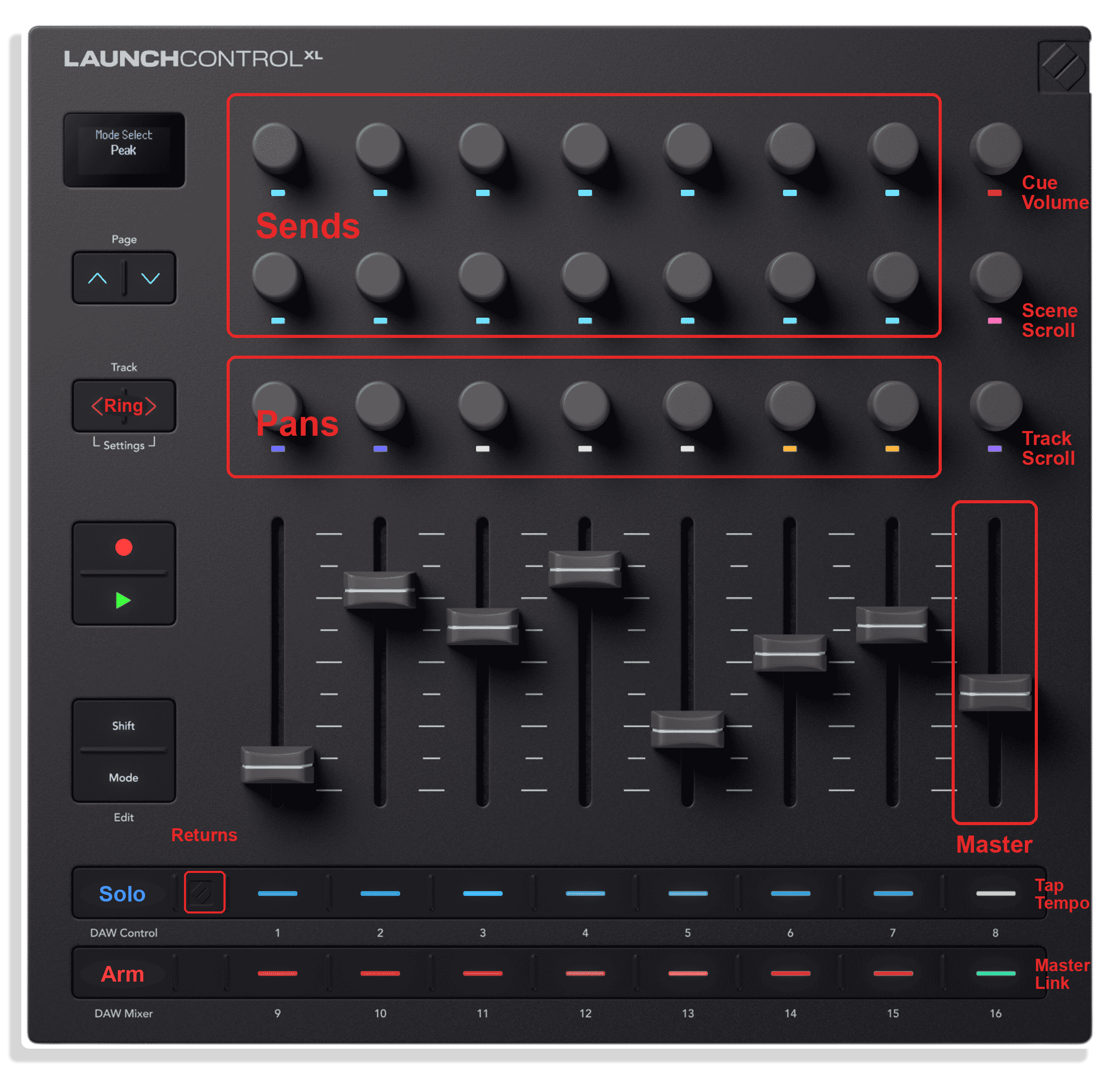
In DAW Mixer mode the surface becomes a console. Faders 1-7 hold track volumes and fader 8 is permanently the master. The top two encoder rows cover sends, paging through all of them two at a time; the bottom row is pan, sweeping blue to white to orange as it moves. The upper button row is Solo, the lower is Arm, the same order Live uses in its own track headers.
DAW Control Mode
TWO DEVICES UNDER YOUR HANDS AT ONCE
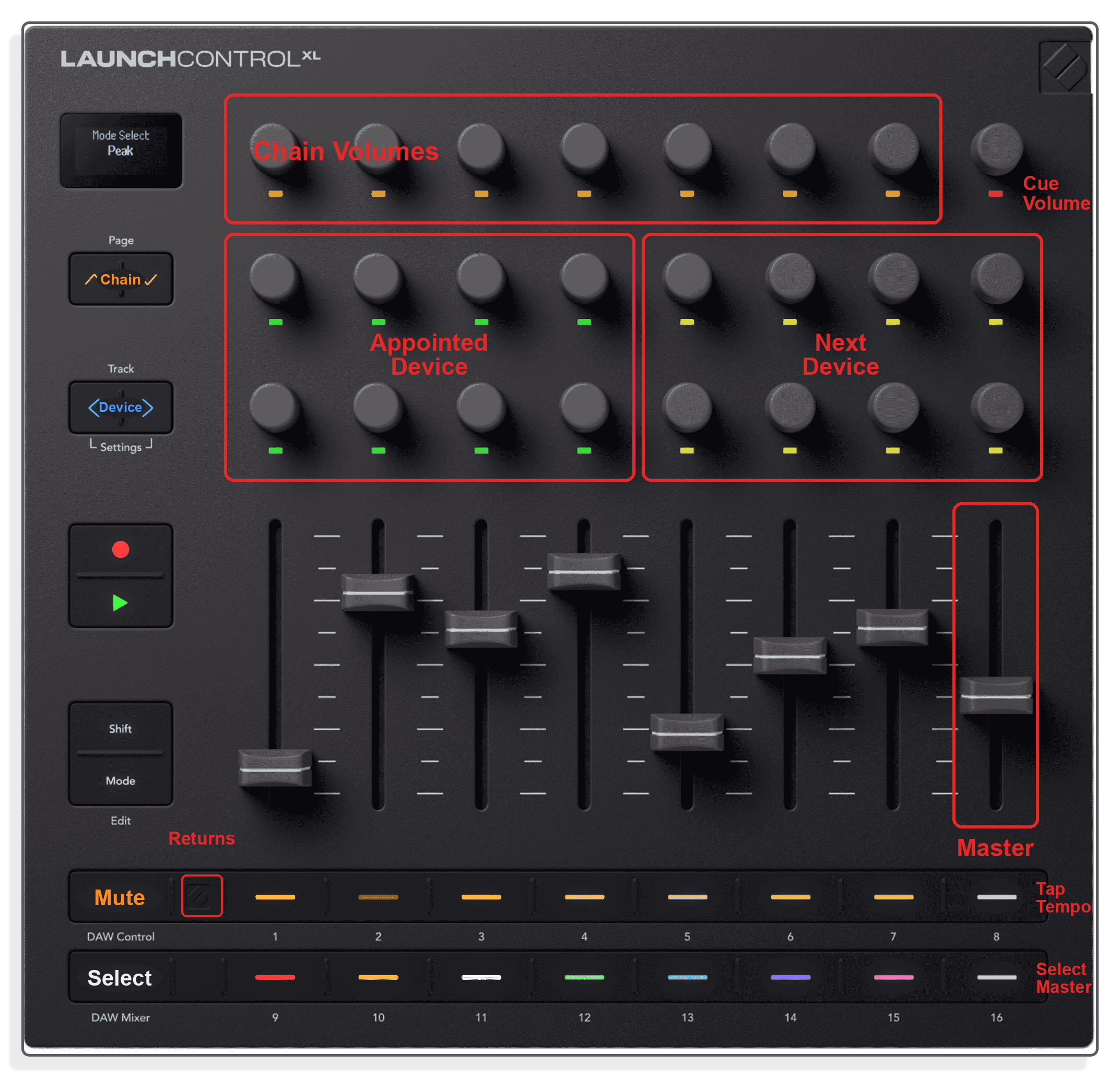
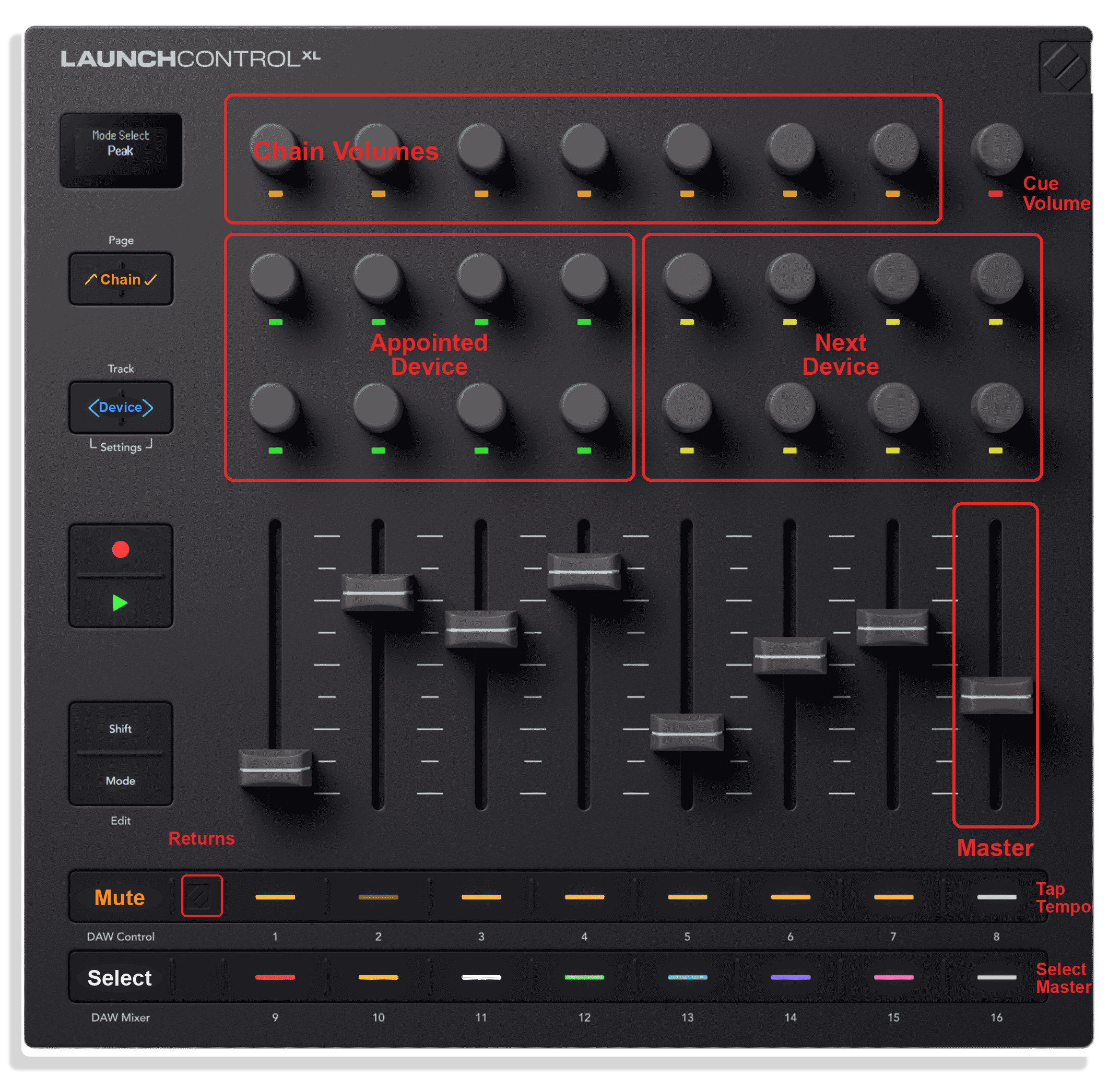
One button reconfigures the entire surface. The left block of eight encoders (green) holds the first eight parameters of the appointed device; the right block (yellow) holds the first eight of the next device in the chain. Two successive devices are live at the same time. The faders stay on track volume throughout, so the mix is never out of reach.
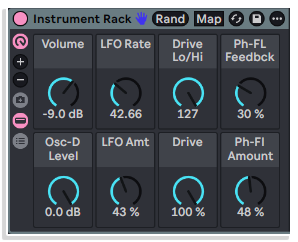
Rack Macros on the encoders
EIGHT PARAMETERS YOU CHOSE, NOT EIGHTY YOU DIDN'T
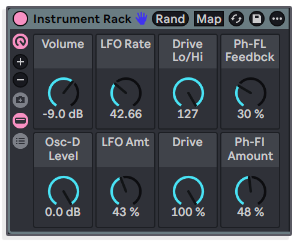
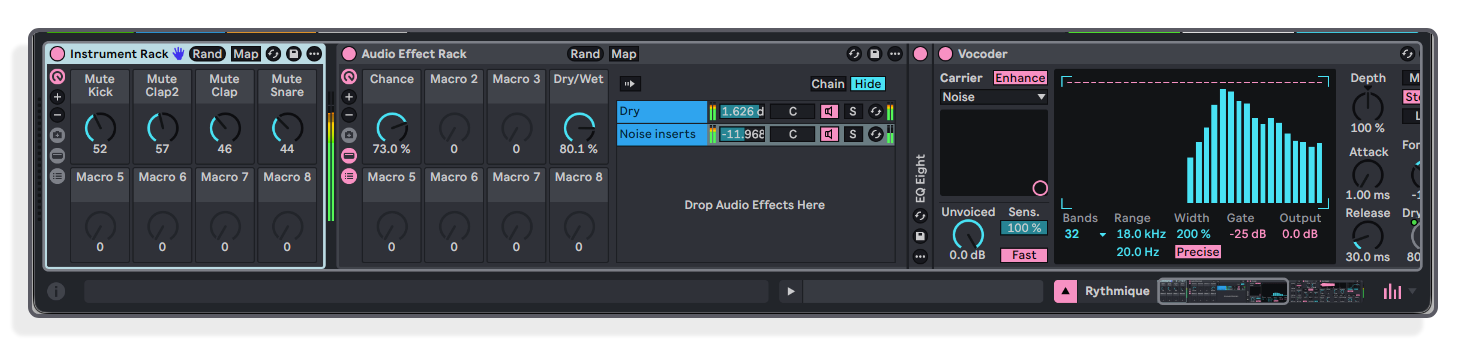
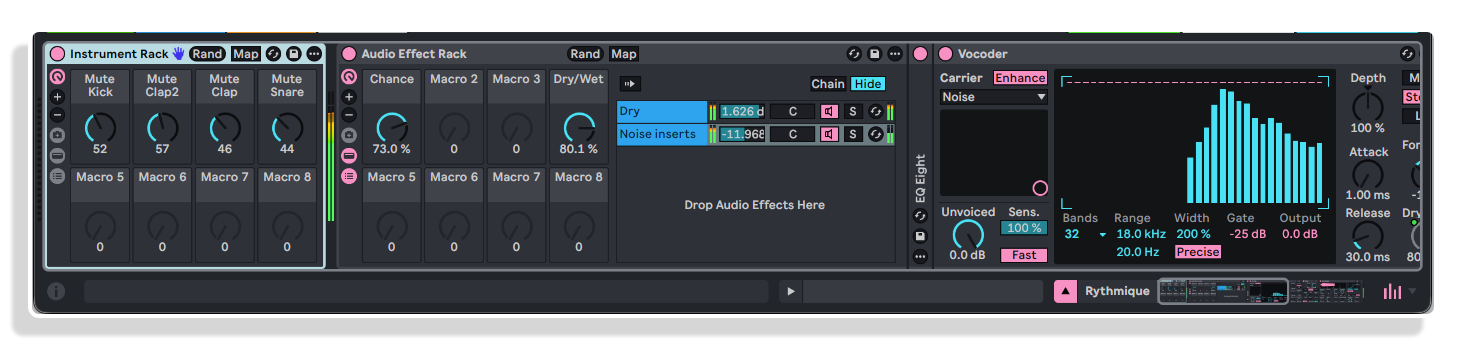
Point the surface at a Rack and the encoders land on macros you named yourself. Eight considered controls beat scrolling through every parameter a device exposes. This is the idea the product is named for: structure the Set deliberately and the controller becomes a purpose-built instrument rather than a generic parameter mapper.
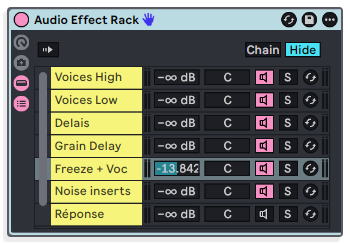
Chain Mixer
THE TOP ROW BECOMES A RACK MIXER
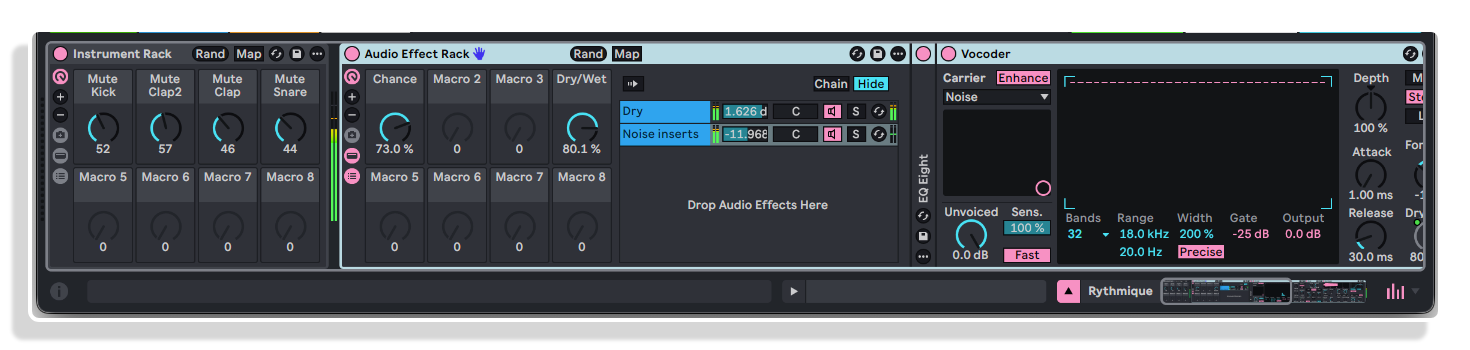
When the appointed device is a Rack, the top encoder row mixes its chains, one encoder per chain, for the first seven chains. Only chains that exist light up, so the row reads out the shape of the Rack at a glance: a Rack with three chains lights three encoders and leaves the rest dark. Nothing like it exists in the built-in script.
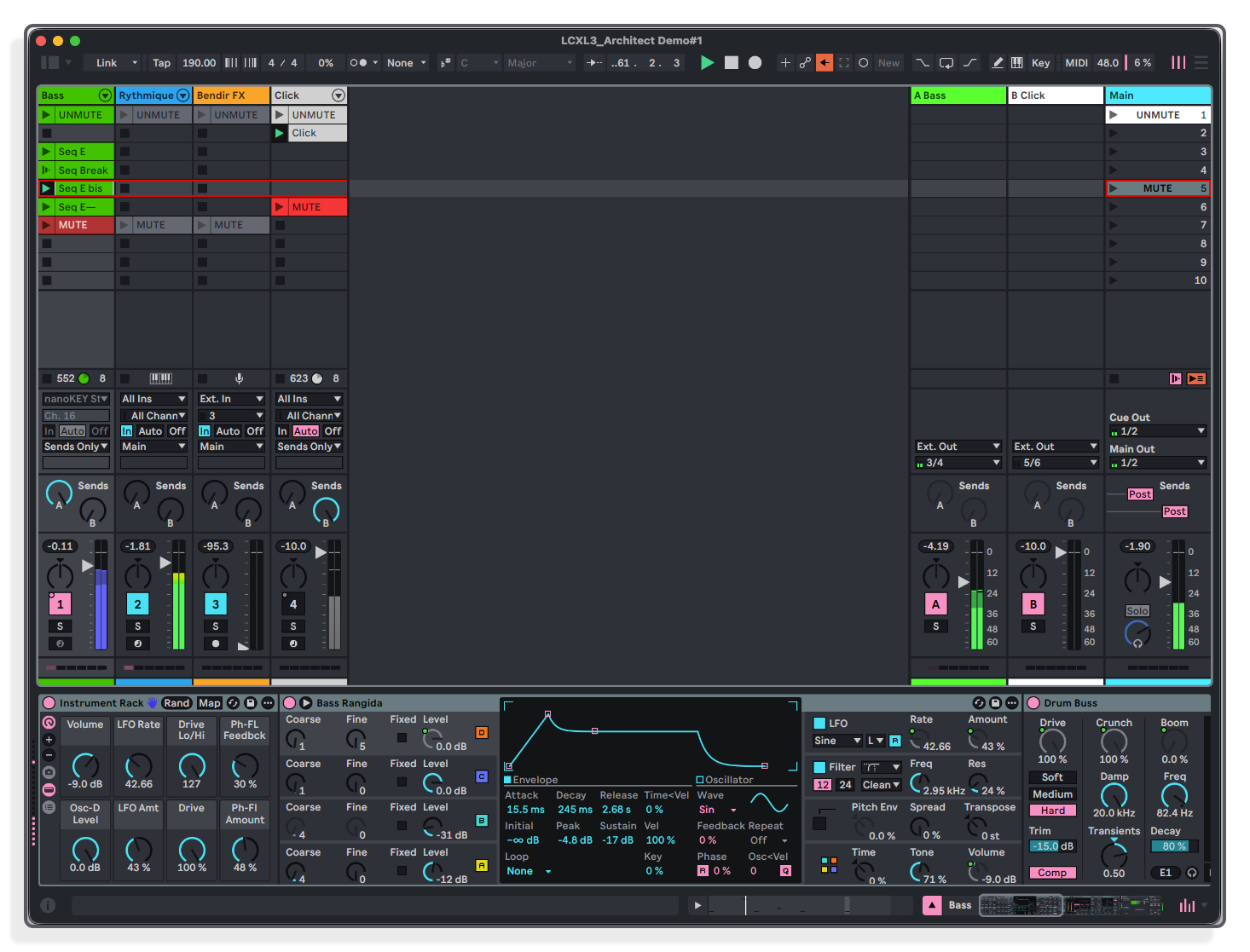
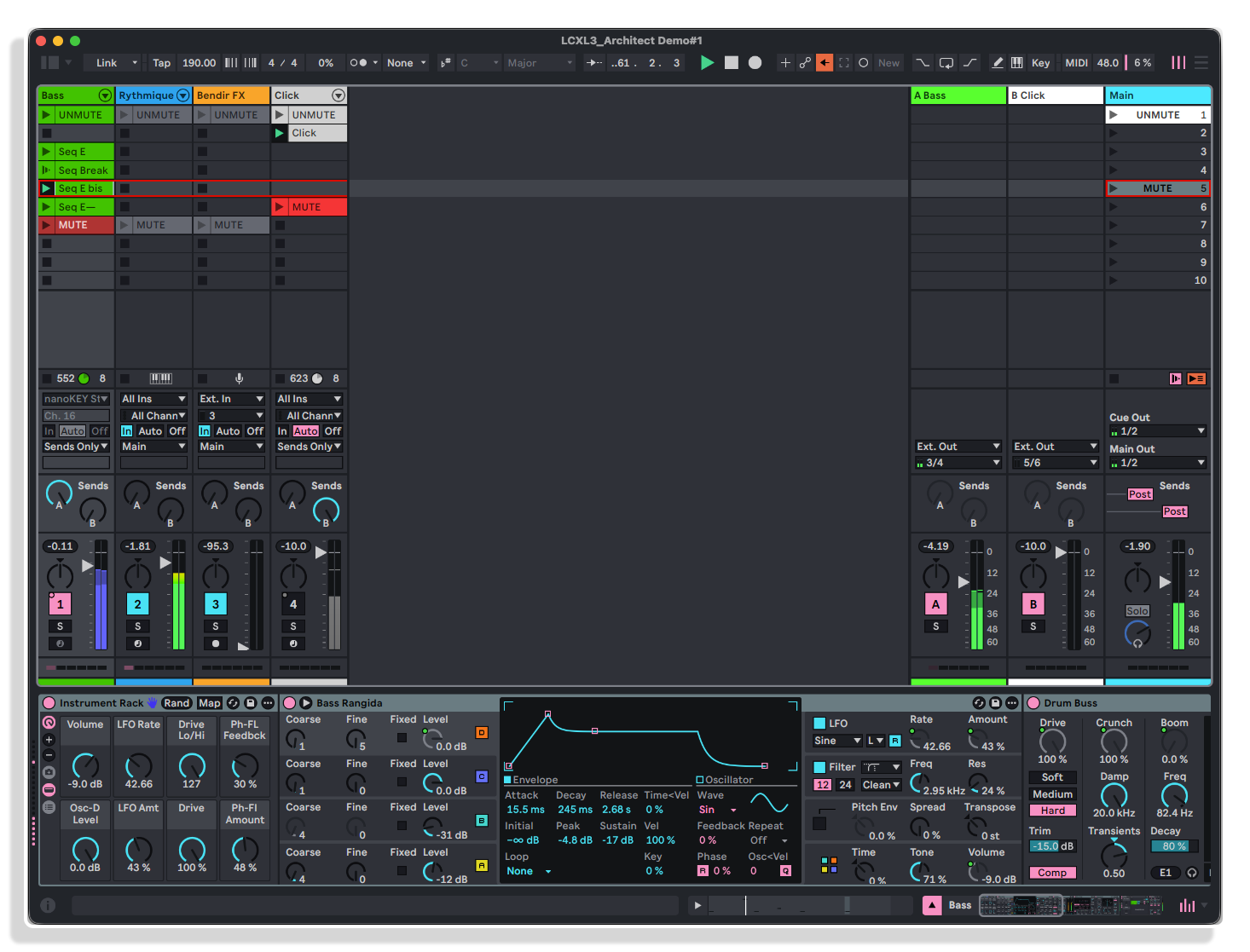
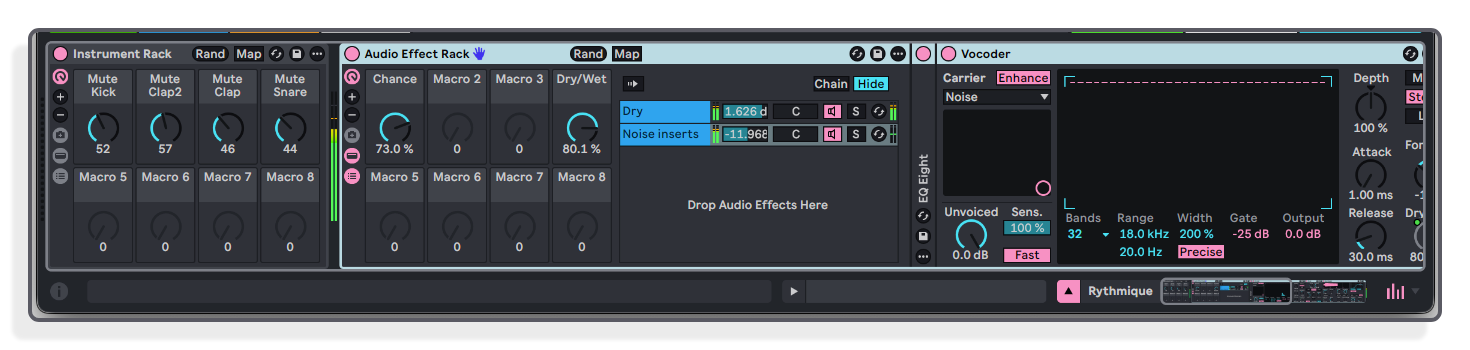
Walking the device chain
WALK THE CHAIN, TWO DEVICES AT A TIME
Track Left and Right step the appointed device along the chain. The highlighted border moves from the first Rack to the second, and the right-hand encoders always pick up whatever comes next. No menu diving, no banking through parameter pages, a send-effect Rack and the device after it stay live together.
The session ring
THE CONTROLLER TELLS YOU WHERE IT IS
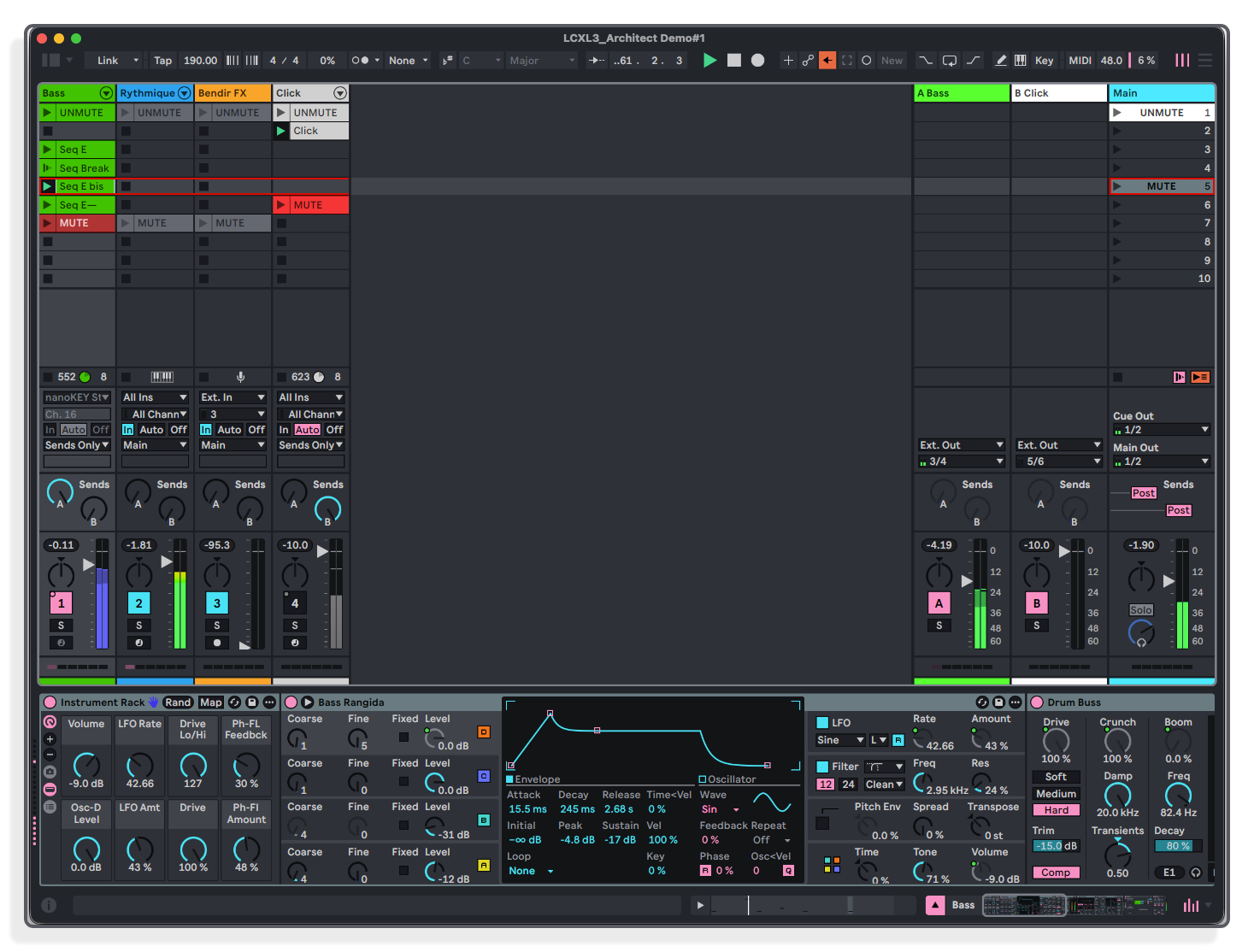
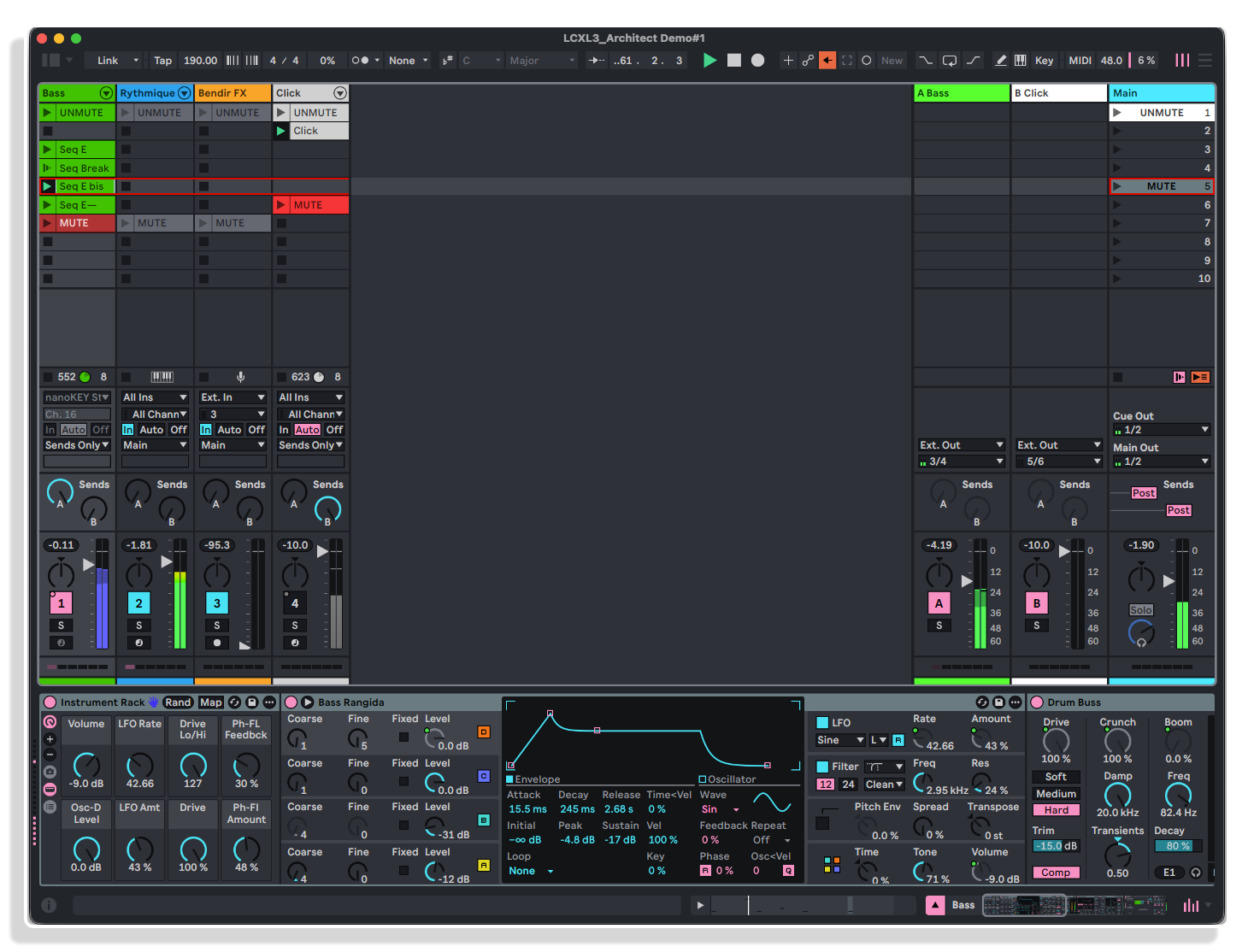
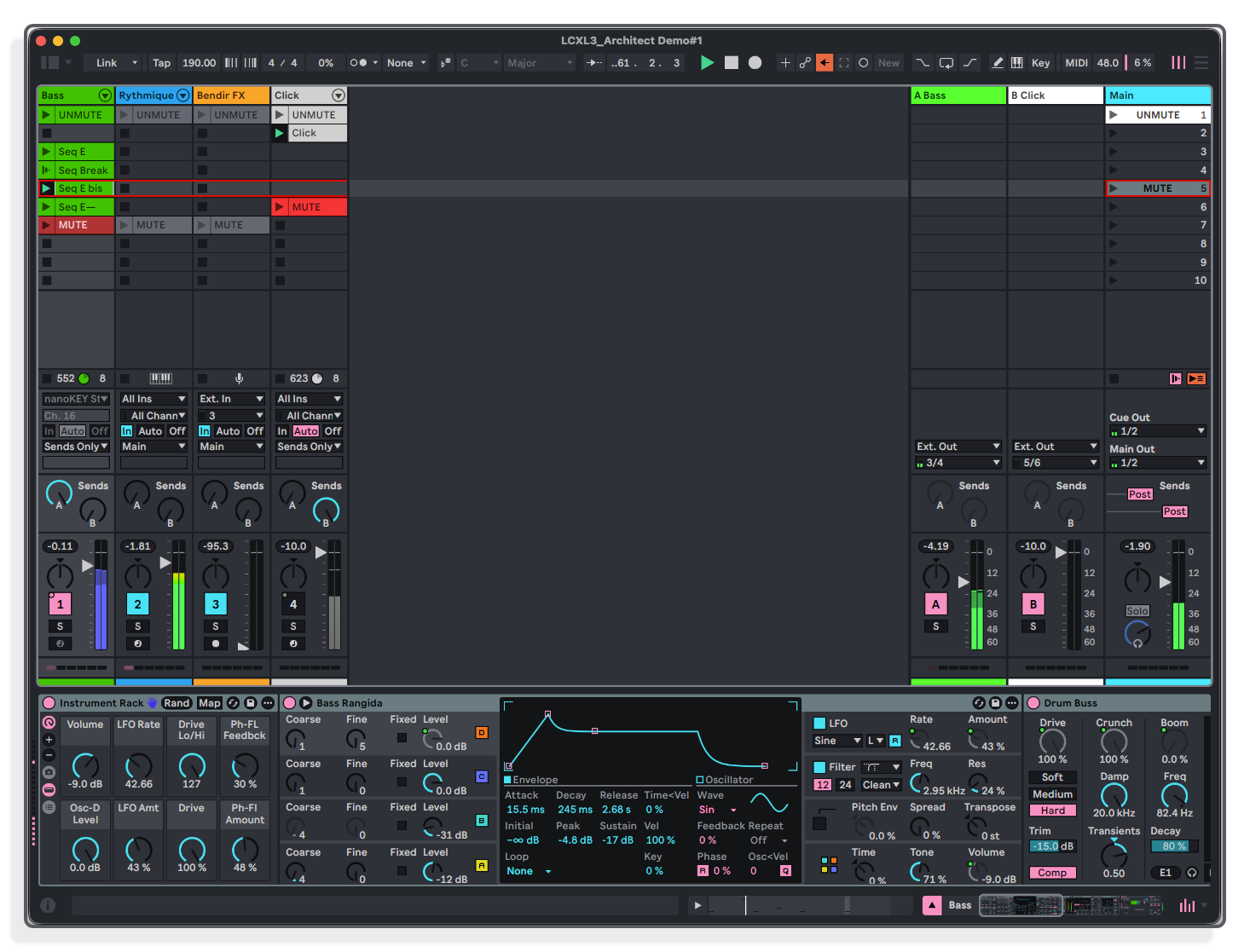
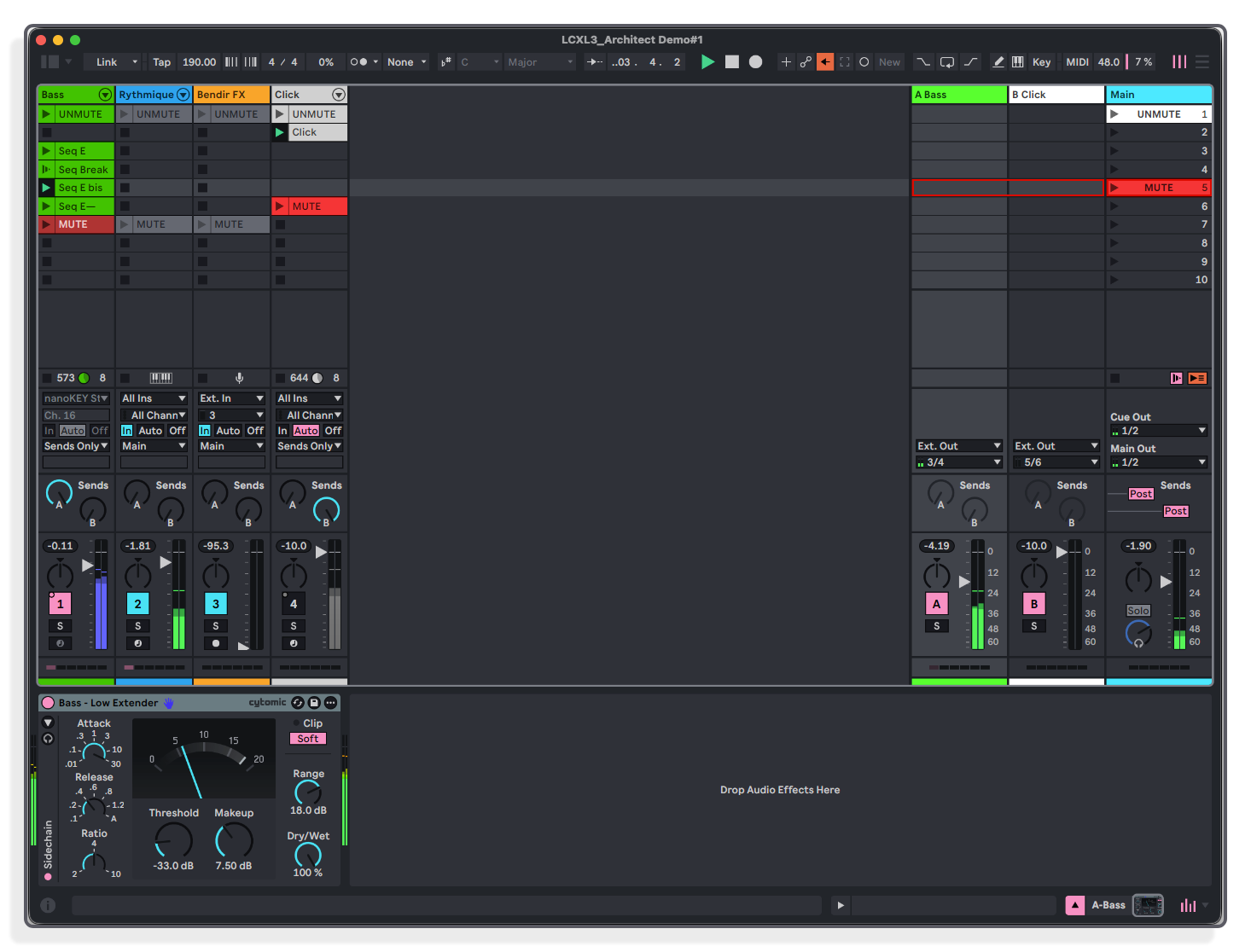
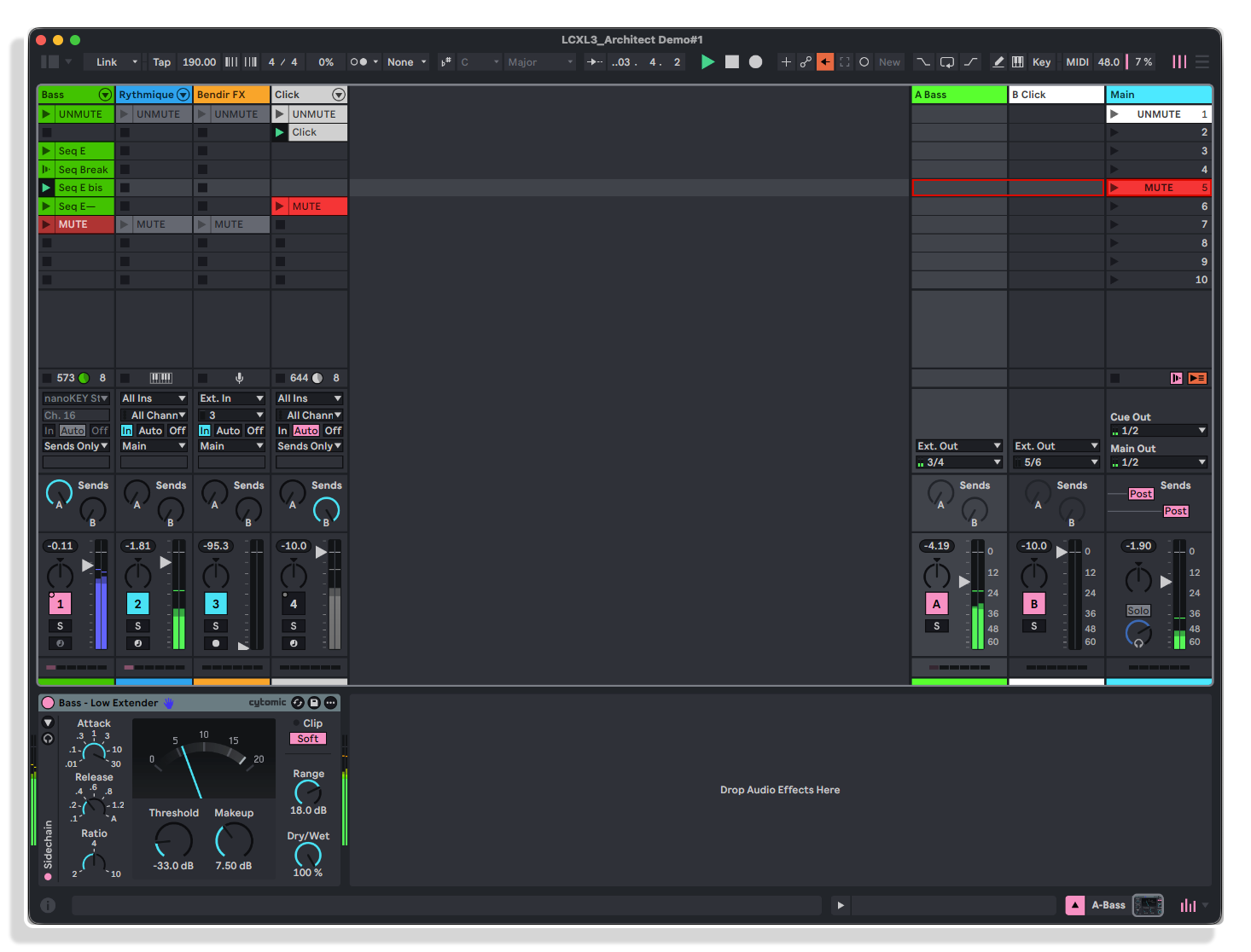
A ring in Live's Session View shows which seven tracks the surface currently owns — the built-in script shows nothing at all. One button crosses to the return tracks and back, remembering the position on each side. Selecting a track in Live brings the ring to it, but moving the ring leaves your selection alone, so the faders can travel without disturbing the device the encoders are holding.
Installation
INSTALL IT AND IT IS THERE
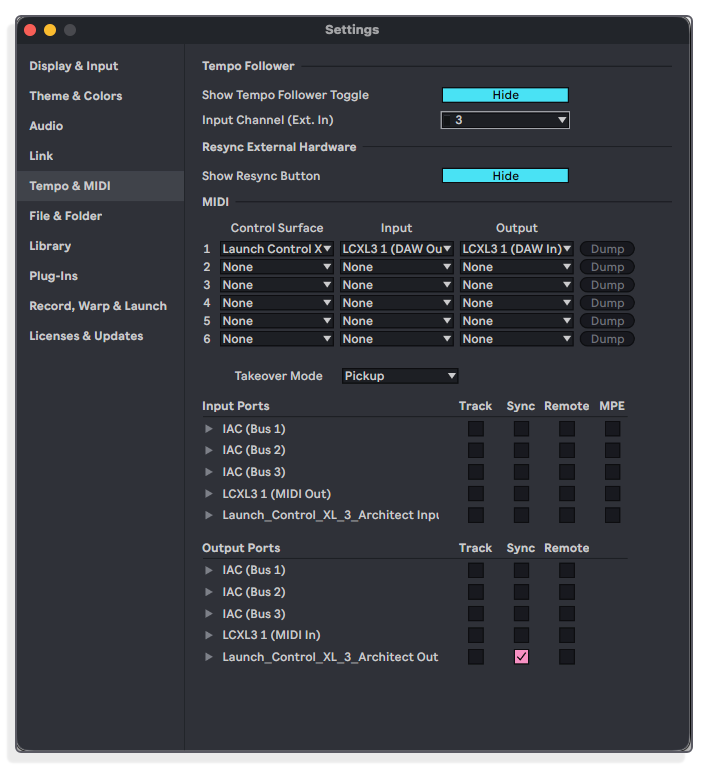
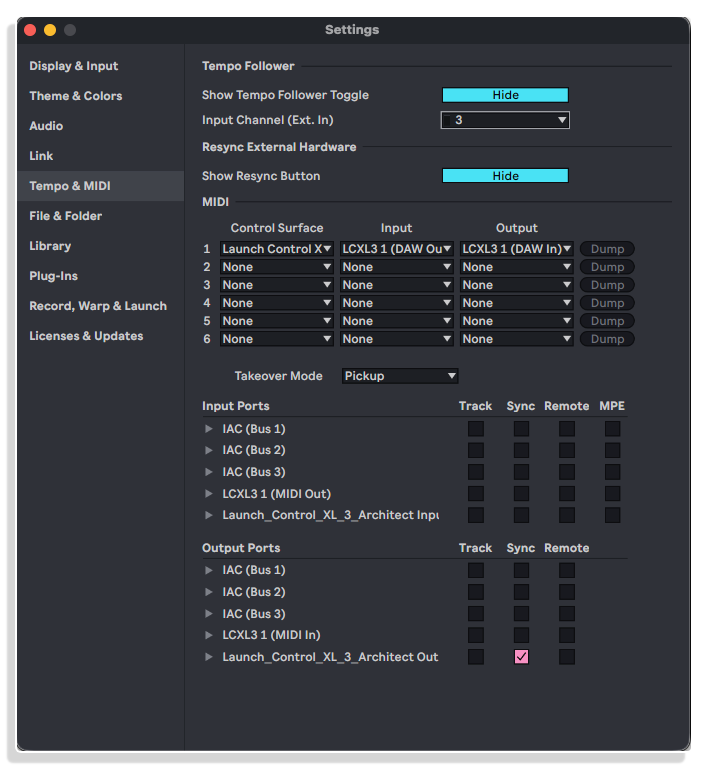
Drop the folder into the User Library, restart Live, and the script appears in the Control Surface list. No Max for Live, no other dependencies. On a clean Windows 10 / Live 12.4.5 machine it was selected automatically on launch, with input and output already set.
Important Information
INSTALLATION
Installing a control surface script
These steps work for any third-party control surface script (also called a remote script) in Ableton Live 10.1.13 or later, on Mac and Windows.
1. Download and unzip
Download the product from your Isotonik Studios account and unzip it. Inside you will find the script folder and the product manual. Keep the script folder exactly as it is: do not rename it, and do not put it inside another folder.
2. Create a “Remote Scripts” folder in your User Library
Live loads third-party scripts from a folder called “Remote Scripts” inside your User Library. If you do not have one yet, create it, spelled exactly as shown.
- Mac: Macintosh HD/Users/[username]/Music/Ableton/User Library
- Windows: \Users\[username]\Documents\Ableton\User Library
If you have moved your User Library, find it in Live under Preferences > Library > Location of User Library (Settings in Live 12), and create the “Remote Scripts” folder there.
3. Copy the script folder into “Remote Scripts”
Place the script folder directly inside “Remote Scripts”, so the script’s files sit one level down:
User Library > Remote Scripts > [script folder] > script files
4. Restart Live
If Live is already open, close it and open it again so it finds the new script.
5. Select the script
Connect your controller, then open Preferences > Link, Tempo & MIDI (Settings in Live 12). In a free Control Surface slot, choose the script from the dropdown, then set its Input and Output to your controller’s ports.
6. Switch on the MIDI ports
In the MIDI Ports section, switch on Remote (and Track, if the product’s manual asks for it) for the ports the script uses. Live usually shows a confirmation message in its status bar when the script loads.
Good to know
- Live 11 and later only run scripts written for Python 3. A script made for Live 10 or earlier will not appear in Live 11 or 12, so download the version that matches your Live version.
- If the script does not appear in the Control Surface list, check that it is not nested inside an extra folder (the most common cause after unzipping), then restart Live.
- Scripts in your User Library’s “Remote Scripts” folder keep working when you update Live.
- Keep your controller on its default MIDI settings unless the product’s manual says otherwise.
Please refer to this product’s manual for further details specific to this product.
LICENSE
END-USER LICENSE AGREEMENT FOR ISOTONIK STUDIOS SOFTWARE PRODUCTS.
PLEASE READ THE TERMS AND CONDITIONS OF THIS LICENSE AGREEMENT CAREFULLY BEFORE CONTINUING WITH THIS PROGRAM INSTALL.
This End-User License Agreement (referred to as “EULA”) is a legal agreement between an individual or a single entity (referred to as “LICENSEE”) and Isotonik Studios for the Isotonik Studios software product(s) which may include associated software components, media, printed materials, and “online” or electronic documentation (referred to as “SOFTWARE PRODUCT”). By installing, copying, or otherwise using the SOFTWARE PRODUCT, the LICENSEE agrees to be bound by the terms of this EULA.
This EULA represents the entire agreement concerning the program between the LICENSEE and Isotonik Studios and it supersedes any prior proposal, representation, or understanding between the parties. If the LICENSEE does not agree to the terms of this EULA, the LICENSEE should not install or use the SOFTWARE PRODUCT.
The SOFTWARE PRODUCT is protected by copyright laws and international copyright treaties, as well as other intellectual property laws and treaties. The SOFTWARE PRODUCT is licensed, not sold.
- GRANT OF LICENSE.
The SOFTWARE PRODUCT is licensed as follows:
(a) Installation and Use. Providing that the LICENSEE has paid any applicable license fees, Isotonik Studios grants the LICENSEE the right to install and use copies of the SOFTWARE PRODUCT on up to two computers in the LICENSEE’s possession that are running a validly licensed copy of the operating system for which the SOFTWARE PRODUCT was designed [e.g., Windows 10, macOS]. The computer(s) must be owned by the LICENSEE.
(b) Backup Copies. The LICENSEE may also make copies of the SOFTWARE PRODUCT as may be necessary for backup and archival purposes.
- DESCRIPTION OF OTHER RIGHTS AND LIMITATIONS.
(a) Maintenance of Copyright Notices. The LICENSEE must not remove or alter any copyright notices on any and all copies of the SOFTWARE PRODUCT.
(b) Distribution. The LICENSEE may not distribute registered copies of the SOFTWARE PRODUCT to third parties.
(c) Prohibition on Reverse Engineering, Decompilation, and Disassembly. The LICENSEE may not reverse engineer, decompile, or disassemble the SOFTWARE PRODUCT, except and only to the extent that such activity is expressly permitted by applicable law notwithstanding this limitation.
(d) Rental. The LICENSEE may not rent, lease, or lend the SOFTWARE PRODUCT.
(e) License transfer The LICENSEE may not transfer their license to the SOFTWARE PRODUCT to any third party. Any attempt to do so will be considered a violation of this EULA.
(f) Support Services. Isotonik Studios may provide the LICENSEE with support services related to the SOFTWARE PRODUCT for a period of 12 months following the date of purchase. Any supplemental software code provided to the LICENSEE as part of the Support Services shall be considered part of the SOFTWARE PRODUCT and subject to the terms and conditions of this EULA.
(g) Compliance with Applicable Laws. The LICENSEE must comply with all applicable laws regarding use of the SOFTWARE PRODUCT.
- TERMINATION Without prejudice to any other rights, Isotonik Studios may terminate this EULA if the LICENSEE fails to comply with the terms and conditions of this EULA. In such event, the LICENSEE must destroy all copies of the SOFTWARE PRODUCT in the LICENSEE’s possession.
- COPYRIGHT All title, including but not limited to copyrights, in and to the SOFTWARE PRODUCT and any copies thereof are owned by Isotonik Studios or its suppliers. All title and intellectual property rights in and to the content which may be accessed through use of the SOFTWARE PRODUCT is the property of the respective content owner and may be protected by applicable copyright or other intellectual property laws and treaties. This EULA grants the LICENSEE no rights to use such content. All rights not expressly granted are reserved by Isotonik Studios.
- NO WARRANTIES Isotonik Studios expressly disclaims any warranty for the SOFTWARE PRODUCT. The SOFTWARE PRODUCT is provided ‘As Is’ without any express or implied warranty of any kind, including but not limited to any warranties of merchantability, noninfringement, or fitness of a particular purpose. Isotonik Studios does not warrant or assume responsibility for the accuracy or completeness of any information, text, graphics, links or other items contained within the SOFTWARE PRODUCT. Isotonik Studios makes no warranties respecting any harm that may be caused by the transmission of a computer virus, worm, time bomb, logic bomb, or other such computer program. Isotonik Studios further expressly disclaims any warranty or representation to the LICENSEE or to any third party.
- LIMITATION OF LIABILITY In no event shall Isotonik Studios be liable for any damages (including, without limitation, lost profits, business interruption, or lost information) arising out of the LICENSEE’s use of or inability to use the SOFTWARE PRODUCT, even if Isotonik Studios has been advised of the possibility of such damages. In no event will Isotonik Studios be liable for loss of data or for indirect, special, incidental, consequential (including lost profit), or other damages based in contract, tort or otherwise. Isotonik Studios shall have no liability with respect to the content of the SOFTWARE PRODUCT or any part thereof, including but not limited to errors or omissions contained therein, libel, infringements of rights of publicity, privacy, trademark rights, business interruption, personal injury, loss of privacy, moral rights or the disclosure of confidential information.
CHANGELOG
v1.0 · released 12 Oct 2026
Initial release
v1.0 · 12 October 2026
Initial release
Frequently Asked Questions
What is LCXL3 Architect?
LCXL3 Architect is a custom Ableton Live 12 control surface script for the Novation Launch Control XL 3. It extends Novation’s native integration rather than replacing it, adding whole-surface modes, a visible session ring, dual-device encoder control, a Chain Mixer, Master-Link, and Tap Tempo, all built for live performance.
Which version of Ableton Live does it require?
Ableton Live 12.3.8 or later is required. This is a hard minimum because the script depends on part of Live 12’s v3 Control Surface API introduced in 12.3. It has been tested up to Live 12.4.6. Live Standard or Suite editions are supported; Intro and Lite are not.
Does it require Max for Live?
No. LCXL3 Architect is a standalone control surface script and does not require Max for Live.
How does this differ from the built-in Novation script?
The built-in script re-assigns only the encoder rows when you change mode, and shows no session ring. LCXL3 Architect reconfigures the whole surface — encoders, button rows, and the Page and Track buttons — in one mode change, and adds a visible session ring in Live’s Session View. Beyond that reorganisation, five functions the built-in script does not provide at all: Next Device, which puts two successive devices under your hands at once; the Chain Mixer; Master-Link; group fold; and Tap Tempo with a beat-pulsing LED.
What is included in the download?
Your download contains the Launch_Control_XL_3_Architect control surface script, a 17-page illustrated PDF user manual, a demo Live Set built around the script and saved in Live Standard 12.3.8, and a licence file.
Who is LCXL3 Architect designed for?
It is designed for Ableton performers and producers who want their hardware to reflect the internal structure of their Live Set. It is precise and opinionated, and is used on stage by its developer, a computer music designer who performs regularly with ensembles and builds the tools his own performances demand.
Which MIDI ports should I select?
Set both Input and Output to the controller’s DAW port — LCXL3 1 (DAW In) and LCXL3 1 (DAW Out) on macOS, LCXL3 1 MIDI (Port 2) on Windows. The controller’s other ports carry different traffic and will not drive the script; choosing the plain MIDI port is by far the most common reason the controller stays dark. Live will often set this up for you if the controller is connected before Live starts.
Can I use it alongside Novation's built-in script?
Run one at a time. LCXL3 Architect answers to the same controller identity as Novation’s built-in Launch Control XL 3 script, so Live may auto-select either one. Check your other Control Surface slots and make sure Launch Control XL 3 is not selected in one of them as well — two scripts on the same ports will fight over the controller.
In Depth
What LCXL3 Architect is
LCXL3 Architect is a custom Ableton Live 12 control surface script for the Novation Launch Control XL 3, built for live performance. It extends Novation’s native integration rather than replacing it. Everything familiar from the built-in script stays where it is, and your download takes the controller further into the mix, the devices, and the way a Live Set is structured. No Max for Live is required.
Live 12.3.8 is a hard minimum because the script depends on a part of Live 12’s v3 Control Surface API introduced in that version. It has been tested through to Live 12.4.6, on both macOS and Windows.
How it differs from the built-in script
The built-in script switches encoder rows and button rows separately. In LCXL3 Architect, one mode change reconfigures the whole surface at once: encoder rows, button rows, and the Page and Track buttons all shift together. The controller behaves as a single coherent instrument rather than a set of independently toggled layers.
A session ring appears in Live’s Session View, highlighting the seven tracks the controller currently holds. The built-in script shows nothing there. The ring and the selected track are linked one way only: selecting a track in Live brings the ring to it, but moving the ring leaves the selection alone. That means the faders can travel elsewhere in the Set without disturbing the device the encoders are holding. Faders 1 to 7 follow the ring; fader 8 is permanently the master, which is why the ring is seven tracks wide.
DAW Mixer mode
In DAW Mixer mode the top two encoder rows control sends across 14 encoders, paging through all sends two at a time and lighting in turquoise. The bottom encoder row controls pan, with the LED colour sweeping from blue at the left through white at centre to orange at the right. Encoder column 8 handles cue volume, scene scroll, and track scroll. Faders 1 to 7 carry track volumes, and fader 8 is always the master.
The upper button row is Solo (blue) and the lower is Arm (red). The left-most button in each row acts on all seven ring tracks at once; hold Shift and it widens to the whole session. Track Left and Right move the session ring; Shift pages it seven tracks at a time. Press the Novation button to cross to the return tracks, where strips right-justify toward the master as on a hardware console. Ring position and track selection are remembered separately on each side of that crossing.
DAW Control mode
In DAW Control mode the left encoder block of eight controls parameters 1 to 8 of the appointed device (green). The right encoder block of eight controls parameters 1 to 8 of the next device in the chain (yellow), so two successive devices are live under your hands at the same time. The top encoder row (orange) becomes a chain mixer when the appointed device is a Rack: each encoder carries the volume of one of the Rack’s first seven chains, and only the encoders for chains that actually exist light up, so the row reads out the shape of the Rack at a glance.
The faders remain live throughout DAW Control mode, so the mix is never out of reach while you are working a device. The upper button row is Mute (orange) and the lower is Track Select, each lit in the track’s own colour. Track Left and Right walk the appointed device pair along the chain. Page Up and Down select the Rack chain. Hold Shift and press a track button to jump the ring so that track becomes its first strip.
Record and Play follow Live’s active view. In Arrangement they behave as in the built-in script. In Session View they are repurposed: Play launches the selected scene and advances the selection to the next, ready for the following launch, while Record steps the scene selection without firing it. Record moves up one scene, and Shift with Record moves down one.
Five things the built-in script does not do
Next Device puts the device after the appointed one on the right half of the encoders, so two successive devices are controllable simultaneously, without menu diving or parameter paging. Chain Mixer turns the top encoder row into a volume mixer for the first seven chains inside a Rack, with only live chains lighting up.
Master-Link lets return track volumes bind to the master fader and follow it in real time. Because return tracks cannot be armed, the arm buttons are repurposed as Master-Link toggles (cyan). A global enable and disable preserves which tracks are linked when switched off, which means you can drop the whole wet bus in one move with the send balance intact. Group Fold adds a second press on a group track’s select button to fold or unfold the group. Tap Tempo turns the Master Control button into a tap target, and its LED pulses in time with the beat as a constant visual tempo reference on stage.
The Shift layer
Holding Shift gives a second function to the navigation buttons, the two left-most buttons, and in DAW Control mode the track buttons as well. From the Shift layer you can page the ring, select the previous or next track or scene, unsolo or unarm the whole session, link or unlink every return at once, toggle the beat pulse, and jump the ring to any track position instantly.
Visual feedback
The built-in script’s visual language is preserved and extended. Each function has a consistent colour: green for the appointed device, yellow for the next device, orange for chain volumes, turquoise for sends, blue through white through orange for pan, and cyan for Master-Link. The XL 3’s native three-line display shows the current track range and appointed device name at rest, and updates live with parameter names and values, chain names, send names, and mode changes as you work.
Real usage scenarios
Playing a live set: the ring frames the seven tracks of the current section while the encoders stay locked on an effect Rack several tracks away. Moving the faders elsewhere never steals the device you are holding. Riding a send bus: link the reverb and delay returns to the master, pull the master fader, and the whole wet bus comes down with the send balance intact. The Master-Link approach is equally suited to multi-output and directOut rigs.
Working a Rack live: put the effects you perform with into one Audio Effect Rack, name eight macros, and the left encoder block becomes a purpose-built performance instrument. Moving through a chain: Track Left and Right walk the device pair along the chain, so a send-effect Rack and the device after it are both live at the same time, without touching the mouse.
The Architect idea
The name reflects the design intent. Rack Macros make ideal performance parameters, eight curated controls per device, two devices at once. A Set designed with the controller layout in mind unlocks the deepest level of hardware control. Structure your session and it becomes your instrument. LCXL3 Architect is precise, opinionated, and used on stage by its developer, a computer music designer who performs regularly with ensembles and builds the tools his own performances demand. How you make it yours is the interesting part.
What is in your download
Your download contains the Launch Control XL 3 Architect control surface script, a 17-page illustrated user manual in PDF, a demo Live Set built around the script and saved in Live Standard 12.3.8, and a licence file.