Miles Kvndra dives into Ableton Push 3 with a live jam session—exploring standalone workflows, MIDI editing, and sound design using Max for Live and Wavetable.
Hands-On With Push 3: Creating a Beat From Scratch
In this walkthrough video, Miles Kvndra shares his first hands-on session with the Ableton Push 3 in standalone mode. Rather than a polished review, this is an honest, exploratory jam session that dives deep into how Push 3 can serve as a self-contained production station. From loading samples to sound designing with Wavetable, and from laying down grooves to applying multi-effects, Miles demonstrates how intuitive and powerful Push 3 really is for both quick sketches and deeper sessions.
Initial Setup & Project Structure
Miles starts with a custom template that pre-defines key groupings like kicks, snares, hats, and synths. This modular workflow helps him jump straight into beat-making without setup delays. Using Push 3’s standalone mode, he’s able to route audio directly via just power and audio cables—no laptop needed.
Building the Beat: Kick & Bass Foundation
The beat begins with an arpeggiated loop created using a Max for Live device by Ad Rolo. From there:
- A kick is chosen using Push 3’s drum rack and samples from Production Music Live’s BMB pack.
- The kick pattern is recorded, quantized, and edited using Push’s upgraded MIDI tools.
- Miles then builds a sub bass using Ableton’s Wavetable, adjusting envelopes, disabling unwanted MPE modulations, and shaping it into a punchy, mono-friendly low-end.
Percussion & Hihat Layering
Hi-hats are added via audio and MIDI drum rack layers:
- A short closed hat sample is trimmed in Simpler.
- EQ and creative FX are applied using EQ Eight and a custom Vocoder effect from Miles’ personal library.
- He blends the sound using a dry/wet mix for added texture and depth.
Chords & Pads With MPE Dynamics
Pushing the expressive capabilities of Push 3:
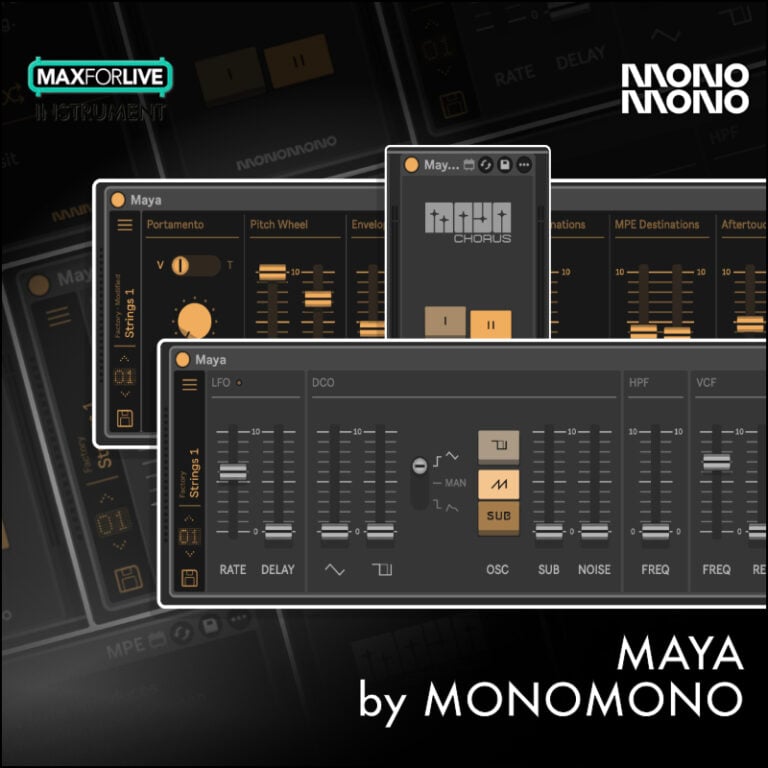
- Miles loads a custom Max for Live pad synth and processes it using his multi-effects rack (with reverb, delay, chorus, sidechain, and EQ).
- The result: a dreamy, evolving pad layered via expressive MPE playing, demonstrating the responsive feel of Push 3’s new hardware.
Workflow Notes & Creative Observations
Throughout the video, Miles shares practical thoughts on Push 3:
- MIDI editing is vastly improved—navigating, nudging, and editing notes feels far more intuitive.
- MPE behavior isn’t always consistent—disabling modulations takes a few manual steps.
- Custom template benefits: Having mapped macros, effects chains, and preloaded group tracks speeds up creativity significantly.
Final Thoughts & Future Plans
Miles hints at bigger ambitions—using Push 3 as the brain of a live rig, replacing even his audio interface. He’s also exploring performance setups with hardware like the Digitone and controllers like the MPK Mini 25, potentially eliminating the need for a laptop altogether.
Have you tried Push 3 in standalone mode? What’s your experience been like? Let us know in the comments!
If you’re into building live sets or designing expressive sounds inside Ableton, stay tuned—Miles promises future videos on integrating Push 3 with hardware, performance workflows, and more advanced MPE setups.