
Session Clips by KILLIHU
SESSION VIEW MEETS ARRANGEMENT—WITHOUT THE VIEW SWITCHING
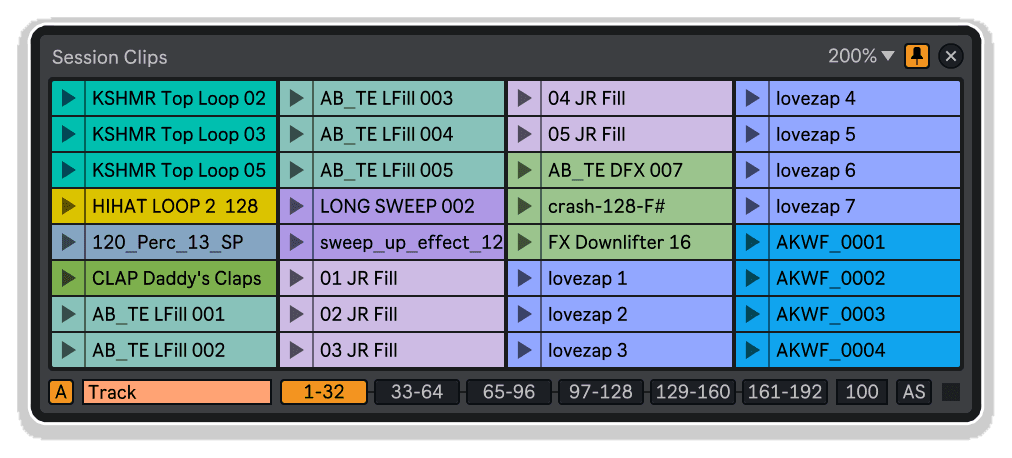
Stop toggling between Session and Arrangement views with Session Clips by killihu—a floating window that displays Session View clips while you work in Arrangement, enabling drag-and-drop insertion, click-to-insert at playhead, and Session clip triggering without leaving Arrangement View.
Bridge the gap between improvisation and composition with seamless hybrid workflow integration.
Inside you’ll find:
- Floating window displaying Session View clips in Arrangement View
- Dual insertion methods: drag-and-drop or click to insert at playhead
- Automatic mode: displays clips from selected track
- Manual mode: choose any track for cross-track clip insertion
- Access up to 192 clips per track via range selector (32 visible at once)
- Visual ghost clip preview during drag operations
- Session clip triggering and stopping from Arrangement View
- Auto Stop mode: halt playing clips when dragging
- Always-on-top docking for constant visibility
- Automatic view awareness: appears in Arrangement, hides in Session
- Keyboard-mappable show/hide button
- Resizable window interface
- Adjustable drag-and-drop delay for system optimization
- Track name and color display
- Compatible with Live 11 and 12
- Complete PDF reference manual included
Your Session clips, always visible—build arrangements without breaking your creative flow.
USER GUIDE: Session Clips 1.2
Session Clips by KILLIHU
SESSION VIEW MEETS ARRANGEMENT—WITHOUT THE VIEW SWITCHING
Stop toggling between Session and Arrangement views with Session Clips by killihu—a floating window that displays Session View clips while you work in Arrangement, enabling drag-and-drop insertion, click-to-insert at playhead, and Session clip triggering without leaving Arrangement View.
Bridge the gap between improvisation and composition with seamless hybrid workflow integration.
Inside you’ll find:
- Floating window displaying Session View clips in Arrangement View
- Dual insertion methods: drag-and-drop or click to insert at playhead
- Automatic mode: displays clips from selected track
- Manual mode: choose any track for cross-track clip insertion
- Access up to 192 clips per track via range selector (32 visible at once)
- Visual ghost clip preview during drag operations
- Session clip triggering and stopping from Arrangement View
- Auto Stop mode: halt playing clips when dragging
- Always-on-top docking for constant visibility
- Automatic view awareness: appears in Arrangement, hides in Session
- Keyboard-mappable show/hide button
- Resizable window interface
- Adjustable drag-and-drop delay for system optimization
- Track name and color display
- Compatible with Live 11 and 12
- Complete PDF reference manual included
Your Session clips, always visible—build arrangements without breaking your creative flow.
USER GUIDE: Session Clips 1.2
Product reviews
5 out of 5
3 reviews
How item rating is calculated
We show the average based on reviews. Only genuine reviews are displayed.
Sort by
September 24, 2026
This reviewer bought this product from our store.
you need this
this is the tool i needed , so happy with it.
I recommend this product
February 16, 2026
This reviewer bought this product from our store.
Very useful!
I recommend this product
July 23, 2025
This reviewer bought this product from our store.
great
Session Clips by KILLIHU
Overview & Inspiration
Why does moving clips from Session View to Arrangement require so many clicks and so much window switching? Why can’t you see your Session clips while working in Arrangement View?
Session Clips by killihu bridges the gap between Live’s two views with a floating window that displays Session View clips while you work in Arrangement. Drag and drop clips directly onto arrangement tracks, click to insert at the playhead position, or trigger Session clips without leaving Arrangement View—all from a resizable, always-visible interface.
This MaxforLive utility transforms your hybrid workflow, making it effortless to audition Session clips, build arrangements, and integrate improvised Session material into structured compositions without constant view switching.
Features & Highlights
Floating Session View Browser – A dedicated, resizable window displays up to 32 Session clips at once (accessing up to 192 total), automatically showing clips from the selected track or manually chosen tracks.
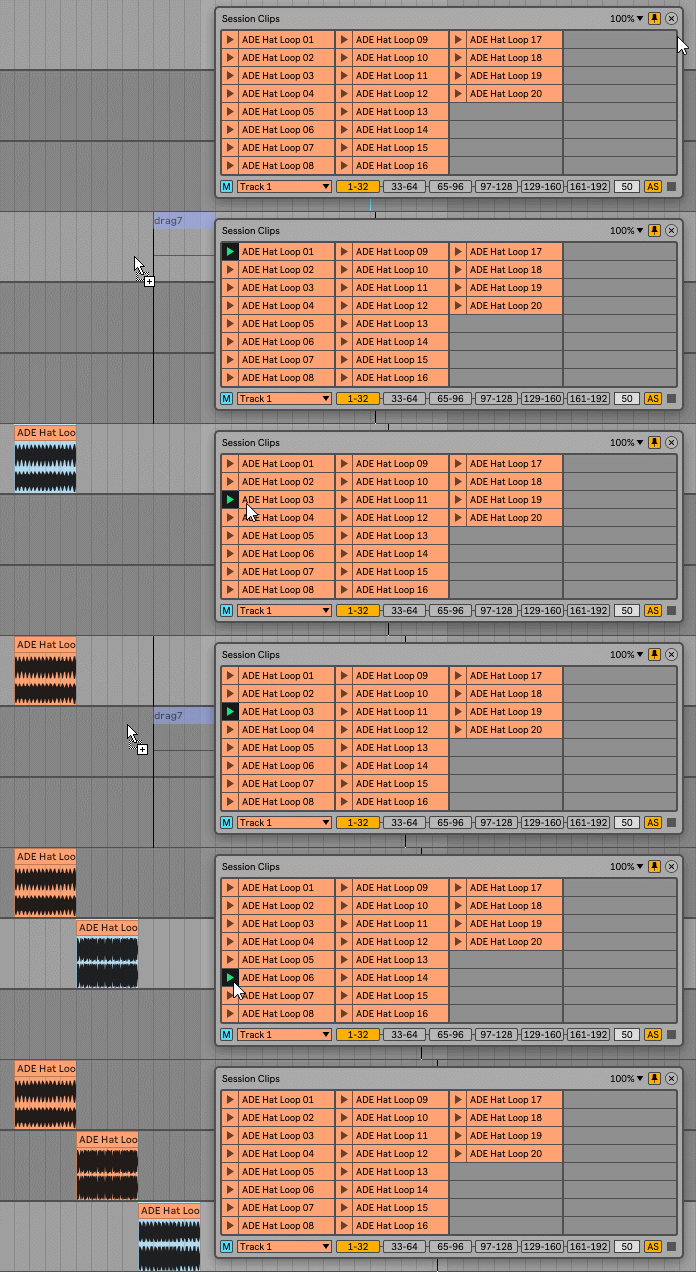
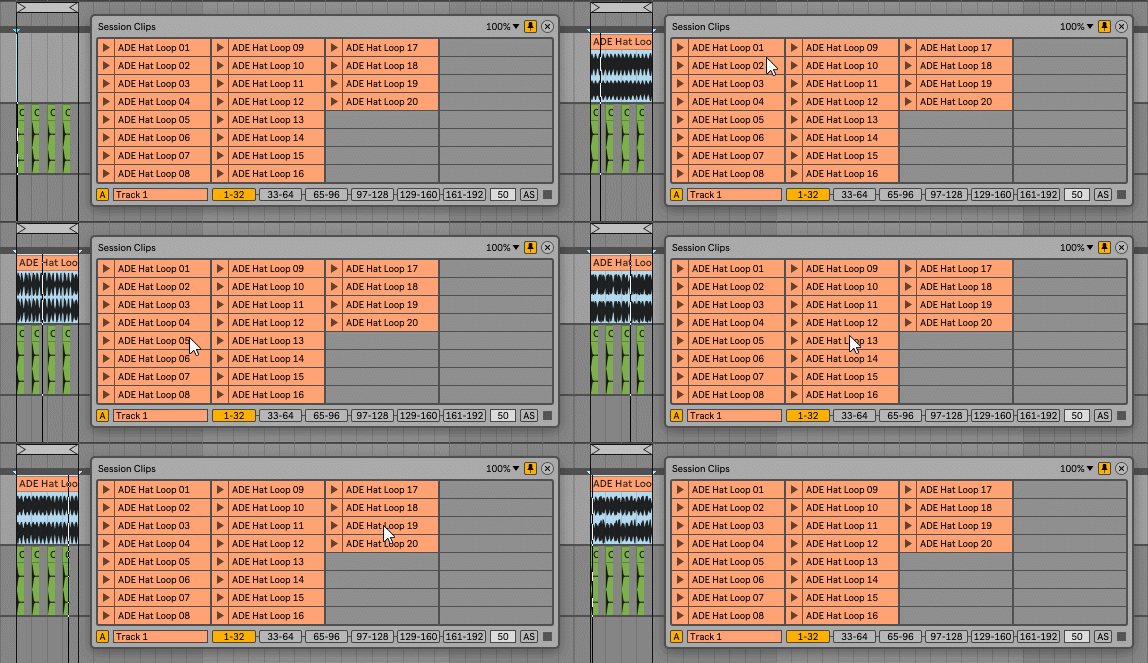
Dual Insertion Methods – Drag clips directly onto arrangement tracks with visual ghost clip previews (64 bars for MIDI, 60 seconds for audio), or click any clip to insert it at the arrangement playhead position—no dragging required.
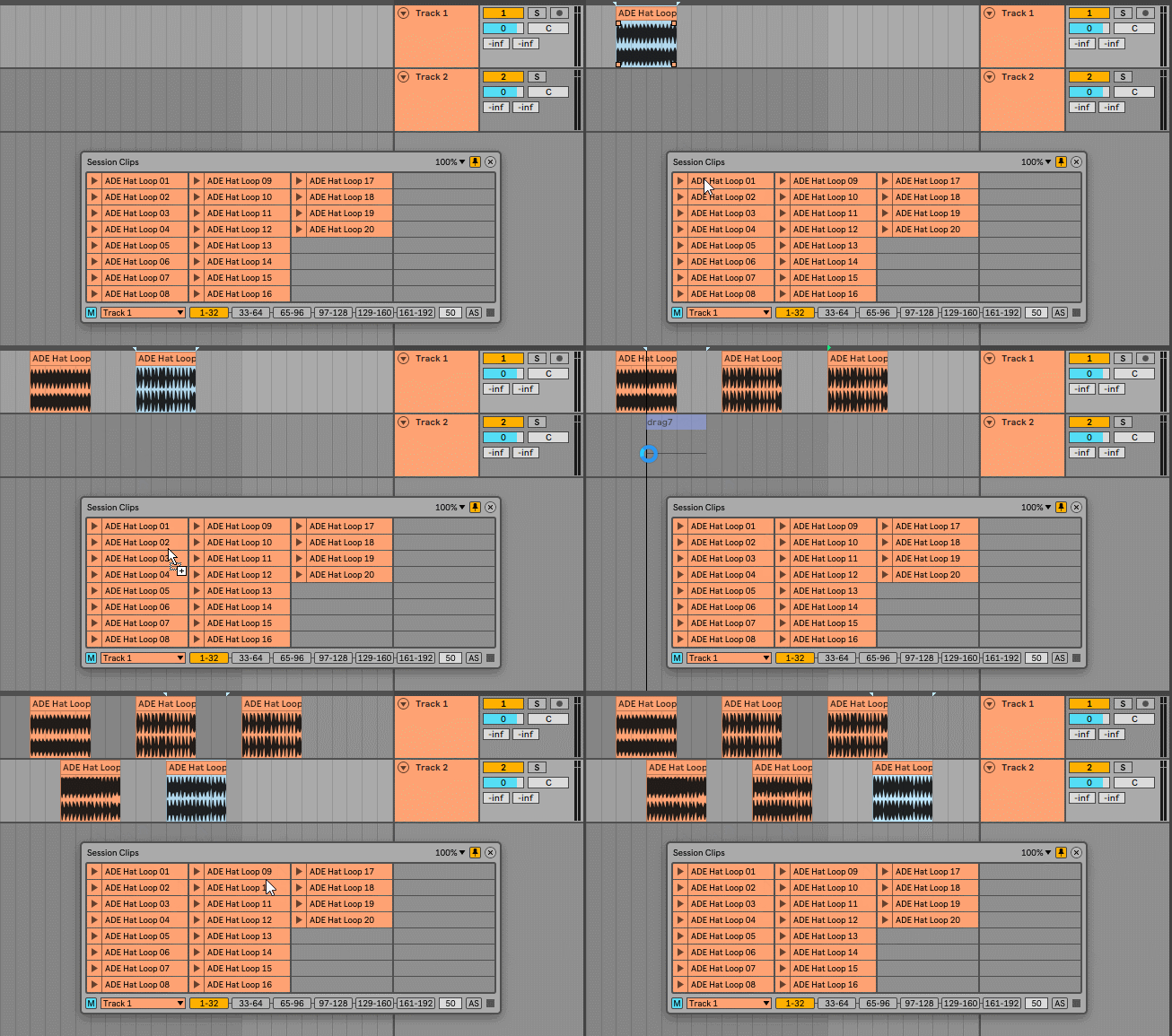
Automatic and Manual Modes – Automatic mode displays clips from the currently selected track, following your workflow naturally. Manual mode lets you choose any track, enabling cross-track clip insertion and creative arrangement building.
Intelligent Ghost Clip System – Visual length indicators during drag operations show approximate clip duration using ghost clips (MIDI up to 64 bars, audio up to 60 seconds), though full-length clips of any duration insert correctly.
Session Clip Triggering – Trigger and stop Session View clips directly from the floating window without switching views, perfect for auditioning material while building arrangements.
Auto-Stop Preview Mode – Enable Auto Stop to automatically halt playing clips when dragging to arrangement, ideal for using a track as a preview station before committing clips to the timeline.
Clip Slot Range Selection – Access up to 192 clips per track using six range buttons (1-32, 33-64, 65-96, 97-128, 129-160, 161-192), accommodating extensive Session View libraries.
Always-On-Top Docking – Keep the floating window visible above all other windows, ensuring constant access to your Session clips regardless of which Live view or external application is active.
Keyboard-Mappable Visibility Toggle – Assign a keyboard shortcut to show/hide the floating window instantly, integrating seamlessly into your existing workflow without mouse navigation.
Automatic View Awareness – The floating window appears only in Arrangement View, hiding automatically when switching to Session View and reappearing when you return—intelligent behavior that stays out of your way.
Adjustable Delay Parameter – Fine-tune drag-and-drop timing to match your computer’s performance, reducing delay on faster systems or increasing it on older machines for reliable operation.
How to Use
Drop Session Clips onto any track in your Live set and click the device’s Show/Hide button to open the floating window. The window appears only in Arrangement View, automatically hiding when you switch to Session View.
In Automatic mode, the window displays clips from whichever track you select in Live. In Manual mode, use the track dropdown to choose any track, enabling you to insert clips from one track into another—perfect for building arrangements from multiple Session View sources.
Drag clips directly onto arrangement tracks using the visual ghost clip preview, or simply click a clip to insert it at the current playhead position. The ghost clip system provides visual feedback during dragging (showing up to 64 bars for MIDI, 60 seconds for audio), though clips of any length insert correctly.
Use the Clip Slots selector to access different ranges of clips (1-32, 33-64, up to 161-192), accommodating extensive Session View libraries. Click the Clip Stop button to halt currently playing Session clips without switching views.
Enable Auto Stop mode when using a track for clip preview—dragging any clip will automatically stop playback, creating a seamless audition-to-arrangement workflow. Adjust the Delay parameter if drag-and-drop operations don’t execute smoothly (increase for older computers, decrease for faster systems).
Enable On Top mode to keep the window visible above all other applications, ensuring constant access to your Session clips. Map the Show/Hide button to a keyboard shortcut for instant window toggling without interrupting your creative flow.
Ideal For
- Producers who build arrangements from improvised Session View jams
- Live performers transitioning Session material into recorded compositions
- Hybrid workflow users who constantly switch between views
- Electronic musicians building tracks from modular Session View elements
- Anyone frustrated by Live’s Session-to-Arrangement workflow limitations
- Composers who need quick access to Session clips while arranging
What’s Included
- Session Clips MaxforLive device (.amxd)
- Session_Clips folder with ghost clip library
- Complete PDF reference manual
- Floating window interface with automatic view awareness
- Dual insertion methods: drag-and-drop or click-to-insert
- Automatic and Manual track selection modes
- Access to 192 clips per track via range selector
- Session clip triggering and stopping from Arrangement View
- Auto Stop mode for preview workflows
- Adjustable drag-and-drop delay parameter
- Always-on-top docking capability
- Keyboard-mappable visibility toggle
- Resizable window interface
- Mac-specific external components (11dragfiles.mxo, 11live.tools.mxo by 11olsen)
Requirements
- Ableton Live 11 Standard (with MaxforLive) or Ableton Live 11 Suite or higher
- Ableton Live 12 Standard (with MaxforLive) or Suite also supported
- MaxforLive 8+ (Live 10-12.1) or MaxforLive 9+ (Live 12.2+)
- Compatible with both Mac and Windows
- Mac users: Additional installation steps required (see manual for Terminal commands)
- Note: Session Clips.amxd file and Session_Clips folder must remain in the same directory
Explore More
Random Launcher | Duplicator | Locator Manager | Device Navigator | View All killihu Products
Frequently Asked Questions
A: Session Clips is a MaxforLive device that displays Session View clips in a floating window while working in Arrangement View, enabling drag-and-drop or click-to-insert clip placement, Session clip triggering, and cross-track insertion—all without switching between Live’s two views.
A: Yes, Session Clips is a MaxforLive device.
A: MaxforLive is a platform that integrates the visual programming environment Max with Ableton Live, allowing users to create and use custom audio, MIDI, and control devices.
A: You have two options: (1) Drag clips from the floating window directly onto arrangement tracks using the visual ghost clip preview, or (2) Click any clip to insert it instantly at the current playhead position. Both methods work with MIDI and audio clips of any length.
A: Ghost clips are temporary visual placeholders that appear during drag operations, showing approximate clip length (up to 64 bars for MIDI, 60 seconds for audio). They provide visual feedback while dragging, though the full-length original clip always inserts correctly, regardless of the ghost clip duration limit.
A: Automatic mode displays clips from whichever track is currently selected in Live, following your workflow naturally. Manual mode lets you choose any specific track from a dropdown menu, enabling you to insert clips from one track into another—perfect for building arrangements from multiple Session View sources.
A: Yes, Mac users must copy two external Max components (11dragfiles.mxo and 11live.tools.mxo) to their Max Library folder and run a Terminal command to remove quarantine attributes. Complete instructions are provided in the reference manual. These externals enable drag-and-drop functionality on macOS.
A: Yes, the device can access up to 192 clips per track. The Clip Slots selector lets you switch between six ranges (1-32, 33-64, 65-96, 97-128, 129-160, 161-192), with 32 clips visible at once in the floating window.
A: You can explore more of killihu’s tools and devices here: killihu
Important Information
v1.2 New features and improvements:
– Now a single device is included for Windows and macOS.
– Modified GUI to adapt to the new rack design in Live version 12.2, does not change the operation of the device.
Initial Release – November 2024
Our Products are generally provided as Zip file downloads which in all cases will need to be extracted and saved to your hard drive prior to installation. Details on the different file type provided and what to do with them are below.
.alp Files – These are Ableton Live Packs and will either install directly into the Packs Section of the browser of Ableton Live or ask you to save them to your hard drive. For packs that install to the library, when you double click on them you will see a pop up window asking you to confirm that installation is ok as the files are described as “Legacy”. This is fine and you are ok to proceed, the packs are created using the format for an earlier version of Live and so remain compatible with the current version.
.amxd files – These are individual MaxforLive Devices and can be stored anywhere on your hard drive. We’d advise creating a folder for them and then adding that folder as a location within the Places section of Lives Browser.
END-USER LICENSE AGREEMENT FOR ISOTONIK STUDIOS SOFTWARE PRODUCTS.
PLEASE READ THE TERMS AND CONDITIONS OF THIS LICENSE AGREEMENT CAREFULLY BEFORE CONTINUING WITH THIS PROGRAM INSTALL.
This End-User License Agreement (referred to as “EULA”) is a legal agreement between an individual or a single entity (referred to as “LICENSEE”) and Isotonik Studios for the Isotonik Studios software product(s) which may include associated software components, media, printed materials, and “online” or electronic documentation (referred to as “SOFTWARE PRODUCT”). By installing, copying, or otherwise using the SOFTWARE PRODUCT, the LICENSEE agrees to be bound by the terms of this EULA.
This EULA represents the entire agreement concerning the program between the LICENSEE and Isotonik Studios and it supersedes any prior proposal, representation, or understanding between the parties. If the LICENSEE does not agree to the terms of this EULA, the LICENSEE should not install or use the SOFTWARE PRODUCT.
The SOFTWARE PRODUCT is protected by copyright laws and international copyright treaties, as well as other intellectual property laws and treaties. The SOFTWARE PRODUCT is licensed, not sold.
- GRANT OF LICENSE.
The SOFTWARE PRODUCT is licensed as follows:
(a) Installation and Use. Providing that the LICENSEE has paid any applicable license fees, Isotonik Studios grants the LICENSEE the right to install and use copies of the SOFTWARE PRODUCT on up to two computers in the LICENSEE’s possession that are running a validly licensed copy of the operating system for which the SOFTWARE PRODUCT was designed [e.g., Windows 10, macOS]. The computer(s) must be owned by the LICENSEE.
(b) Backup Copies. The LICENSEE may also make copies of the SOFTWARE PRODUCT as may be necessary for backup and archival purposes.
- DESCRIPTION OF OTHER RIGHTS AND LIMITATIONS.
(a) Maintenance of Copyright Notices. The LICENSEE must not remove or alter any copyright notices on any and all copies of the SOFTWARE PRODUCT.
(b) Distribution. The LICENSEE may not distribute registered copies of the SOFTWARE PRODUCT to third parties.
(c) Prohibition on Reverse Engineering, Decompilation, and Disassembly. The LICENSEE may not reverse engineer, decompile, or disassemble the SOFTWARE PRODUCT, except and only to the extent that such activity is expressly permitted by applicable law notwithstanding this limitation.
(d) Rental. The LICENSEE may not rent, lease, or lend the SOFTWARE PRODUCT.
(e) License transfer The LICENSEE may not transfer their license to the SOFTWARE PRODUCT to any third party. Any attempt to do so will be considered a violation of this EULA.
(f) Support Services. Isotonik Studios may provide the LICENSEE with support services related to the SOFTWARE PRODUCT for a period of 12 months following the date of purchase. Any supplemental software code provided to the LICENSEE as part of the Support Services shall be considered part of the SOFTWARE PRODUCT and subject to the terms and conditions of this EULA.
(g) Compliance with Applicable Laws. The LICENSEE must comply with all applicable laws regarding use of the SOFTWARE PRODUCT.
- TERMINATION Without prejudice to any other rights, Isotonik Studios may terminate this EULA if the LICENSEE fails to comply with the terms and conditions of this EULA. In such event, the LICENSEE must destroy all copies of the SOFTWARE PRODUCT in the LICENSEE’s possession.
- COPYRIGHT All title, including but not limited to copyrights, in and to the SOFTWARE PRODUCT and any copies thereof are owned by Isotonik Studios or its suppliers. All title and intellectual property rights in and to the content which may be accessed through use of the SOFTWARE PRODUCT is the property of the respective content owner and may be protected by applicable copyright or other intellectual property laws and treaties. This EULA grants the LICENSEE no rights to use such content. All rights not expressly granted are reserved by Isotonik Studios.
- NO WARRANTIES Isotonik Studios expressly disclaims any warranty for the SOFTWARE PRODUCT. The SOFTWARE PRODUCT is provided ‘As Is’ without any express or implied warranty of any kind, including but not limited to any warranties of merchantability, noninfringement, or fitness of a particular purpose. Isotonik Studios does not warrant or assume responsibility for the accuracy or completeness of any information, text, graphics, links or other items contained within the SOFTWARE PRODUCT. Isotonik Studios makes no warranties respecting any harm that may be caused by the transmission of a computer virus, worm, time bomb, logic bomb, or other such computer program. Isotonik Studios further expressly disclaims any warranty or representation to the LICENSEE or to any third party.
- LIMITATION OF LIABILITY In no event shall Isotonik Studios be liable for any damages (including, without limitation, lost profits, business interruption, or lost information) arising out of the LICENSEE’s use of or inability to use the SOFTWARE PRODUCT, even if Isotonik Studios has been advised of the possibility of such damages. In no event will Isotonik Studios be liable for loss of data or for indirect, special, incidental, consequential (including lost profit), or other damages based in contract, tort or otherwise. Isotonik Studios shall have no liability with respect to the content of the SOFTWARE PRODUCT or any part thereof, including but not limited to errors or omissions contained therein, libel, infringements of rights of publicity, privacy, trademark rights, business interruption, personal injury, loss of privacy, moral rights or the disclosure of confidential information.
More from Killihu
 ★ Popular
Frequently Bought Together