
Palette by LDM Design
CHAOS TO COHERENCE
TRIPLE PACK SAVINGS: Add any three or more LDM Design products to your cart and save 20% automatically at checkout!
Ableton Live’s default color behavior is chaos—random colors assigned to tracks and clips with no organizational logic. Palette solves this by giving you complete control through customizable palettes, text-matching automation, and flexible painting tools. Define which colors appear in your projects and how they’re assigned.
Inside you’ll find:
- Separate Track & Clip Palettes — up to 16 colors each, drag-and-drop from Live’s color picker
- Three Clip Modes — As Track (clips match tracks), Follow (paired palettes), Separate (independent)
- Text-Matching Name Slots — 8 slots that auto-color tracks based on name (e.g., “bass” → blue)
- Sequential or Random Assignment — cycle through colors in order or pick randomly from palette
- Paint All / Paint One Tools — recolor entire projects instantly or paint individual elements
- Group Track Options — unified color for grouped tracks or independent coloring
- Return Track Control — include or exclude return tracks from Paint All operations
- Background Automation — set up once, let it work invisibly as you create
Perfect for producers with complex projects, template creators, collaborators needing shared visual language, tutorial creators, or anyone frustrated by random default colors. Once configured, Palette works invisibly—new tracks and clips automatically receive appropriate colors based on your rules, maintaining harmonious, professional organization without conscious effort.
Requires Ableton Live 11/12 Standard with MaxforLive or Suite | Mac/Windows
USER GUIDE: Palette User Guide
Palette by LDM Design
CHAOS TO COHERENCE
TRIPLE PACK SAVINGS: Add any three or more LDM Design products to your cart and save 20% automatically at checkout!
Ableton Live’s default color behavior is chaos—random colors assigned to tracks and clips with no organizational logic. Palette solves this by giving you complete control through customizable palettes, text-matching automation, and flexible painting tools. Define which colors appear in your projects and how they’re assigned.
Inside you’ll find:
- Separate Track & Clip Palettes — up to 16 colors each, drag-and-drop from Live’s color picker
- Three Clip Modes — As Track (clips match tracks), Follow (paired palettes), Separate (independent)
- Text-Matching Name Slots — 8 slots that auto-color tracks based on name (e.g., “bass” → blue)
- Sequential or Random Assignment — cycle through colors in order or pick randomly from palette
- Paint All / Paint One Tools — recolor entire projects instantly or paint individual elements
- Group Track Options — unified color for grouped tracks or independent coloring
- Return Track Control — include or exclude return tracks from Paint All operations
- Background Automation — set up once, let it work invisibly as you create
Perfect for producers with complex projects, template creators, collaborators needing shared visual language, tutorial creators, or anyone frustrated by random default colors. Once configured, Palette works invisibly—new tracks and clips automatically receive appropriate colors based on your rules, maintaining harmonious, professional organization without conscious effort.
Requires Ableton Live 11/12 Standard with MaxforLive or Suite | Mac/Windows
USER GUIDE: Palette User Guide
Additional information
| MaxforLive | Control Devices |
|---|---|
| OS | Mac, Windows |
| Ableton Live Compatibility | Ableton Live 11 Standard with MaxforLive, Ableton Live 11 Suite, Ableton Live 12 Standard with MaxforLive, Ableton Live 12 Suite |
| Min. Requirements | Ableton Live 11 Standard with MaxforLive Installed or Ableton Live 11 Suite |
PRICE: £12.00
Product reviews
5 out of 5
3 reviews
How item rating is calculated
We show the average based on reviews. Only genuine reviews are displayed.
Sort by
June 23, 2025
This reviewer bought this product from our store.
This is awesome, very flexible and
super easy to use
April 25, 2025
This reviewer bought this product from our store.
Very useful indeed
I like the way I can organize my clips and tracks now
Thanks
April 7, 2025
This reviewer bought this product from our store.
It's little quality of live improvements in Ableton like this, that keep you motivated and inspired.
Great work!
Palette by LDM Design
Ableton Live’s default color behavior is chaos. Create a new track, get a random color. Import clips, watch them appear in whatever hue Live decides. After a few hours of production, your project looks like a rainbow exploded—uncoordinated colors making it hard to visually parse your arrangement, identify related tracks, or maintain any sense of aesthetic coherence. Palette solves this by giving you complete control over track and clip colors through customizable palettes, text-matching automation, and flexible painting tools.
This MaxforLive control device lets you define exactly which colors appear in your projects and how they’re assigned. Create separate palettes for tracks and clips (up to 16 colors each), set colors to auto-assign based on track names, choose between sequential or random assignment, and use painting tools to color entire projects or individual elements. Whether you want all your bass tracks blue, your drums red, or your synths cycling through a custom gradient, Palette gives you the control to craft beautiful, harmonious, professionally organized Live sets.
Overview & The Color Chaos Problem
Ableton Live assigns colors randomly by default. This randomness serves no organizational purpose—it just creates visual noise. After building a 40-track project with hundreds of clips, finding specific elements becomes a visual scavenger hunt. Which tracks are drums? Where are the bass parts? What clips belong to the chorus? Without consistent color coding, your eyes work harder than necessary.
Palette transforms this chaos into order. Define a palette of 5, 10, or 16 colors you want to use. Every new track gets assigned a color from your palette in sequence (or randomly, if you prefer). Define a second palette for clips, and they color themselves according to rules you set. Assign specific colors to tracks based on name matching—type “bass” in a track name, and it automatically gets your designated bass color. The result is visual coherence that makes navigation, organization, and production flow significantly smoother.
Separate Track and Clip Palettes
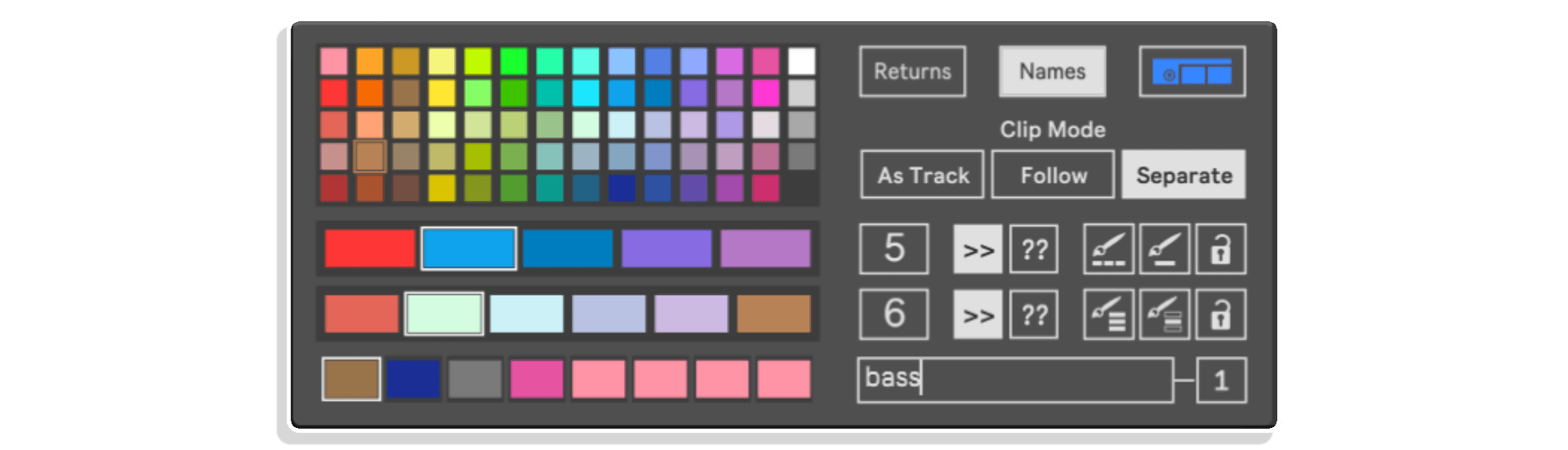
Palette provides two independent color palettes: one for tracks, one for clips. Each palette holds up to 16 colors that you drag and drop from Live’s color picker. This separation gives you flexible control over how your project looks at different organizational levels.
The Track Palette determines colors for MIDI tracks, audio tracks, and optionally return tracks. Define a palette of 6 colors, and as you create new tracks, they cycle through those 6 colors sequentially. Want tracks to use random colors from your palette instead? Switch from Sequential to Random mode. The palette ensures you never see a color you didn’t explicitly choose.
The Clip Palette controls session view clips and (in Live 11+) arrangement clips. This palette works independently or in coordination with the track palette, depending on your selected Clip Mode (more on that below). You might use bright, saturated colors for tracks while choosing pastels for clips, creating visual hierarchy where tracks define sections and clips add subtle detail.
Three Clip Modes for Maximum Flexibility
Palette offers three distinct modes for how clips get colored, giving you control over the relationship between track and clip colors:
As Track Mode makes clips inherit their track’s color. If a track is blue, all clips on that track are blue. This creates simple, unified color schemes where tracks and their clips form cohesive visual blocks. Perfect when you want clean, straightforward organization.
Follow Mode pairs the clip palette with the track palette. Track colored with slot 1 of the track palette gets clips colored with slot 1 of the clip palette. Track slot 2 pairs with clip slot 2, and so on. This creates coordinated but distinct colors—tracks might be primary colors while their clips are complementary tones. Great for maintaining relationships while adding visual variety.
Separate Mode makes clips completely independent from track colors. Clips cycle through the clip palette regardless of their track’s color. This is useful when you want clips to represent different types of content (verses, choruses, bridges) while tracks represent instrument categories (drums, bass, keys). The clip colors communicate something entirely different from track colors.
Switch between modes anytime to instantly reorganize your project’s visual structure.
Text-Matching Name Slots – Automatic Color by Track Name
Palette’s most powerful feature is text-matching name slots. Define up to 8 text strings, each associated with a specific color. Any track whose name contains that text automatically gets that color, overriding the palette sequence. The text matching is not case-sensitive.
Example: Assign brown to the text “bass”, red to “kick”, yellow to “snare”, blue to “keys”, and green to “vocal”. Now, whenever you create a track named “Bass Line”, “Sub Bass”, or anything containing “bass”, it automatically colors itself brown. Create a track called “Kick Drum”, and it turns red. This automation maintains consistent color coding across all your projects without manual intervention.
This feature is invaluable for producers with established workflows. Once you’ve set up your name slot associations, color organization becomes automatic. Every project you start uses the same color language, making it easy to jump between sessions and immediately understand the layout. Your brain learns the color code once, then navigation becomes intuitive across all your work.
Painting Tools – Recolor Projects Instantly
Beyond automatic assignment, Palette includes tools for actively painting your projects:
Paint All recolors every track and clip in your project according to your palette settings. Use this to instantly reorganize a chaotic project or apply a new color scheme to an old session. Track colors cycle through the track palette, and clips follow your selected Clip Mode rules. You can choose whether to include return tracks in the Paint All operation.
Paint One lets you manually select individual tracks or clips to color. Click Paint One, then click the track or clip you want to paint. It gets the currently selected color from your palette. Enable the Lock option, and Paint One stays active, letting you paint multiple elements sequentially without re-clicking the button.
The Settings control switches between Sequential and Random modes. Sequential mode cycles through palette colors in order. Random mode picks colors randomly from your palette. This applies to both automatic assignment (new tracks) and Paint All operations.
Group Track Options
The Groups switch determines how grouped tracks are colored. With Groups enabled, all tracks within a group folder share the group track’s color, maintaining visual unity that shows they belong together. With Groups disabled, tracks within groups color independently, treating the group folder purely as organizational structure without color coordination.
This is particularly useful for projects with many group folders. Enable Groups when you want folders to visually “contain” their tracks with matching colors. Disable Groups when folder structure is just for organization but you want tracks colored by type (all drums one color, regardless of which drum group they’re in).
Workflow Integration
Setting up Palette is straightforward. Load the device anywhere in Live (it doesn’t matter where since it’s a control device, not audio/MIDI). Design your track palette by dragging colors from the color picker into the palette slots. Design your clip palette. Set up name match slots if desired. Choose Sequential or Random mode, select your Clip Mode, and decide whether to use Groups. From that point forward, Palette manages colors automatically as you work.
Once configured, Palette works invisibly in the background. Create new tracks, and they automatically receive appropriate colors. Create clips, and they color themselves according to your rules. The organization happens without conscious effort, letting you focus entirely on music rather than visual housekeeping.
When inheriting old projects or collaborating with others, use Paint All to instantly apply your color system to any session. What was chaotic becomes organized in seconds.
Creative Applications
Genre-Specific Color Coding: Create palettes that match musical moods. Dark, saturated colors for techno projects. Bright, vibrant colors for pop. Earth tones for organic, acoustic sessions. The visual aesthetic supports the sonic aesthetic.
Section-Based Coloring: Use Separate clip mode where clip colors represent song sections—blue for verses, red for choruses, yellow for bridges—while track colors represent instrument types. Visual navigation of arrangement becomes instant.
Template Consistency: Set up Palette in your project templates with your standard track naming and color scheme. Every new project starts with your established visual language already in place.
Collaborative Clarity: When multiple people work on a project, consistent color coding (especially name-based) ensures everyone understands the organization without explanation. “Blue tracks are drums” becomes universal language.
Visual Branding: Match colors to your personal or label’s brand palette, creating consistent aesthetic across all projects for screenshots, tutorials, or livestreams.
How to Use
Load Palette anywhere in Ableton Live. Click the Names switch to reveal the name match slots if you want to use text-based coloring. Drag colors from the top color picker into your track and clip palette slots. Adjust palette size (up to 16 colors each). Set up any name match slots by clicking the name box and typing your text.
Choose Sequential or Random mode, select your Clip Mode (As Track, Follow, or Separate), and decide whether Groups should unify group track colors. From this point, Palette works automatically as you create tracks and clips.
Use Paint All to recolor entire projects. Use Paint One to manually color specific elements. All settings save with your Live set, so each project can have its own color scheme or you can use the same Palette setup across all projects via templates.
Ideal For
Producers who work on complex projects with many tracks and need visual organization. Anyone frustrated by Ableton’s random default colors. Template creators who want consistent color schemes. Collaborators who need shared visual language across team projects. Perfectionists who want beautiful, harmonious project aesthetics. Tutorial creators and streamers who want professional-looking sessions. Anyone who values workflow optimization and visual clarity.
What’s Included
- Palette MaxforLive control device
- Comprehensive user guide with detailed parameter explanations
- Up to 16 colors each for track and clip palettes
- 8 text-matching name slots for automatic coloring
- Compatible with Ableton Live 11 & 12 (Standard with MaxforLive or Suite)
Requirements
- Ableton Live 11 Standard with MaxforLive installed, or Ableton Live 11/12 Suite
- Mac or Windows operating system
- Note: Arrangement clip painting only available in Live 11 and higher
Palette by LDM Design transforms Ableton Live’s chaotic color behavior into organized, harmonious visual structure. Separate track and clip palettes, text-matching automation, three clip modes, and flexible painting tools give you complete control over how your projects look, making navigation easier and production more enjoyable.
TRIPLE PACK SAVINGS
TRIPLE PACK SAVINGS: Add any three or more LDM Design products to your cart and save 20% automatically at checkout!
Explore More LDM Design Tools: Swingmaster | Trisektor | O-blek | MIDI Filter TEN | View All LDM Design Products
Frequently Asked Questions
A: Palette is a MaxforLive control device that gives you complete control over track and clip colors in Ableton Live. It features separate palettes for tracks and clips (up to 16 colors each), 8 text-matching name slots that automatically color tracks based on their names, three clip modes (As Track, Follow, Separate), sequential or random color assignment, and painting tools (Paint All/Paint One) for recoloring projects. Optional group track color unification and return track control provide additional flexibility. Palette eliminates chaotic random colors and creates harmonious, professionally organized projects.Q: Does this product require MaxforLive?A: Yes, Palette is a MaxforLive device.
A: MaxforLive is a platform that integrates the visual programming environment Max with Ableton Live, allowing users to create and use custom audio, MIDI, and control devices.
A: Palette provides 8 name slots where you can enter text strings and assign colors to each. When you create a track whose name contains that text (case-insensitive), it automatically gets that color, overriding the normal palette sequence. For example, assign blue to the text “bass”—any track with “bass” in its name (like “Bass Line”, “Sub Bass”, “808 Bass”) automatically becomes blue. This creates consistent color coding across all projects without manual intervention and name slot colors override palette colors.
A: As Track Mode: Clips inherit their track’s color for simple, unified schemes. Follow Mode: The clip palette pairs with the track palette—track slot 1 gets clip slot 1 color, creating coordinated but distinct colors. Separate Mode: Clips cycle through the clip palette independently of track colors, useful when clips represent different content types (verses/choruses) while tracks represent instrument categories.
A: Yes! The Paint All button recolors every track and clip in your project according to your palette settings instantly. This is perfect for reorganizing chaotic projects or applying new color schemes to old sessions. You can also use Paint One to manually color individual tracks or clips. Enable the Lock option to paint multiple elements sequentially without re-clicking.
A: You can explore more of LDM Design’s tools and devices here: LDM Design
Important Information
V1.1.0 – Released February 2026
The Name Palette was not working for Live 11 users with the bundled version of M4L. So now included is a Live 11 version that works with full functionality
V1.0.0 – Initial Release – March 2025
Our Products are generally provided as Zip file downloads which in all cases will need to be extracted and saved to your hard drive prior to installation. Details on the different file type provided and what to do with them are below.
.alp Files – These are Ableton Live Packs and will either install directly into the Packs Section of the browser of Ableton Live or ask you to save them to your hard drive. For packs that install to the library, when you double click on them you will see a pop up window asking you to confirm that installation is ok as the files are described as “Legacy”. This is fine and you are ok to proceed, the packs are created using the format for an earlier version of Live and so remain compatible with the current version.
.amxd files – These are individual MaxforLive Devices and can be stored anywhere on your hard drive. We’d advise creating a folder for them and then adding that folder as a location within the Places section of Lives Browser.
END-USER LICENSE AGREEMENT FOR ISOTONIK STUDIOS SOFTWARE PRODUCTS.
PLEASE READ THE TERMS AND CONDITIONS OF THIS LICENSE AGREEMENT CAREFULLY BEFORE CONTINUING WITH THIS PROGRAM INSTALL.
This End-User License Agreement (referred to as “EULA”) is a legal agreement between an individual or a single entity (referred to as “LICENSEE”) and Isotonik Studios for the Isotonik Studios software product(s) which may include associated software components, media, printed materials, and “online” or electronic documentation (referred to as “SOFTWARE PRODUCT”). By installing, copying, or otherwise using the SOFTWARE PRODUCT, the LICENSEE agrees to be bound by the terms of this EULA.
This EULA represents the entire agreement concerning the program between the LICENSEE and Isotonik Studios and it supersedes any prior proposal, representation, or understanding between the parties. If the LICENSEE does not agree to the terms of this EULA, the LICENSEE should not install or use the SOFTWARE PRODUCT.
The SOFTWARE PRODUCT is protected by copyright laws and international copyright treaties, as well as other intellectual property laws and treaties. The SOFTWARE PRODUCT is licensed, not sold.
- GRANT OF LICENSE.
The SOFTWARE PRODUCT is licensed as follows:
(a) Installation and Use. Providing that the LICENSEE has paid any applicable license fees, Isotonik Studios grants the LICENSEE the right to install and use copies of the SOFTWARE PRODUCT on up to two computers in the LICENSEE’s possession that are running a validly licensed copy of the operating system for which the SOFTWARE PRODUCT was designed [e.g., Windows 10, macOS]. The computer(s) must be owned by the LICENSEE.
(b) Backup Copies. The LICENSEE may also make copies of the SOFTWARE PRODUCT as may be necessary for backup and archival purposes.
- DESCRIPTION OF OTHER RIGHTS AND LIMITATIONS.
(a) Maintenance of Copyright Notices. The LICENSEE must not remove or alter any copyright notices on any and all copies of the SOFTWARE PRODUCT.
(b) Distribution. The LICENSEE may not distribute registered copies of the SOFTWARE PRODUCT to third parties.
(c) Prohibition on Reverse Engineering, Decompilation, and Disassembly. The LICENSEE may not reverse engineer, decompile, or disassemble the SOFTWARE PRODUCT, except and only to the extent that such activity is expressly permitted by applicable law notwithstanding this limitation.
(d) Rental. The LICENSEE may not rent, lease, or lend the SOFTWARE PRODUCT.
(e) License transfer The LICENSEE may not transfer their license to the SOFTWARE PRODUCT to any third party. Any attempt to do so will be considered a violation of this EULA.
(f) Support Services. Isotonik Studios may provide the LICENSEE with support services related to the SOFTWARE PRODUCT for a period of 12 months following the date of purchase. Any supplemental software code provided to the LICENSEE as part of the Support Services shall be considered part of the SOFTWARE PRODUCT and subject to the terms and conditions of this EULA.
(g) Compliance with Applicable Laws. The LICENSEE must comply with all applicable laws regarding use of the SOFTWARE PRODUCT.
- TERMINATION Without prejudice to any other rights, Isotonik Studios may terminate this EULA if the LICENSEE fails to comply with the terms and conditions of this EULA. In such event, the LICENSEE must destroy all copies of the SOFTWARE PRODUCT in the LICENSEE’s possession.
- COPYRIGHT All title, including but not limited to copyrights, in and to the SOFTWARE PRODUCT and any copies thereof are owned by Isotonik Studios or its suppliers. All title and intellectual property rights in and to the content which may be accessed through use of the SOFTWARE PRODUCT is the property of the respective content owner and may be protected by applicable copyright or other intellectual property laws and treaties. This EULA grants the LICENSEE no rights to use such content. All rights not expressly granted are reserved by Isotonik Studios.
- NO WARRANTIES Isotonik Studios expressly disclaims any warranty for the SOFTWARE PRODUCT. The SOFTWARE PRODUCT is provided ‘As Is’ without any express or implied warranty of any kind, including but not limited to any warranties of merchantability, noninfringement, or fitness of a particular purpose. Isotonik Studios does not warrant or assume responsibility for the accuracy or completeness of any information, text, graphics, links or other items contained within the SOFTWARE PRODUCT. Isotonik Studios makes no warranties respecting any harm that may be caused by the transmission of a computer virus, worm, time bomb, logic bomb, or other such computer program. Isotonik Studios further expressly disclaims any warranty or representation to the LICENSEE or to any third party.
- LIMITATION OF LIABILITY In no event shall Isotonik Studios be liable for any damages (including, without limitation, lost profits, business interruption, or lost information) arising out of the LICENSEE’s use of or inability to use the SOFTWARE PRODUCT, even if Isotonik Studios has been advised of the possibility of such damages. In no event will Isotonik Studios be liable for loss of data or for indirect, special, incidental, consequential (including lost profit), or other damages based in contract, tort or otherwise. Isotonik Studios shall have no liability with respect to the content of the SOFTWARE PRODUCT or any part thereof, including but not limited to errors or omissions contained therein, libel, infringements of rights of publicity, privacy, trademark rights, business interruption, personal injury, loss of privacy, moral rights or the disclosure of confidential information.
MORE FROM LDM Design...

£18.00
£22.00