

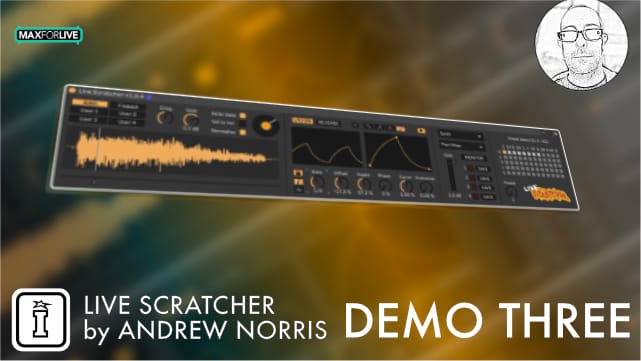
Live Scratcher by Andrew Norris
REALISTIC SCRATCHING SOUNDS IN ABLETON LIVE
Experience the art of DJ scratching with Live Scratcher for Ableton Live. This intuitive tool allows you to create authentic scratch sounds without the need for a turntable and mixer. Emulating the techniques of a scratch DJ, Live Scratcher controls the playhead position and sound activation with MIDI, offering flexibility and precision.
With classic scratch sounds included and customizable LFO shapes, you can unleash your creativity and explore various scratch techniques. Plus, features like ‘humanize’ and ‘drag’ add natural variation to your scratches for a realistic touch.
USER GUIDE: Live Scratcher 1.0.5 Manual



Live Scratcher by Andrew Norris
REALISTIC SCRATCHING SOUNDS IN ABLETON LIVE
Experience the art of DJ scratching with Live Scratcher for Ableton Live. This intuitive tool allows you to create authentic scratch sounds without the need for a turntable and mixer. Emulating the techniques of a scratch DJ, Live Scratcher controls the playhead position and sound activation with MIDI, offering flexibility and precision.
With classic scratch sounds included and customizable LFO shapes, you can unleash your creativity and explore various scratch techniques. Plus, features like ‘humanize’ and ‘drag’ add natural variation to your scratches for a realistic touch.
USER GUIDE: Live Scratcher 1.0.5 Manual
Additional information
| MaxforLive | Audio Devices |
|---|---|
| Ableton Live Compatibility | Ableton Live 11 Standard with MaxforLive, Ableton Live 11 Suite, Ableton Live 12 Standard with MaxforLive, Ableton Live 12 Suite |
| Min. Requirements | Ableton Live 11 Standard with MaxforLive Installed or Ableton Live 11 Suite, Live 12 Standard with MaxforLive or Live 12 Suite is required to load the provided Live Set |
| OS | Mac, Windows |
Product reviews
4.9 out of 5
8 reviews
How item rating is calculated
We show the average based on reviews. Only genuine reviews are displayed.
Sort by
July 9, 2025
This reviewer bought this product from our store.
This tool is really nice. I was Not really good in scratching during my DJ time, but now it is easy. Very very nice tool to add scratches to your Mixes. Nice.
May 4, 2025
This reviewer bought this product from our store.
I'm not really into scratching turntables, but I can definitely see a role for this in my Live sets going forward...
Really fun!
November 15, 2024
This reviewer bought this product from our store.
Loads of fun to be had with this tool. Nice work
August 31, 2024
This reviewer bought this product from our store.
Very cool tool. I´m feeling like being Jazzy Jeff already. Super fun when assigned to a midi controller. Recommend!
June 6, 2024
This reviewer bought this product from our store.
OMG!!!! This is amazing. I can finally scratch my hip-hop beats. Such a great bit of kit, very intuitive to use. It's wickedy-wickedy-wicked - Five stars
Live Scratcher by Andrew Norris
Live Scratcher is a Max for Live instrument for creating similar sounds to those a turntablist would make using a turntable and mixer.
This is achieved by simply moving, or ideally automating, the position of a playhead across a sample. At the same time, any MIDI notes received on C3 or above will ‘cut’ the sound in as the playhead moves back and forth.
Using a combination of the two in a MIDI clip can create anything from a simple Baby Scratch to a complicated, polyrhythmic Transformer!
The key to getting it to sound as authentic as possible is to create subtle variations in the note length and timing, as well as variations in the playhead movement itself. No scratch DJ, even the likes of DJ Qbert or DJ Premier, who are renowned for being very technically precise, will ever move the turntable to exactly the same positions each time. Much like any musician, it’s the slight imperfections that give the performance a ‘human’ feel. Similarly, creating note patterns and turntable / playhead movements with slight variations will help give you a much more ‘natural’ sound.
The device is split into 4 main areas:
Sample Area – for sample selection / playback
LFO Area – for automating the playhead movement
Audio Input – for recording from any other Live track into the device
Presets – for storing parameter settings
LFO Area – for automating the playhead movement
Audio Input – for recording from any other Live track into the device
Presets – for storing parameter settings
Let’s look at each of these in turn to see what they do.
SAMPLE AREA
Here you can choose from the built-in samples (the classic ‘Ahhh’ and ‘Fresssh’ sounds), or load up to four of your own custom samples by dropping each one over a ‘User’ slot.
If you’re using a custom sample, try to keep sample length at around 1 second. Make sure you’re leaving a small section of silence too just before and just after the sample. This helps create a sharper ‘attack’ when the playhead passes over the start / end.
You can either play the playhead ‘live’ with the mouse, by using Push, or by using Ableton’s MIDI Mapping Mode to map it to an external MIDI controller. And then tapping out a rhythm on note C3 or above.
Or you can prepare and automate the whole thing in a MIDI clip. Move the playhead using Ableton Live’s automation envelopes to control the ‘Turntable’ parameter in either Session or Arrangement View. Then enter notes in the clip to trigger the sound on / off at rhythmical intervals.
LFO AREA
You can also choose to automate the playhead using the built-in LFO. Here, the playhead is locked to the LFO and you set the rate, depth, offset, phase, etc. – all the controls you would typically find in any LFO device – to fine tune the playhead’s movement.
You can choose from 3 typical LFO shapes (similar to the movements a turntablist would typically make): Sine, Ramp and Triangle, but you can also create your own LFO shape using the breakpoint editor. Custom shapes (especially curvy ones!) can help the movements sound more natural.
AUDIO INPUT AREA
Here you can record clips from any other of Ableton Live’s tracks directly into one of the four User Sample Slots.
PRESET AREA
The settings for all parameters in Live Scratcher (except for ‘Turntable’ and ‘Preset Select’) can be stored as ‘snapshots’ in the Preset area. Here you store and recall your own presets. Any presets you store are saved along with your project.
Presets can be recalled by either clicking, by using the ‘Preset’ parameter in clip automation, or with MIDI notes C-2 through to B2 (60 notes in total to cover each of the available preset slots). This enables you to very easily switch LFO settings live or via automation.
Check out the example project (Live 12 required) to help get you started. This has a collection of pre-made MIDI clips, all with different note patterns and playhead automation to give you an idea of what it’s possible to do.
Please refer to the user manual for a more detailed explanation of each of the device’s parameters.
Frequently Asked Questions
No, that’s the whole point. Live Scratcher recreates turntablist scratch sounds entirely within Ableton Live using MIDI and playhead automation, so no hardware turntable or mixer is required.
Live Scratcher is a Max for Live instrument, so you’ll need Ableton Live Suite or a copy of Live Standard with a separate Max for Live licence. Check the product page for the minimum supported version numbers.
You move or automate the playhead position across a loaded sample, and any MIDI notes on C3 or above act as the ‘cut’, opening the sound as the playhead travels back and forth. Combining both in a MIDI clip is how you build up different scratch techniques.
You can produce a wide range of techniques, from a basic Baby Scratch right through to more complex patterns like the Transformer. The more variation you introduce into your note lengths, timing, and playhead movement, the more authentic the result.
You load your own audio samples into the device, which gives you full control over the source material and means you can scratch any sound you like.
The key is introducing subtle variations in note length, note timing, and the speed and direction of the playhead movement. Even the most technically precise scratch DJs never move a turntable in a perfectly uniform way, and replicating that slight human inconsistency is what sells the effect.
Once purchased, you’ll download the device file and drag it directly into Ableton Live as you would any Max for Live instrument. No additional installation steps or third-party software are needed beyond Max for Live itself.
Important Information
v1.0.5 – Released May 2025
Fixed:
– User samples were not always loading along with the Live Set. This has now been fixed.
– The auto normalise feature was proving to be problematic. Replaced the auto-normalise checkbox with a manual normalise button. Clicking the ‘Normalise’ button will now normalise the volume level of the currently selected User Sample. (Remember to save and re-import any normalised samples if you want the normalised version to be saved with your Live Set.)
Live Scratcher v1.0.4 – Released 15th November 2024
Added:
– Added ‘Audio Input’ section. You can now select any other track in Live and use it as an audio input for recording new User Samples. Use the four record buttons to record into the four corresponding User Sample Slots.
– Added input gain and input monitor controls for incoming audio.
– Added four ’Save’ buttons. Each will save the corresponding User Slot to disk as a .wav file. When clicked, you’ll be prompted to save to a folder.
Note that in order for your recorded sample to be saved with your project (or as a device preset in your User Library), you must first use the ‘Save’ button to save the sample to your hard drive. The resulting file then needs to be dragged back into a User Slot. As long as the original sample does not change location on your hard drive, it will be automatically loaded whenever you reload your set or load your preset. It is recommended that you save these into your Project’s ’Samples / Recorded’ folder.
– Added ‘Normalise’ button. When enabled, any imported user sample or recorded audio will be automatically normalised once loaded / recorded.
– Added 1.5, 2, 3, 4, 6 & 8 bar time divisions to the LFO Rate.
– Added LFO Time Mode control and Frequency/Hz Dial. When ‘Hz’ is selected, the LFO runs freely and the ‘Lock to Transport’ button is deactivated.
– Added LFO Retrigger button. LFO can now be manually retriggered when in Hz Time Mode.
– Updated Push controls.
– Updated Info View text.
Fixed:
– Playhead now responds more smoothly when mapped to an external MIDI controller or moved with the mouse.
– Sin LFO in ‘Note’ Time Mode now starts at the beginning of the sample rather than at the end.
– There’s no longer an audible pop/click when switching between samples when “Note Gate’ is off.
– Volume now reacts better to MIDI velocity changes (when ‘Vel to Vol’ is enabled).
– The buttons: Note Gate, Lock, LFO On and Velocity are now mappable, automateable, and their settings are saved with your Live set and into stored Presets.
GUI Changes:
– ‘ON’ button is now a check box labelled, “Note Gate”. Turn on to only allow the device to make a sound when a MIDI note (range: C3-C5) is held.
– ‘VEL’ (Velocity) button is now a check box labelled, “Vel to Vol”.
– ‘LOCK’ button is now a padlock icon and has moved to above the LFO Note/Hz Time Mode selector.
– GUI colours changed from fixed to dynamic and now correctly match the chosen Theme.
V1.2 – Released 23rd April 2024
Fixed a bug with the same custom sample loading across multiple device instances.
Fixed a bug with the waveform not being displayed correctly after replacing a custom sample.
V1.0 – Initial Release 10th October 2023
Our Products are generally provided as Zip file downloads which in all cases will need to be extracted and saved to your hard drive prior to installation. Details on the different file type provided and what to do with them are below.
.alp Files – These are Ableton Live Packs and will either install directly into the Packs Section of the browser of Ableton Live or ask you to save them to your hard drive. For packs that install to the library, when you double click on them you will see a pop up window asking you to confirm that installation is ok as the files are described as “Legacy”. This is fine and you are ok to proceed, the packs are created using the format for an earlier version of Live and so remain compatible with the current version.
.amxd files – These are individual MaxforLive Devices and can be stored anywhere on your hard drive. We’d advise creating a folder for them and then adding that folder as a location within the Places section of Lives Browser.
END-USER LICENSE AGREEMENT FOR ISOTONIK STUDIOS SOFTWARE PRODUCTS.
PLEASE READ THE TERMS AND CONDITIONS OF THIS LICENSE AGREEMENT CAREFULLY BEFORE CONTINUING WITH THIS PROGRAM INSTALL.
This End-User License Agreement (referred to as “EULA”) is a legal agreement between an individual or a single entity (referred to as “LICENSEE”) and Isotonik Studios for the Isotonik Studios software product(s) which may include associated software components, media, printed materials, and “online” or electronic documentation (referred to as “SOFTWARE PRODUCT”). By installing, copying, or otherwise using the SOFTWARE PRODUCT, the LICENSEE agrees to be bound by the terms of this EULA.
This EULA represents the entire agreement concerning the program between the LICENSEE and Isotonik Studios and it supersedes any prior proposal, representation, or understanding between the parties. If the LICENSEE does not agree to the terms of this EULA, the LICENSEE should not install or use the SOFTWARE PRODUCT.
The SOFTWARE PRODUCT is protected by copyright laws and international copyright treaties, as well as other intellectual property laws and treaties. The SOFTWARE PRODUCT is licensed, not sold.
- GRANT OF LICENSE.
The SOFTWARE PRODUCT is licensed as follows:
(a) Installation and Use. Providing that the LICENSEE has paid any applicable license fees, Isotonik Studios grants the LICENSEE the right to install and use copies of the SOFTWARE PRODUCT on up to two computers in the LICENSEE’s possession that are running a validly licensed copy of the operating system for which the SOFTWARE PRODUCT was designed [e.g., Windows 10, macOS]. The computer(s) must be owned by the LICENSEE.
(b) Backup Copies. The LICENSEE may also make copies of the SOFTWARE PRODUCT as may be necessary for backup and archival purposes.
- DESCRIPTION OF OTHER RIGHTS AND LIMITATIONS.
(a) Maintenance of Copyright Notices. The LICENSEE must not remove or alter any copyright notices on any and all copies of the SOFTWARE PRODUCT.
(b) Distribution. The LICENSEE may not distribute registered copies of the SOFTWARE PRODUCT to third parties.
(c) Prohibition on Reverse Engineering, Decompilation, and Disassembly. The LICENSEE may not reverse engineer, decompile, or disassemble the SOFTWARE PRODUCT, except and only to the extent that such activity is expressly permitted by applicable law notwithstanding this limitation.
(d) Rental. The LICENSEE may not rent, lease, or lend the SOFTWARE PRODUCT.
(e) License transfer The LICENSEE may not transfer their license to the SOFTWARE PRODUCT to any third party. Any attempt to do so will be considered a violation of this EULA.
(f) Support Services. Isotonik Studios may provide the LICENSEE with support services related to the SOFTWARE PRODUCT for a period of 12 months following the date of purchase. Any supplemental software code provided to the LICENSEE as part of the Support Services shall be considered part of the SOFTWARE PRODUCT and subject to the terms and conditions of this EULA.
(g) Compliance with Applicable Laws. The LICENSEE must comply with all applicable laws regarding use of the SOFTWARE PRODUCT.
- TERMINATION Without prejudice to any other rights, Isotonik Studios may terminate this EULA if the LICENSEE fails to comply with the terms and conditions of this EULA. In such event, the LICENSEE must destroy all copies of the SOFTWARE PRODUCT in the LICENSEE’s possession.
- COPYRIGHT All title, including but not limited to copyrights, in and to the SOFTWARE PRODUCT and any copies thereof are owned by Isotonik Studios or its suppliers. All title and intellectual property rights in and to the content which may be accessed through use of the SOFTWARE PRODUCT is the property of the respective content owner and may be protected by applicable copyright or other intellectual property laws and treaties. This EULA grants the LICENSEE no rights to use such content. All rights not expressly granted are reserved by Isotonik Studios.
- NO WARRANTIES Isotonik Studios expressly disclaims any warranty for the SOFTWARE PRODUCT. The SOFTWARE PRODUCT is provided ‘As Is’ without any express or implied warranty of any kind, including but not limited to any warranties of merchantability, noninfringement, or fitness of a particular purpose. Isotonik Studios does not warrant or assume responsibility for the accuracy or completeness of any information, text, graphics, links or other items contained within the SOFTWARE PRODUCT. Isotonik Studios makes no warranties respecting any harm that may be caused by the transmission of a computer virus, worm, time bomb, logic bomb, or other such computer program. Isotonik Studios further expressly disclaims any warranty or representation to the LICENSEE or to any third party.
- LIMITATION OF LIABILITY In no event shall Isotonik Studios be liable for any damages (including, without limitation, lost profits, business interruption, or lost information) arising out of the LICENSEE’s use of or inability to use the SOFTWARE PRODUCT, even if Isotonik Studios has been advised of the possibility of such damages. In no event will Isotonik Studios be liable for loss of data or for indirect, special, incidental, consequential (including lost profit), or other damages based in contract, tort or otherwise. Isotonik Studios shall have no liability with respect to the content of the SOFTWARE PRODUCT or any part thereof, including but not limited to errors or omissions contained therein, libel, infringements of rights of publicity, privacy, trademark rights, business interruption, personal injury, loss of privacy, moral rights or the disclosure of confidential information.