
Capture Audio by KILLIHU
CAPTURE AUDIO LIKE YOU CAPTURE MIDI
Never lose another spontaneous performance. Capture Audio by killihu continuously buffers up to 16 simultaneous input sources, allowing retroactive recording with a single click—even if you never armed a track. That perfect guitar take, spontaneous vocal idea, or hardware synth improvisation you just played? It’s already captured and waiting.
Inside you’ll find:
- Retroactive audio capture from 1-60 minutes or 4-128 bars of continuous buffering
- Up to 16 simultaneous inputs (external sources or internal tracks)
- Three capture modes: Arrangement insertion, Session clips, or Disk Only
- Auto-Reset mode matching Capture MIDI workflow (buffer clears on transport start)
- Capture All function for simultaneous multi-input recording
- Customizable file formats (16/24/32-bit, AIFF or WAV)
- Flexible naming and folder management (manual or automatic project folders)
- Individual meters and controls per input with customizable names
- Alternative single-input version for effects chain placement
Route hardware instruments, capture internal track stems, monitor multiple sources with independent metering, then capture everything with one click. Files automatically save and insert as Session clips, Arrangement clips, or standalone files depending on your workflow. Stop worrying about arming tracks—just play, then capture.
Compatible with Ableton Live 12 with Max for Live. Windows and Mac (additional Mac installation steps required).
USER GUIDE: Capture Audio 1.1
Capture Audio by KILLIHU
CAPTURE AUDIO LIKE YOU CAPTURE MIDI
Never lose another spontaneous performance. Capture Audio by killihu continuously buffers up to 16 simultaneous input sources, allowing retroactive recording with a single click—even if you never armed a track. That perfect guitar take, spontaneous vocal idea, or hardware synth improvisation you just played? It’s already captured and waiting.
Inside you’ll find:
- Retroactive audio capture from 1-60 minutes or 4-128 bars of continuous buffering
- Up to 16 simultaneous inputs (external sources or internal tracks)
- Three capture modes: Arrangement insertion, Session clips, or Disk Only
- Auto-Reset mode matching Capture MIDI workflow (buffer clears on transport start)
- Capture All function for simultaneous multi-input recording
- Customizable file formats (16/24/32-bit, AIFF or WAV)
- Flexible naming and folder management (manual or automatic project folders)
- Individual meters and controls per input with customizable names
- Alternative single-input version for effects chain placement
Route hardware instruments, capture internal track stems, monitor multiple sources with independent metering, then capture everything with one click. Files automatically save and insert as Session clips, Arrangement clips, or standalone files depending on your workflow. Stop worrying about arming tracks—just play, then capture.
Compatible with Ableton Live 12 with Max for Live. Windows and Mac (additional Mac installation steps required).
USER GUIDE: Capture Audio 1.1
Buying for someone?Send a gift card →
Additional information
| MaxforLive | Audio Devices |
|---|---|
| Ableton Live Compatibility | Ableton Live 12 Standard with MaxforLive, Ableton Live 12 Suite |
| Min. Requirements | Ableton Live Standard 12 with MaxforLive Installed or Ableton Live Suite 12 |
| OS | Mac, Windows |
PRICE: £18.00
Product reviews
4 out of 5
1 review
How item rating is calculated
We show the average based on reviews. Only genuine reviews are displayed.
Sort by
February 12, 2025
This reviewer bought this product from our store.
This needs Auto-Record functionality
Capture Audio by KILLIHU
Overview & Inspiration
Why does Ableton Live’s Capture function only work for MIDI notes? Why can’t you retroactively capture that perfect guitar take, that spontaneous vocal idea, or that hardware synth improvisation you just played?
Capture Audio by killihu brings the instant-capture workflow from MIDI to audio, continuously buffering up to 16 simultaneous input sources and allowing one-click retroactive recording of everything you just played—even if you forgot to hit record. Route external instruments, internal tracks, or any audio source into the device, play freely without worrying about arming tracks or missing the moment, then capture the last 1-60 minutes of audio with a single button press.
The captured audio automatically saves to disk and inserts into your project as Session clips, Arrangement clips, or standalone files depending on your workflow. The Auto-Reset mode mirrors Live’s Capture MIDI behavior, clearing the buffer when you start transport for fresh takes. Up to 16 customizable input slots with individual meters, naming, and capture controls transform retroactive recording from wishful thinking into standard practice.
Features & Highlights
Retroactive Audio Capture – Continuously buffers audio from all configured inputs, allowing you to capture the last 1-60 minutes of performance with a single click—even if you never armed a recording track. Perfect for spontaneous ideas, unplanned improvisations, and those “I wish I was recording” moments that happen in every session.
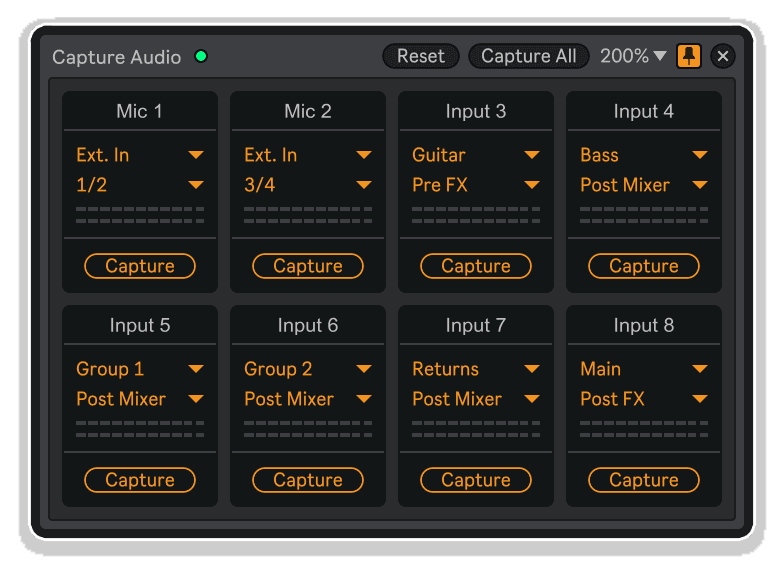
Up to 16 Simultaneous Input Sources – Configure 4, 8, or 16 independent input slots, each with its own audio source selection (external inputs or internal tracks), customizable naming, level meters, and individual capture button. Record multiple hardware instruments, capture stems from different tracks, or monitor various sources simultaneously.
Flexible Capture Modes – Choose how captured audio integrates into your project: Arrangement mode inserts files at the current playback position in the arrangement view; Session mode places clips into corresponding clip slots (overwriting existing clips); Disk Only mode saves files without inserting them into Live—perfect for archiving takes or exporting stems.
Auto-Reset Mode (Capture MIDI Behavior) – Enable Auto-Reset to automatically clear the internal buffer every time transport starts, mimicking Ableton Live’s Capture MIDI workflow. Each transport start begins fresh buffering, ensuring you only capture the current performance rather than accumulated previous takes.
Configurable Buffer Duration – Set recording time from 1-60 minutes or 4-128 bars depending on your needs. The device records in loop mode—when the buffer fills, it continues from the beginning while overwriting oldest audio. Longer durations accommodate extended jams, while shorter settings conserve memory for multi-input configurations.
Capture All Function – Instantly capture all configured inputs simultaneously with the Capture All button. Each input saves as a separate file and inserts into consecutive Session clip slots (ensure your project has sufficient scenes). Perfect for capturing multi-track recordings, parallel processing comparisons, or stem-based workflows.
Comprehensive File Management – Customize output file format (16/24/32-bit, AIFF or WAV), naming conventions (combining project name, input name, BPM, date, and time), and folder paths. Choose manual folder selection for consolidated libraries or automatic project folder routing with subfolder creation for per-project organization.
Individual Input Customization – Assign unique names to each input slot by clicking the name field. Proper naming prevents file conflicts and maintains organization when capturing multiple sources. Each input displays independent level metering with adjustable dB ranges (configurable in settings) for monitoring signal presence before capture.
Status LED Verification – The green status LED confirms proper folder path configuration before you begin capturing. If the LED displays red, the folder path is invalid and audio cannot be saved—typically occurring when loading the device before saving the project when using Project folder mode.
Mappable Window Control – The show/hide button on the device rack accepts keyboard mapping, allowing hotkey access to the capture window. Keep your workspace uncluttered until needed, then reveal the interface instantly without mouse navigation.
Floating Window Interface – The resizable, dockable floating window provides clear visual organization of all inputs with their respective meters and capture controls. Position anywhere on screen, dock on top of other applications for permanent visibility, and resize to fit your available workspace.
Alternative Single Input Version – Includes a streamlined single-input version designed for placement in track effects chains, perfect for capturing individual track outputs or insert points within complex processing setups. Ideal for stem recording or capturing specific processing stages.
How to Use
Load Capture Audio onto any MIDI track (the Master track works well for organizational clarity). Click the Show button on the device rack to display the floating window. Before capturing audio, verify the green status LED indicates proper folder path configuration (red means invalid path—save your project first if using Project folder mode).
Open Settings to configure your capture parameters. Set the number of inputs (4, 8, or 16), recording time (1-60 minutes or 4-128 bars), file format (16/24/32-bit), file type (AIFF or WAV), and capture mode (Arrangement, Session, or Disk Only). Enable Auto-Reset if you want buffer clearing on transport start, matching Capture MIDI behavior.
Configure folder path to Manual (choose any folder for consolidated capture libraries) or Project (automatically creates subfolder in project directory). Set file naming conventions using available fields: project name, input name, BPM, date, and time. Adjust meter display range if desired.
In the floating window, assign audio sources to each input slot using the dropdown menus—select external inputs for hardware instruments or internal tracks for capturing project routing. Click input names to customize them (essential for organized file naming and avoiding conflicts).
As audio passes through configured inputs, meters display signal levels continuously while the device buffers audio in the background. When you play something worth keeping, click the individual Capture button for that input, or use Capture All to simultaneously capture all configured inputs.
Captured files automatically save to disk with your configured naming convention. In Arrangement mode, files insert at the current playback position. In Session mode, files appear in corresponding clip slots (requires sufficient scenes—if capturing 16 inputs, ensure 16 scenes exist). In Disk Only mode, files save without insertion—retrieve them from your designated folder.
Use the Reset button to manually clear the buffer. With Auto-Reset enabled, the buffer automatically clears when starting transport. For long sessions with high recording times and many inputs, disable Auto-Reset to avoid CPU spikes that can delay transport start.
Mac Installation Note: Mac users must complete additional installation steps—copy the shell.mxo external component to the Max 9 Library folder and run a Terminal command to remove quarantine attributes (detailed in manual). This enables Project folder path functionality.
Ideal For
- Anyone who’s ever thought “I wish I was recording that” during spontaneous performances
- Electronic music producers capturing hardware synthesizer improvisations and modular jams
- Recording engineers capturing multiple live inputs simultaneously without traditional track arming
- Songwriters capturing vocal ideas and guitar sketches during writing sessions
- Producers routing internal tracks for retroactive stem recording
- Live performers recording multiple inputs during performances for later editing
- Anyone frustrated with Ableton Live’s lack of audio capture equivalent to Capture MIDI
- Users managing complex routing who want simplified capture workflows
What’s Included
- Capture Audio MaxforLive device (.amxd) – multi-input version
- Alternative single-input version for effects chain placement
- 11-page PDF reference manual
- Up to 16 simultaneous input capture capability
- Three capture modes (Arrangement, Session, Disk Only)
- Auto-Reset mode matching Capture MIDI workflow
- Comprehensive file naming and organization options
- Floating window with meters and individual controls
- Mappable show/hide keyboard control
Requirements
- Ableton Live 12 with Max for Live
- Compatible with both Windows and Mac
- Mac users: Additional installation steps required for external components (see manual section 1.4)
- Note: Pre-Live 12.2 versions use Max for Live 8 instead of Max 9 for external components
Explore More
Advanced Toolbar Buttons 2 | Clipboard Device | Session Clips | Locator Manager | View All killihu Products
Frequently Asked Questions
A: Capture Audio is a MaxforLive device that continuously buffers audio from up to 16 simultaneous input sources (external inputs or internal tracks), allowing retroactive recording with a single click—even if you never armed a track or hit record. It brings Ableton Live’s Capture MIDI workflow to audio.
A: Yes, Capture Audio is a MaxforLive device.
A: MaxforLive is a platform that integrates the visual programming environment Max with Ableton Live, allowing users to create and use custom audio, MIDI, and control devices.
A: Traditional recording requires arming tracks before playing. Capture Audio continuously buffers audio in the background (1-60 minutes or 4-128 bars), allowing you to capture performances retroactively—after you’ve already played them. This prevents “I wish I was recording” moments and matches the spontaneity of Capture MIDI.
A: Arrangement mode inserts captured files at the current playback position in Arrangement View. Session mode places files into corresponding clip slots in Session View (overwriting existing clips). Disk Only mode saves files to your chosen folder without inserting them into Live—useful for archiving or stem export.
A: When enabled, Auto-Reset clears the internal buffer every time you start transport, matching Capture MIDI’s behavior. Each transport start begins fresh buffering, so you only capture the current performance. For long sessions with many inputs and high recording times, disable Auto-Reset to avoid CPU spikes that can delay transport start.
A: Mac users must complete additional installation steps: copy the shell.mxo external component to the Max 9 Library folder and run a Terminal command to remove quarantine attributes. This enables Project folder path functionality. Full instructions are provided in manual section 1.4. Pre-Live 12.2 versions use Max 8 instead of Max 9.
A: You can explore more of killihu’s tools and devices here: killihu
Important Information
v1.1 New features and improvements:
– Modified GUI to adapt to the new rack design in Live version 12.2, does not change the operation of the device.
Initial Release – November 2024
Our Products are generally provided as Zip file downloads which in all cases will need to be extracted and saved to your hard drive prior to installation. Details on the different file type provided and what to do with them are below.
.alp Files – These are Ableton Live Packs and will either install directly into the Packs Section of the browser of Ableton Live or ask you to save them to your hard drive. For packs that install to the library, when you double click on them you will see a pop up window asking you to confirm that installation is ok as the files are described as “Legacy”. This is fine and you are ok to proceed, the packs are created using the format for an earlier version of Live and so remain compatible with the current version.
.amxd files – These are individual MaxforLive Devices and can be stored anywhere on your hard drive. We’d advise creating a folder for them and then adding that folder as a location within the Places section of Lives Browser.
END-USER LICENSE AGREEMENT FOR ISOTONIK STUDIOS SOFTWARE PRODUCTS.
PLEASE READ THE TERMS AND CONDITIONS OF THIS LICENSE AGREEMENT CAREFULLY BEFORE CONTINUING WITH THIS PROGRAM INSTALL.
This End-User License Agreement (referred to as “EULA”) is a legal agreement between an individual or a single entity (referred to as “LICENSEE”) and Isotonik Studios for the Isotonik Studios software product(s) which may include associated software components, media, printed materials, and “online” or electronic documentation (referred to as “SOFTWARE PRODUCT”). By installing, copying, or otherwise using the SOFTWARE PRODUCT, the LICENSEE agrees to be bound by the terms of this EULA.
This EULA represents the entire agreement concerning the program between the LICENSEE and Isotonik Studios and it supersedes any prior proposal, representation, or understanding between the parties. If the LICENSEE does not agree to the terms of this EULA, the LICENSEE should not install or use the SOFTWARE PRODUCT.
The SOFTWARE PRODUCT is protected by copyright laws and international copyright treaties, as well as other intellectual property laws and treaties. The SOFTWARE PRODUCT is licensed, not sold.
- GRANT OF LICENSE.
The SOFTWARE PRODUCT is licensed as follows:
(a) Installation and Use. Providing that the LICENSEE has paid any applicable license fees, Isotonik Studios grants the LICENSEE the right to install and use copies of the SOFTWARE PRODUCT on up to two computers in the LICENSEE’s possession that are running a validly licensed copy of the operating system for which the SOFTWARE PRODUCT was designed [e.g., Windows 10, macOS]. The computer(s) must be owned by the LICENSEE.
(b) Backup Copies. The LICENSEE may also make copies of the SOFTWARE PRODUCT as may be necessary for backup and archival purposes.
- DESCRIPTION OF OTHER RIGHTS AND LIMITATIONS.
(a) Maintenance of Copyright Notices. The LICENSEE must not remove or alter any copyright notices on any and all copies of the SOFTWARE PRODUCT.
(b) Distribution. The LICENSEE may not distribute registered copies of the SOFTWARE PRODUCT to third parties.
(c) Prohibition on Reverse Engineering, Decompilation, and Disassembly. The LICENSEE may not reverse engineer, decompile, or disassemble the SOFTWARE PRODUCT, except and only to the extent that such activity is expressly permitted by applicable law notwithstanding this limitation.
(d) Rental. The LICENSEE may not rent, lease, or lend the SOFTWARE PRODUCT.
(e) License transfer The LICENSEE may not transfer their license to the SOFTWARE PRODUCT to any third party. Any attempt to do so will be considered a violation of this EULA.
(f) Support Services. Isotonik Studios may provide the LICENSEE with support services related to the SOFTWARE PRODUCT for a period of 12 months following the date of purchase. Any supplemental software code provided to the LICENSEE as part of the Support Services shall be considered part of the SOFTWARE PRODUCT and subject to the terms and conditions of this EULA.
(g) Compliance with Applicable Laws. The LICENSEE must comply with all applicable laws regarding use of the SOFTWARE PRODUCT.
- TERMINATION Without prejudice to any other rights, Isotonik Studios may terminate this EULA if the LICENSEE fails to comply with the terms and conditions of this EULA. In such event, the LICENSEE must destroy all copies of the SOFTWARE PRODUCT in the LICENSEE’s possession.
- COPYRIGHT All title, including but not limited to copyrights, in and to the SOFTWARE PRODUCT and any copies thereof are owned by Isotonik Studios or its suppliers. All title and intellectual property rights in and to the content which may be accessed through use of the SOFTWARE PRODUCT is the property of the respective content owner and may be protected by applicable copyright or other intellectual property laws and treaties. This EULA grants the LICENSEE no rights to use such content. All rights not expressly granted are reserved by Isotonik Studios.
- NO WARRANTIES Isotonik Studios expressly disclaims any warranty for the SOFTWARE PRODUCT. The SOFTWARE PRODUCT is provided ‘As Is’ without any express or implied warranty of any kind, including but not limited to any warranties of merchantability, noninfringement, or fitness of a particular purpose. Isotonik Studios does not warrant or assume responsibility for the accuracy or completeness of any information, text, graphics, links or other items contained within the SOFTWARE PRODUCT. Isotonik Studios makes no warranties respecting any harm that may be caused by the transmission of a computer virus, worm, time bomb, logic bomb, or other such computer program. Isotonik Studios further expressly disclaims any warranty or representation to the LICENSEE or to any third party.
- LIMITATION OF LIABILITY In no event shall Isotonik Studios be liable for any damages (including, without limitation, lost profits, business interruption, or lost information) arising out of the LICENSEE’s use of or inability to use the SOFTWARE PRODUCT, even if Isotonik Studios has been advised of the possibility of such damages. In no event will Isotonik Studios be liable for loss of data or for indirect, special, incidental, consequential (including lost profit), or other damages based in contract, tort or otherwise. Isotonik Studios shall have no liability with respect to the content of the SOFTWARE PRODUCT or any part thereof, including but not limited to errors or omissions contained therein, libel, infringements of rights of publicity, privacy, trademark rights, business interruption, personal injury, loss of privacy, moral rights or the disclosure of confidential information.
More from Killihu
 ★ Popular
Frequently Bought Together
 -30%★ Popular
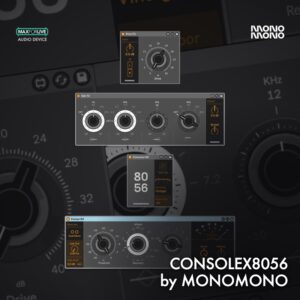
MonomonoConsolex8056 by MonomonoLive 11 & 12 · Max for Live Original price was: £50.00.£35.00Current price is: £35.00.