
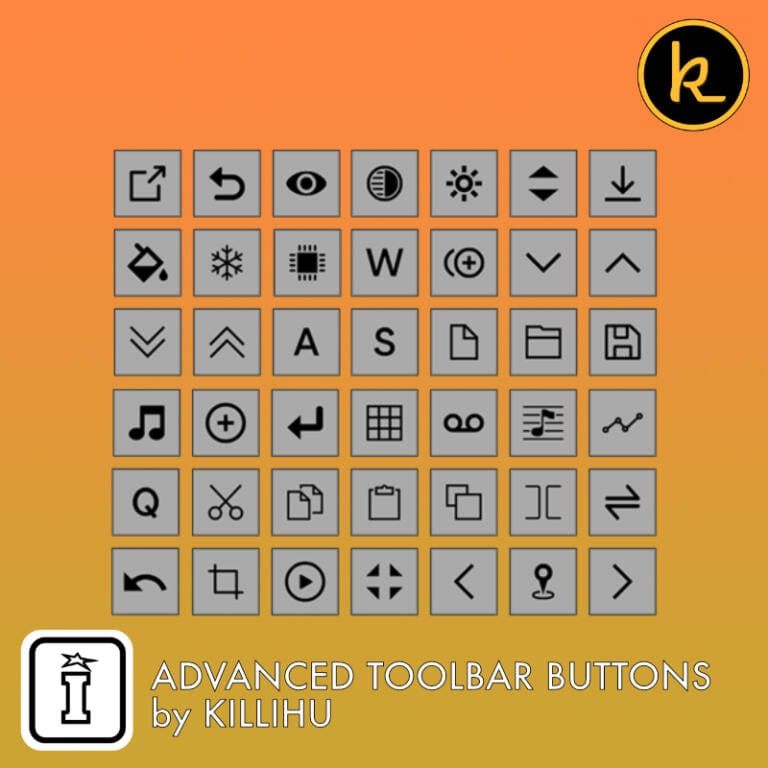

Advanced Toolbar Buttons by KILLIHU
60+ COMMANDS. ONE TOOLBAR. ZERO MENUS.
Transform Ableton Live’s buried functions into instant one-click actions. Advanced Toolbar Buttons 2 by killihu puts clip parameters, scene capture modes, global track controls, loop manipulation, and theme switching into a customizable floating toolbar that positions anywhere on your screen—no menu diving, no wasted clicks.
Inside you’ll find:
- 60+ configurable buttons spanning clip, track, file, edit, and workflow operations
- Clip parameter quick access without opening detail view (volume, transpose, groove, quantize)
- Advanced scene capture with alternative insertion modes
- Global track activation, auto-expand, and color-to-clips automation
- Dynamic arrangement loop marker control with follow playback
- 8 saveable presets for instant interface reconfiguration
- Companion Arrangement Toolbar Buttons device for track-list integration
- Multi-monitor and 4K resolution support with pixel-perfect positioning
Create task-specific layouts, switch between laptop and desktop configurations, map presets to keyboard shortcuts, and eliminate the friction between creative intention and technical execution. Includes comprehensive 21-page PDF manual and killihu Device Tool application for theme switching and menu bar integration.
Compatible with Ableton Live 10, 11, and 12. Windows only (limited Mac functionality available in version 1.0).
USER GUIDE: Advanced Toolbar Buttons 2.1
Advanced Toolbar Buttons by KILLIHU
60+ COMMANDS. ONE TOOLBAR. ZERO MENUS.
Transform Ableton Live’s buried functions into instant one-click actions. Advanced Toolbar Buttons 2 by killihu puts clip parameters, scene capture modes, global track controls, loop manipulation, and theme switching into a customizable floating toolbar that positions anywhere on your screen—no menu diving, no wasted clicks.
Inside you’ll find:
- 60+ configurable buttons spanning clip, track, file, edit, and workflow operations
- Clip parameter quick access without opening detail view (volume, transpose, groove, quantize)
- Advanced scene capture with alternative insertion modes
- Global track activation, auto-expand, and color-to-clips automation
- Dynamic arrangement loop marker control with follow playback
- 8 saveable presets for instant interface reconfiguration
- Companion Arrangement Toolbar Buttons device for track-list integration
- Multi-monitor and 4K resolution support with pixel-perfect positioning
Create task-specific layouts, switch between laptop and desktop configurations, map presets to keyboard shortcuts, and eliminate the friction between creative intention and technical execution. Includes comprehensive 21-page PDF manual and killihu Device Tool application for theme switching and menu bar integration.
Compatible with Ableton Live 10, 11, and 12. Windows only (limited Mac functionality available in version 1.0).
USER GUIDE: Advanced Toolbar Buttons 2.1
Product reviews
No reviews yet. Be the first to review this product.
Advanced Toolbar Buttons by KILLIHU
Overview & Inspiration
Advanced Toolbar Buttons 2 by killihu delivers instant access to dozens of Ableton Live actions that normally require multiple clicks, context menus, or buried preferences—all consolidated into a customizable floating toolbar that positions anywhere on your screen.
This isn’t just another MaxforLive device. It’s a complete workflow acceleration system that eliminates the friction between intention and execution. Adjust clip parameters without opening the detail view, capture scenes with alternative insertion modes, toggle track activation globally, manipulate arrangement loop markers dynamically, and switch color themes without touching preferences. Every button is configurable, every control is mappable, and the entire interface scales to any resolution including 4K displays.
The transparent background design integrates seamlessly into your workspace, while the included companion device—Arrangement Toolbar Buttons—adds specialized controls directly above your arrangement track list. Together, they transform Live’s interface into a precision command center tailored exactly to your creative process.
Features & Highlights
Comprehensive Button Library – Access 60+ buttons and controls spanning general workflow actions, creation tools, export functions, clip manipulation, audio/MIDI-specific operations, track management, file operations, edit commands, and loop controls. Each button provides one-click access to actions typically buried in menus or requiring keyboard shortcuts.
Clip Parameter Quick Access – Adjust volume, transposition, groove selection, loop settings, quantization, warp mode, and gain directly from the toolbar without opening clip detail view. Audio clips get dedicated controls for RAM mode and precise semitone/cent transposition. MIDI clips feature duplicate loop, note transposition, and octave shifting buttons.
Advanced Scene Capture Modes – Capture currently playing clips and insert as new scenes using two distinct modes: default mode inserts after the selected scene, while alternative mode adds to the end of the scene list while maintaining your current selection focus. Perfect for building live sets without disrupting your performance flow.
Global Track Activation Control – Activate/deactivate all tracks or exclude returns with a single button. Unsolo all tracks instantly. Mute or solo all return tracks at once. The Activate/Deactivate button intelligently toggles: if any track is deactivated, it activates everything; if all tracks are active, it deactivates them all.
Auto Expand Tracks (Arrangement View) – When activated, automatically unfolds the selected track while folding all others—maintaining perfect focus on your current working track. Ideal for dense arrangements with numerous tracks requiring constant attention shifts.
Dynamic Loop Marker Control – Move arrangement loop markers forward or backward by distances equal to the loop size. Enable Loop Follow Play to have playback automatically follow the first loop marker’s position when transport is running—perfect for reviewing specific sections during arrangement work.
Color Theme Switching – Switch between Light and Dark color themes without opening Live’s preferences window (requires companion killihu Device Tool application). Define two custom button background colors that automatically swap when changing themes, maintaining visual consistency across your interface.
Track Color to Clips Automation – Assign track colors to all clips on a single track or across every track in your project with one click. Eliminates tedious manual color assignment for maintaining visual organization in complex sessions.
Mixer-Style Track Controls – Volume, Pan, and Send controls (A through F) function identically to Live’s native mixer controls, providing quick parameter adjustment for the selected track without reaching for the mixer section. Optional colored sliders enhance visibility.
Duplicate & Play Workflow – Duplicate selected clips in Session View and immediately trigger the newly created duplicate—streamlining the loop-variation workflow that’s central to electronic music production and live performance preparation.
Extensive Customization Options – Configure which buttons appear and their horizontal positions independently. Create up to 8 different presets containing unique button layouts and positioning values—mappable to keyboard shortcuts for instant switching between workflow configurations. Perfect for adapting interfaces between laptop and desktop setups or task-specific layouts.
Multi-Monitor and 4K Support – Position the toolbar using pixel-perfect X/Y coordinates that support negative values for multi-monitor setups. Width and Zoom controls accommodate any screen resolution. Visual Aid mode removes background transparency during positioning for precise placement.
Arrangement Toolbar Buttons Companion Device – Included secondary device displays controls exclusively in Arrangement View (automatically hidden in Session View). Designed for placement above the track list with independent button configuration supporting multiple rows. Features specialized controls including Auto Expand Tracks, Track Color to Clips, Track Freeze, and mixer-style track controls.
Auto Restore Automation – Automatically resets overridden automation when starting or stopping transport—eliminating the manual step of clicking the Back to Arrangement button after adjusting parameters during playback.
MIDI Record Quantization Selector – Set MIDI input quantization directly from the toolbar, mirroring the Edit > Record Quantization menu but accessible without menu navigation.
Export Functions – One-click access to Export Audio/Video and Export MIDI dialogs, eliminating multiple menu clicks during final mixdown workflows.
File and Edit Operations – Instant access to New Set, Open Set, Save Set, Save Set As, Undo, Redo, Cut, Copy, Paste, Duplicate, Split, and Consolidate commands. Every essential file operation and edit action at your fingertips.
How to Use
Load Advanced Toolbar Buttons onto any MIDI track (the Master track is recommended for organizational clarity). Click the Show button on the device rack to display the floating toolbar. Open Settings to access positioning controls, button modes, color themes, button configuration, and preset management.
Activate Visual Aid to make the background visible during positioning. Set Pos X and Pos Y values to position the toolbar anywhere on screen (hold Shift while adjusting for fine control, use arrow keys for pixel-perfect placement). The Width control adjusts toolbar size, while Zoom compensates for Live’s display scaling settings.
Click Configure Buttons to open the floating configuration window. Activate desired buttons and adjust their position values to arrange them horizontally across the toolbar. Each button includes both an activation toggle and a numerical position control.
Configure button modes for features that support multiple operation styles. Set color themes using RGB values or the Color Picker tool (click anywhere on screen to capture colors). Define both Light Theme and Dark Theme colors if using the theme-switching buttons.
Create presets by arranging your ideal button layout and positioning, then saving to one of eight preset slots. Map keyboard shortcuts to preset recall buttons for instant interface reconfiguration. Each preset stores both positioning values and button configuration.
For the Arrangement Toolbar Buttons companion device, load it onto any MIDI track and configure buttons directly from the device rack using the activation and positioning controls. Set vertical position values to create multiple rows of controls above your arrangement track list.
Install the killihu Device Tool (kDT.exe) application if you plan to use color theme switching or Fancy Menu Bar device integration. Configure the application with your Live version, device show key mapping, and theme position numbers from Live’s preferences menu.
Ideal For
- Power users seeking maximum efficiency through reduced menu navigation and click counts
- Live performers requiring instant access to critical functions during time-sensitive moments
- Producers with complex arrangements benefiting from streamlined clip parameter adjustment
- Multi-monitor users optimizing interface real estate across multiple displays
- Anyone frustrated with Ableton Live’s deeply nested menu structures and context-dependent controls
- Electronic music producers leveraging Session View clip variations and scene building
- Engineers managing large track counts requiring frequent global activation changes
- Users transitioning between laptop and desktop setups needing adaptable interface configurations
What’s Included
- Advanced Toolbar Buttons MaxforLive device (.amxd)
- Arrangement Toolbar Buttons companion device (.amxd)
- killihu Device Tool application (kDT.exe) for Windows
- Comprehensive 21-page PDF reference manual
- 60+ configurable buttons and controls
- 8 saveable preset slots with keyboard mapping support
- Fancy Menu Bar device compatibility
Requirements
- Ableton Live 10, 11, or 12 with Max for Live
- Windows operating system (companion device has limited Mac OS functionality—see version 1.0 notes in manual)
- 100% OS zoom level required for color theme change functionality (Windows display settings)
Note: Some features have platform and version limitations: MIDI note transpose and groove selection don’t function in Live 10; Clip View expansion button doesn’t work in Live 10; Track freeze button requires Live 12.
Explore More
Session Clips | Locator Manager | Device Navigator | Sound Browser | View All killihu Products
Frequently Asked Questions
A: Advanced Toolbar Buttons 2 is a MaxforLive workflow system that provides instant access to 60+ Ableton Live functions through a customizable floating toolbar, including clip parameter control, scene capture modes, global track management, arrangement loop manipulation, and color theme switching—all without opening menus or detail views.
A: Yes, Advanced Toolbar Buttons 2 is a MaxforLive device.
A: MaxforLive integrates Max—a powerful visual programming environment—directly into Ableton Live, enabling the creation and use of custom instruments, effects, and control devices that extend Live’s capabilities.
A: Advanced Toolbar Buttons is a floating toolbar that works in both Session and Arrangement View, positioned anywhere on screen. Arrangement Toolbar Buttons is a companion device specifically designed to appear only in Arrangement View, typically positioned above the track list with specialized controls for arrangement-focused workflows. Both devices are included in the package.
A: The killihu Device Tool is a Windows application that enables color theme switching and Fancy Menu Bar device integration. It’s only required if you want to use the Theme Light/Theme Dark buttons or if you use the Fancy Menu Bar device for automatic show/hide functionality. If you don’t need these features, you don’t need to run the application.
A: Version 2.0 is Windows-only due to Mac OS limitations with window properties. Version 1.0 remains available for Mac users but has configuration challenges and requires manual setup workarounds (detailed in the manual’s section 6.2). Most core functionality works on Mac, but theme switching and some positioning features are limited.
A: You can explore more of killihu’s tools and devices here: killihu
Important Information
v2.1 New features and improvements:
- Modified GUI to adapt to the new rack design in Live version 12.2, does not change the operation of the device.
v2.0 Mac development stopped:
- Due to differences in how Max transparent windows works on Windows OS and Mac OS, the device’s new features do not work on Mac OS. This, added to the button positioning problems of version 1.0 in recent versions of Mac OS, makes the development of new versions of the device for this operating system not possible (at least for now). Version 1.0 will continue to be available for download for existing users. Instructions for configuring version 1.0 of the device on Mac computers that have problems have been added to the PDF manual.
v2.0 New features and improvements:
- New button positioning system that makes it easier to configure the device.
- It is now possible to show/hide all buttons at the same time using a button on the device rack that is mappable, or through a new floating button.
- It is now possible to save device presets to create different layouts, and load them using key mapping.
- It is now possible to set negative values when positioning the button bar. To easily move the button bar in multi-monitor setups.
- Clicking buttons now returns the focus to the Live window. Except for input boxes such as Clip Gain and others similar.
- The transpose control in cents for audio clips now works the same way as in the clip editing view.
- The clip loop button now also works on MIDI clips.
- Added function to automatically reset overwritten automation when starting or stopping transport.
- Added function to automatically unfold the selected track in the arrangement view and fold the other tracks in the project (beta, read the manual).
- Added button to apply track colors to all clips. It can be applied individually or to all tracks in the project.
- Added buttons to switch between two Live color themes without having to open the Live preferences window.
- Added buttons to transpose all notes in a MIDI clip in semitones.
- Added more track send controls.
- Added button to duplicate the selected clip in the session view and automatically trigger the new duplicate clip.
- Added button that duplicates the loop of the selected MIDI clip.
- Added button to delete all envelopes of the selected clip (with limitations, read the manual).
- Added button to freeze the selected track (only for Live 12).
- Added button to fold/unfold all tracks in arrangement view.
- Added button to expand the clip editing view.
- Added button to insert an empty MIDI clip into the time selection of the arrangement view.
- Added button to open the audio/video export window.
- Added button to export the selected MIDI clip.
- Added File menu buttons (New, Open, Save, Save As).
- Added Edit menu buttons (Cut, Copy, Paste, Duplicate, Split, Consolidate).
- Compatibility with the Fancy Menu Bar device. When using the two devices together, the Fancy Menu Bar hiding/displaying system will also act on Advanced Toolbar Buttons. The same applies to Live’s color theme change buttons on both devices.
- Now when you click on the device rack icon, in addition to showing the device version, it checks if an update is available. If there is, a message is displayed indicating it.
- The device has been split into two devices. One for the main bar and another that is only visible in the arrangement view.
- Updated PDF Manual.
v2.0 Bugfixes:
- Fixed bug that when Live’s Zoom Display is set to anything other than 100%, the Clip Loop Switch and Clip Warping buttons sometimes display a graphical glitch when no audio clips are selected.
v1.0 – Initial release
Our Products are generally provided as Zip file downloads which in all cases will need to be extracted and saved to your hard drive prior to installation. Details on the different file type provided and what to do with them are below.
.alp Files – These are Ableton Live Packs and will either install directly into the Packs Section of the browser of Ableton Live or ask you to save them to your hard drive. For packs that install to the library, when you double click on them you will see a pop up window asking you to confirm that installation is ok as the files are described as “Legacy”. This is fine and you are ok to proceed, the packs are created using the format for an earlier version of Live and so remain compatible with the current version.
.amxd files – These are individual MaxforLive Devices and can be stored anywhere on your hard drive. We’d advise creating a folder for them and then adding that folder as a location within the Places section of Lives Browser.
END-USER LICENSE AGREEMENT FOR ISOTONIK STUDIOS SOFTWARE PRODUCTS.
PLEASE READ THE TERMS AND CONDITIONS OF THIS LICENSE AGREEMENT CAREFULLY BEFORE CONTINUING WITH THIS PROGRAM INSTALL.
This End-User License Agreement (referred to as “EULA”) is a legal agreement between an individual or a single entity (referred to as “LICENSEE”) and Isotonik Studios for the Isotonik Studios software product(s) which may include associated software components, media, printed materials, and “online” or electronic documentation (referred to as “SOFTWARE PRODUCT”). By installing, copying, or otherwise using the SOFTWARE PRODUCT, the LICENSEE agrees to be bound by the terms of this EULA.
This EULA represents the entire agreement concerning the program between the LICENSEE and Isotonik Studios and it supersedes any prior proposal, representation, or understanding between the parties. If the LICENSEE does not agree to the terms of this EULA, the LICENSEE should not install or use the SOFTWARE PRODUCT.
The SOFTWARE PRODUCT is protected by copyright laws and international copyright treaties, as well as other intellectual property laws and treaties. The SOFTWARE PRODUCT is licensed, not sold.
- GRANT OF LICENSE.
The SOFTWARE PRODUCT is licensed as follows:
(a) Installation and Use. Providing that the LICENSEE has paid any applicable license fees, Isotonik Studios grants the LICENSEE the right to install and use copies of the SOFTWARE PRODUCT on up to two computers in the LICENSEE’s possession that are running a validly licensed copy of the operating system for which the SOFTWARE PRODUCT was designed [e.g., Windows 10, macOS]. The computer(s) must be owned by the LICENSEE.
(b) Backup Copies. The LICENSEE may also make copies of the SOFTWARE PRODUCT as may be necessary for backup and archival purposes.
- DESCRIPTION OF OTHER RIGHTS AND LIMITATIONS.
(a) Maintenance of Copyright Notices. The LICENSEE must not remove or alter any copyright notices on any and all copies of the SOFTWARE PRODUCT.
(b) Distribution. The LICENSEE may not distribute registered copies of the SOFTWARE PRODUCT to third parties.
(c) Prohibition on Reverse Engineering, Decompilation, and Disassembly. The LICENSEE may not reverse engineer, decompile, or disassemble the SOFTWARE PRODUCT, except and only to the extent that such activity is expressly permitted by applicable law notwithstanding this limitation.
(d) Rental. The LICENSEE may not rent, lease, or lend the SOFTWARE PRODUCT.
(e) License transfer The LICENSEE may not transfer their license to the SOFTWARE PRODUCT to any third party. Any attempt to do so will be considered a violation of this EULA.
(f) Support Services. Isotonik Studios may provide the LICENSEE with support services related to the SOFTWARE PRODUCT for a period of 12 months following the date of purchase. Any supplemental software code provided to the LICENSEE as part of the Support Services shall be considered part of the SOFTWARE PRODUCT and subject to the terms and conditions of this EULA.
(g) Compliance with Applicable Laws. The LICENSEE must comply with all applicable laws regarding use of the SOFTWARE PRODUCT.
- TERMINATION Without prejudice to any other rights, Isotonik Studios may terminate this EULA if the LICENSEE fails to comply with the terms and conditions of this EULA. In such event, the LICENSEE must destroy all copies of the SOFTWARE PRODUCT in the LICENSEE’s possession.
- COPYRIGHT All title, including but not limited to copyrights, in and to the SOFTWARE PRODUCT and any copies thereof are owned by Isotonik Studios or its suppliers. All title and intellectual property rights in and to the content which may be accessed through use of the SOFTWARE PRODUCT is the property of the respective content owner and may be protected by applicable copyright or other intellectual property laws and treaties. This EULA grants the LICENSEE no rights to use such content. All rights not expressly granted are reserved by Isotonik Studios.
- NO WARRANTIES Isotonik Studios expressly disclaims any warranty for the SOFTWARE PRODUCT. The SOFTWARE PRODUCT is provided ‘As Is’ without any express or implied warranty of any kind, including but not limited to any warranties of merchantability, noninfringement, or fitness of a particular purpose. Isotonik Studios does not warrant or assume responsibility for the accuracy or completeness of any information, text, graphics, links or other items contained within the SOFTWARE PRODUCT. Isotonik Studios makes no warranties respecting any harm that may be caused by the transmission of a computer virus, worm, time bomb, logic bomb, or other such computer program. Isotonik Studios further expressly disclaims any warranty or representation to the LICENSEE or to any third party.
- LIMITATION OF LIABILITY In no event shall Isotonik Studios be liable for any damages (including, without limitation, lost profits, business interruption, or lost information) arising out of the LICENSEE’s use of or inability to use the SOFTWARE PRODUCT, even if Isotonik Studios has been advised of the possibility of such damages. In no event will Isotonik Studios be liable for loss of data or for indirect, special, incidental, consequential (including lost profit), or other damages based in contract, tort or otherwise. Isotonik Studios shall have no liability with respect to the content of the SOFTWARE PRODUCT or any part thereof, including but not limited to errors or omissions contained therein, libel, infringements of rights of publicity, privacy, trademark rights, business interruption, personal injury, loss of privacy, moral rights or the disclosure of confidential information.
More from Killihu
 ★ Popular
Frequently Bought Together