
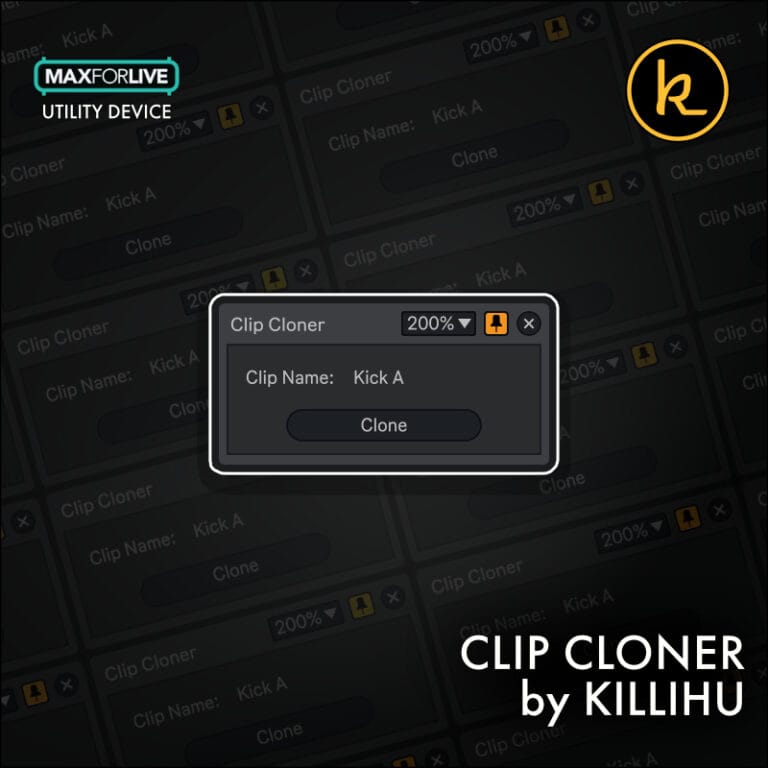
Clip Cloner by KILLIHU
WHY MANUALLY UPDATE EVERY REPEATED CLIP?
Clip Cloner by killihu brings ghost clip functionality to Ableton Live's arrangement view. Edit one MIDI clip, trigger the device, and watch your changes instantly propagate to all clips with matching names on the same track. No more tedious manual copying or hunting down duplicate patterns scattered across your timeline.
Inside you'll find:
- Name-based clip matching system (clips with identical names are treated as groups)
- Instant MIDI data copying across all matching clips on a track
- Complete data transfer (notes, velocity, release velocity, chance/probability)
- Envelope preservation (automation remains unique to each clip instance)
- Two usage methods: floating window interface or mapped button control
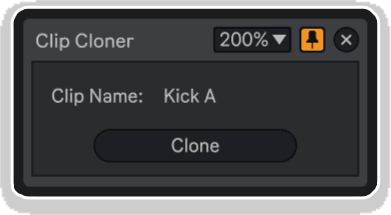
- Floating window displays currently selected clip name for visual confirmation
- Mapped button integration with optional undo history support
- Arrangement view focus for structured composition workflow
- Lightweight, focused design with instant execution
- Works across all tracks when clip names match
- FREE MaxforLive device
Essential for arrangement-focused producers building complete tracks, electronic musicians managing recurring patterns, film and game composers working with leitmotifs, template-based producers, and anyone transitioning from DAWs that include native ghost clip functionality.
FREE MaxforLive device for Ableton Live 12 (Mac & Windows)
Clip Cloner by KILLIHU
WHY MANUALLY UPDATE EVERY REPEATED CLIP?
Clip Cloner by killihu brings ghost clip functionality to Ableton Live's arrangement view. Edit one MIDI clip, trigger the device, and watch your changes instantly propagate to all clips with matching names on the same track. No more tedious manual copying or hunting down duplicate patterns scattered across your timeline.
Inside you'll find:
- Name-based clip matching system (clips with identical names are treated as groups)
- Instant MIDI data copying across all matching clips on a track
- Complete data transfer (notes, velocity, release velocity, chance/probability)
- Envelope preservation (automation remains unique to each clip instance)
- Two usage methods: floating window interface or mapped button control
- Floating window displays currently selected clip name for visual confirmation
- Mapped button integration with optional undo history support
- Arrangement view focus for structured composition workflow
- Lightweight, focused design with instant execution
- Works across all tracks when clip names match
- FREE MaxforLive device
Essential for arrangement-focused producers building complete tracks, electronic musicians managing recurring patterns, film and game composers working with leitmotifs, template-based producers, and anyone transitioning from DAWs that include native ghost clip functionality.
FREE MaxforLive device for Ableton Live 12 (Mac & Windows)
Buying for someone?Send a gift card →
Additional information
| MaxforLive | MIDI Devices |
|---|---|
| Ableton Live Compatibility | Ableton Live 12 Standard with MaxforLive, Ableton Live 12 Suite |
| Min. Requirements | Ableton Live 12 with MaxforLive Installed |
| OS | Mac, Windows |
Product reviews
5 out of 5
3 reviews
How item rating is calculated
We show the average based on reviews. Only genuine reviews are displayed.
Sort by
July 14, 2026
This reviewer bought this product from our store.
wunderbar
I recommend this product
April 14, 2026
This reviewer bought this product from our store.
Small and healpful tool! Wishing for audio clips soon :D
Saves time
I recommend this product
April 7, 2026
This reviewer bought this product from our store.
Useful
Extremely useful tool.
Simple to use.
-
I recommend this product
Clip Cloner by KILLIHU
You’ve programmed the perfect MIDI pattern. Now you need to repeat it across your arrangement with variations, or perhaps you’ve edited one instance and need that edit to propagate everywhere. In most DAWs, ghost clips let you edit one instance and watch changes appear automatically across all linked copies. Ableton Live doesn’t offer this functionality natively, forcing you to manually duplicate clips, remember which clips contain which patterns, and tediously update each instance whenever you make changes. Clip Cloner solves this by implementing ghost clip behavior directly in Live’s arrangement view.
This isn’t a workaround or a hack. Clip Cloner is a purpose-built MaxforLive device that copies MIDI clip contents instantly across all clips sharing the same name on a track. Edit your pattern in any instance, trigger Clip Cloner, and watch your changes appear in every matching clip throughout the arrangement. The copying happens instantaneously with complete accuracy, transferring notes, velocities, release velocities, and probability values while preserving the timing and structure you’ve built.
Whether you’re working with recurring bass patterns that need consistent updates, drum loops that appear dozens of times in an arrangement, melodic motifs that repeat with variation layers, or any MIDI content that needs synchronized editing across multiple timeline positions, Clip Cloner eliminates the manual copying workflow that wastes time and introduces errors.
Features & Highlights
Name-Based Clip Matching: Clip Cloner identifies clips by name. Any clips on the same track with identical names are treated as a group. Edit one instance, run Clip Cloner, and all matching clips receive the updated contents. This simple name-matching system makes managing clip groups intuitive and visual – you can see at a glance which clips will update together.
Complete MIDI Data Transfer: When copying between clips, Clip Cloner transfers notes, velocity values, release velocity data, and probability (chance) settings. Everything that defines your MIDI performance gets copied accurately, preserving the musicality and expression of your programmed patterns. This ensures that updated clips sound identical to the source clip.
Envelope Preservation: Clip Cloner deliberately does not copy automation envelopes. This design decision allows you to maintain different parameter automation in each clip instance while keeping the note content synchronized. For example, your bass pattern can remain consistent across all instances while filter cutoff automation evolves uniquely in each section of your arrangement.
Arrangement View Focus: The device operates specifically in arrangement view where repeated MIDI clips are common in structured compositions. This focus on arrangement workflow makes Clip Cloner particularly valuable for producers building complete tracks rather than jamming in session view.
Two Usage Methods: Use the floating window interface to see the currently selected clip name and trigger copying with a button click, providing visual confirmation before execution. Alternatively, map the button in the device’s Settings panel to a MIDI controller or keyboard shortcut for rapid, hands-on control during editing sessions. Choose the method that fits your workflow best.
Undo History Integration: The mapped button method adds an entry to Live’s undo history, allowing you to reverse clip cloning operations if needed. The floating window method operates without affecting undo history, giving you flexibility in how you manage editing states. This distinction lets you choose between preserving undo capability and working outside the undo system based on your needs.
Lightweight and Focused: Clip Cloner does one thing exceptionally well rather than attempting to be a comprehensive MIDI editing suite. The focused design means fast execution, no CPU overhead, and a learning curve measured in seconds rather than hours. Insert it, name your clips consistently, and start working.
How to Use
Insert Clip Cloner on any MIDI track in your Live set. The device doesn’t need to be on the specific track you’re editing – it can sit anywhere in your project and will work across all tracks. However, many users place it on a dedicated utility track or the master track for easy access.
Setting Up Clip Groups:
Give your MIDI clips consistent names. Any clips on the same track with identical names will be treated as a group by Clip Cloner. For example, name all instances of your bass pattern “Bass Line A” throughout the arrangement. When you edit one “Bass Line A” clip and run Clip Cloner, all other “Bass Line A” clips on that track receive the updated content.
Using the Floating Window Method:
Open Clip Cloner’s floating window from the device interface. Select any MIDI clip in your arrangement – the clip name displays in the floating window, confirming which clip group will be affected. Make your edits to the selected clip, then click the clone button in the floating window. All clips with matching names on the same track instantly receive the updated MIDI data. This method does not add entries to Live’s undo history.
Using the Mapped Button Method:
Open Clip Cloner’s Settings panel and locate the mappable clone button. Enter Live’s MIDI or Key mapping mode, click the clone button in Settings, then press your desired MIDI controller button or keyboard key. Exit mapping mode. Now whenever you select a clip and press your mapped control, Clip Cloner executes and adds an entry to Live’s undo history, allowing you to reverse the operation with Cmd/Ctrl+Z if needed.
Workflow Example:
You’re building an arrangement with a recurring bass pattern that appears eight times across the timeline. Name all eight clips “Main Bass.” Work on the first instance, refining the pattern, adjusting velocities, tweaking note lengths. When satisfied, select that clip and trigger Clip Cloner. Instantly, all eight instances now contain your refined version. Continue editing any instance and clone again whenever you want changes to propagate. The envelope automation you’ve created for filter sweeps and resonance changes in different sections remains untouched.
Managing Multiple Clip Groups:
Use descriptive, unique names for different clip groups on the same track. “Bass A,” “Bass B,” and “Bass Fill” can all coexist on the same track, each behaving as an independent ghost clip group. Edit “Bass A” instances without affecting “Bass B” or “Bass Fill” clips. This naming system scales to complex arrangements with dozens of repeated patterns across multiple tracks.
Ideal For
Arrangement-Focused Producers: Build complete tracks in arrangement view with confidence that pattern edits propagate consistently. Spend time refining ideas rather than manually updating duplicate clips scattered across the timeline.
Electronic Music Producers: Manage recurring bass lines, drum loops, and melodic patterns that repeat throughout track structures. Update your intro pattern and have those changes automatically appear in breakdowns and outros that use the same material.
Film & Game Composers: Work with leitmotifs and recurring themes that appear multiple times with different instrumentation or orchestration. Keep the core MIDI content synchronized while varying parameter automation and effects in each instance.
Template-Based Producers: Build arrangements from template sections where certain MIDI patterns are used repeatedly. Refine those core patterns during production and instantly update all instances rather than rebuilding sections from scratch.
Producers Transitioning from Other DAWs: If you’re accustomed to ghost clip workflows in Logic Pro, Cubase, Studio One, or other DAWs that include this feature, Clip Cloner brings that familiar functionality to Live, easing your transition and maintaining your established workflow habits.
What’s Included
- Clip Cloner MaxforLive device (AMXD file)
- Floating window interface with clip name display
- Mappable clone button in Settings panel
- Name-based clip group matching system
- Complete MIDI data transfer (notes, velocity, release velocity, chance)
- Envelope preservation (envelopes are not copied)
- Optional undo history integration (mapped button method only)
- FREE download
Requirements
- Ableton Live 12 with Max for Live
- Mac or Windows operating system
- Works in arrangement view only
Explore More
Session Clips | Auto Clip Props | Clipboard Device | MIDI Explorer | inScale | View All killihu Products
Frequently Asked Questions
A: Clip Cloner is a free MaxforLive device that implements ghost clip functionality in Ableton Live’s arrangement view. It copies MIDI clip contents (notes, velocity, release velocity, and chance) to all clips with the same name on the same track. This allows you to edit one instance of a recurring pattern and instantly propagate those changes to all matching clips throughout your arrangement.
A: Yes, Clip Cloner is a MaxforLive device and requires Ableton Live 12 with Max for Live installed.
A: MaxforLive is a platform that integrates the visual programming environment Max with Ableton Live, allowing users to create and use custom audio, MIDI, and control devices. It extends Live’s capabilities with powerful utilities like Clip Cloner.
A: No, Clip Cloner deliberately does not copy automation envelopes. This allows you to maintain different parameter automation in each clip instance while keeping the note content synchronized. For example, your MIDI pattern stays consistent while filter automation evolves uniquely in different sections.
A: Yes! Clip Cloner is a completely free download from killihu. You can explore more of killihu’s tools and devices here: killihu
Important Information
Initial Release – April 2026
Our Products are generally provided as Zip file downloads which in all cases will need to be extracted and saved to your hard drive prior to installation. Details on the different file type provided and what to do with them are below.
.alp Files – These are Ableton Live Packs and will either install directly into the Packs Section of the browser of Ableton Live or ask you to save them to your hard drive. For packs that install to the library, when you double click on them you will see a pop up window asking you to confirm that installation is ok as the files are described as “Legacy”. This is fine and you are ok to proceed, the packs are created using the format for an earlier version of Live and so remain compatible with the current version.
.amxd files – These are individual MaxforLive Devices and can be stored anywhere on your hard drive. We’d advise creating a folder for them and then adding that folder as a location within the Places section of Lives Browser.
END-USER LICENSE AGREEMENT FOR ISOTONIK STUDIOS SOFTWARE PRODUCTS.
PLEASE READ THE TERMS AND CONDITIONS OF THIS LICENSE AGREEMENT CAREFULLY BEFORE CONTINUING WITH THIS PROGRAM INSTALL.
This End-User License Agreement (referred to as “EULA”) is a legal agreement between an individual or a single entity (referred to as “LICENSEE”) and Isotonik Studios for the Isotonik Studios software product(s) which may include associated software components, media, printed materials, and “online” or electronic documentation (referred to as “SOFTWARE PRODUCT”). By installing, copying, or otherwise using the SOFTWARE PRODUCT, the LICENSEE agrees to be bound by the terms of this EULA.
This EULA represents the entire agreement concerning the program between the LICENSEE and Isotonik Studios and it supersedes any prior proposal, representation, or understanding between the parties. If the LICENSEE does not agree to the terms of this EULA, the LICENSEE should not install or use the SOFTWARE PRODUCT.
The SOFTWARE PRODUCT is protected by copyright laws and international copyright treaties, as well as other intellectual property laws and treaties. The SOFTWARE PRODUCT is licensed, not sold.
- GRANT OF LICENSE.
The SOFTWARE PRODUCT is licensed as follows:
(a) Installation and Use. Providing that the LICENSEE has paid any applicable license fees, Isotonik Studios grants the LICENSEE the right to install and use copies of the SOFTWARE PRODUCT on up to two computers in the LICENSEE’s possession that are running a validly licensed copy of the operating system for which the SOFTWARE PRODUCT was designed [e.g., Windows 10, macOS]. The computer(s) must be owned by the LICENSEE.
(b) Backup Copies. The LICENSEE may also make copies of the SOFTWARE PRODUCT as may be necessary for backup and archival purposes.
- DESCRIPTION OF OTHER RIGHTS AND LIMITATIONS.
(a) Maintenance of Copyright Notices. The LICENSEE must not remove or alter any copyright notices on any and all copies of the SOFTWARE PRODUCT.
(b) Distribution. The LICENSEE may not distribute registered copies of the SOFTWARE PRODUCT to third parties.
(c) Prohibition on Reverse Engineering, Decompilation, and Disassembly. The LICENSEE may not reverse engineer, decompile, or disassemble the SOFTWARE PRODUCT, except and only to the extent that such activity is expressly permitted by applicable law notwithstanding this limitation.
(d) Rental. The LICENSEE may not rent, lease, or lend the SOFTWARE PRODUCT.
(e) License transfer The LICENSEE may not transfer their license to the SOFTWARE PRODUCT to any third party. Any attempt to do so will be considered a violation of this EULA.
(f) Support Services. Isotonik Studios may provide the LICENSEE with support services related to the SOFTWARE PRODUCT for a period of 12 months following the date of purchase. Any supplemental software code provided to the LICENSEE as part of the Support Services shall be considered part of the SOFTWARE PRODUCT and subject to the terms and conditions of this EULA.
(g) Compliance with Applicable Laws. The LICENSEE must comply with all applicable laws regarding use of the SOFTWARE PRODUCT.
- TERMINATION Without prejudice to any other rights, Isotonik Studios may terminate this EULA if the LICENSEE fails to comply with the terms and conditions of this EULA. In such event, the LICENSEE must destroy all copies of the SOFTWARE PRODUCT in the LICENSEE’s possession.
- COPYRIGHT All title, including but not limited to copyrights, in and to the SOFTWARE PRODUCT and any copies thereof are owned by Isotonik Studios or its suppliers. All title and intellectual property rights in and to the content which may be accessed through use of the SOFTWARE PRODUCT is the property of the respective content owner and may be protected by applicable copyright or other intellectual property laws and treaties. This EULA grants the LICENSEE no rights to use such content. All rights not expressly granted are reserved by Isotonik Studios.
- NO WARRANTIES Isotonik Studios expressly disclaims any warranty for the SOFTWARE PRODUCT. The SOFTWARE PRODUCT is provided ‘As Is’ without any express or implied warranty of any kind, including but not limited to any warranties of merchantability, noninfringement, or fitness of a particular purpose. Isotonik Studios does not warrant or assume responsibility for the accuracy or completeness of any information, text, graphics, links or other items contained within the SOFTWARE PRODUCT. Isotonik Studios makes no warranties respecting any harm that may be caused by the transmission of a computer virus, worm, time bomb, logic bomb, or other such computer program. Isotonik Studios further expressly disclaims any warranty or representation to the LICENSEE or to any third party.
- LIMITATION OF LIABILITY In no event shall Isotonik Studios be liable for any damages (including, without limitation, lost profits, business interruption, or lost information) arising out of the LICENSEE’s use of or inability to use the SOFTWARE PRODUCT, even if Isotonik Studios has been advised of the possibility of such damages. In no event will Isotonik Studios be liable for loss of data or for indirect, special, incidental, consequential (including lost profit), or other damages based in contract, tort or otherwise. Isotonik Studios shall have no liability with respect to the content of the SOFTWARE PRODUCT or any part thereof, including but not limited to errors or omissions contained therein, libel, infringements of rights of publicity, privacy, trademark rights, business interruption, personal injury, loss of privacy, moral rights or the disclosure of confidential information.
More from Killihu
Frequently Bought Together
 ★ Popular