The Auriteq Flow puts instant plug-in recall, saved chains, custom shortcuts, and mixing meters on a single hardware controller. Here is what it does and whether it is worth it.
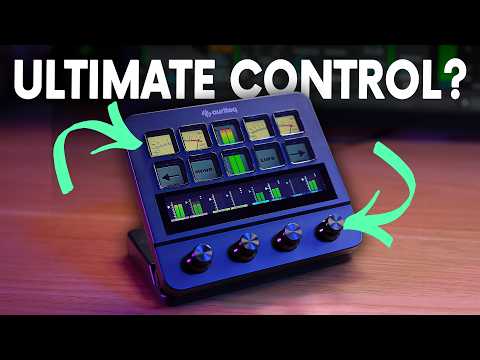
The Auriteq Flow is a hardware DAW controller designed to cut the time you spend on repetitive session tasks. Forget scrolling through plug-in libraries or hunting for presets you saved weeks ago. With the Flow, a single button press loads a plug-in, a saved preset, or an entire chain of effects onto your selected track, right where you need it, straight away.
What It Does
At its core the Auriteq Flow gives you ten buttons, each with its own small screen showing what it controls in real time, four rotary encoders with touch-sensitive speed control, and a companion display for switching between scenes. It connects via USB and works with Ableton Live, Logic Pro, and FL Studio out of the box with no complex setup required.
The device covers five distinct workflow areas. The default view handles transport, track selection, solo, mute, arm, pan, volume, and send levels. The effects view gives you instant plug-in recall: press a mapped button and the plug-in loads onto whichever track is selected, with its parameters automatically mapped to the encoders. You can store default instances of any plug-in or save your own tweaked presets directly from within Ableton Live. The chains view takes this further, letting you save multiple plug-ins as a single button press, so a complete vocal chain or bus processing setup loads in one go. Master and return track chains work the same way, meaning you can switch your main track processing or pull up a reverb on an auxiliary track without touching the mouse.
Beyond effects, the Flow also handles track organisation. You can name and colour-code tracks directly from the controller using pre-configured labels and a custom colour palette, which keeps sessions tidy as you go rather than spending twenty minutes organising before a mixdown. Custom Ableton shortcuts can be mapped to buttons as well, so actions like exporting audio and video that normally require several menu steps happen with a single press. Switch to the mixing scene and the display becomes a virtual mixing desk with VU meters, a LUFS meter, per-track volume control, and a mono check button, all driven by a companion plug-in that loads automatically when you enter that scene.
How to Use It
- Map a plug-in to a button: Hold down an empty mapping button on the effects page, drag your chosen plug-in onto a track in Ableton Live, then press confirm on the device. The plug-in is now recalled with one press and encoders map automatically.
- Save a preset: Set up your plug-in as you want it, hold down the empty mapping button, save the preset from within Ableton Live using the save button on the device, name it, and confirm. That preset is now stored to that button.
- Build a chain: Open the companion app, drag multiple plug-ins onto the same slot, reorder them as needed, and save. Back in Ableton Live, pressing that chain button loads all plug-ins onto the selected track at once. To save a chain with specific settings, highlight the plug-ins in Ableton Live, navigate to a blank chain slot on the Flow, hold it down, and the device groups them into a rack and prompts you to name and save.
- Set up shortcuts: On Mac, enable accessibility permissions for the Auriteq app under Privacy and Security. Inside the app, search for or browse available shortcuts, drag your chosen shortcut into a button slot, and it is ready to trigger from the hardware.
- Use track naming and colour coding: Select a track, press the name button on the Flow, and choose from your pre-configured track name list. Press the colour button to apply a colour from your custom palette. Both the names and colours are fully editable inside the companion app.
- Switch to the mixing scene: Scroll to the mixing scene on the device. A companion plug-in loads automatically in Ableton Live, feeding VU and LUFS data back to the Flow display. Use the encoders for track volumes, the mono button to check for phase issues, and the touch screen to switch between tracks assigned to each encoder.
Why It Matters
The time cost of loading plug-ins, sorting presets, naming tracks, and setting up a mix adds up across every session. The Auriteq Flow moves those tasks off the screen and onto dedicated hardware so your attention stays on the music. The companion app is straightforward, the setup process for individual plug-ins and chains is faster than it sounds, and the mixing scene adds metering and fader control without requiring a separate piece of software or a full-size control surface. For producers working primarily inside a DAW who want a more hands-on, organised approach without a steep learning curve, it is a practical and well-considered tool.