Stop hunting for sounds mid-session. This walkthrough covers the Ableton 12 browser, tagging, saved searches, and the user library so you can find anything fast.
If you have ever lost five minutes hunting for a kick sample or rebuilt the same drum rack from scratch for the third time, this workflow will fix that. This tutorial walks through every layer of Ableton Live 12’s organisational system, from the browser search bar right through to the user library, so sessions start faster and creative momentum stays intact.
What It Does
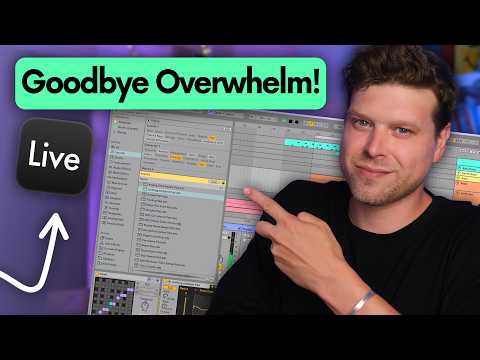
Ableton Live 12’s browser is built around a tag-based search system that works across your own samples as well as Ableton’s native content. Type a keyword, filter by category and file type, and every matching result appears instantly, regardless of where on your drive it lives. The shortcut Command F (Control F on Windows) opens the browser search from anywhere in the session, so you never need to break flow to go hunting.
The tagging system is automatic for anything you add to the browser via the Places section, and you can add your own custom tags to individual files through the tag editor. That editor also lets you build parent tag groups and organise every tag into a logical hierarchy. Once your tags are in place, saved searches lock those filter combinations into the sidebar as a one-click shortcut, so a filtered view of your analogue one-shot kicks, your VST3 instruments, or your Splice downloads is always a single tap away.
The user library extends this further by letting you save entire track stacks, complete with plugins, settings, and folder structure, as reusable presets. Drag a saved drum arrangement into any new session and every channel, plugin, and routing comes with it. It is the closest thing Ableton has to a true template-within-a-template system, and there is nothing quite like it in Logic Pro or Pro Tools.
How to Use It
- Open the browser search instantly by pressing Command F (Mac) or Control F (Windows) from anywhere in your session, with the browser closed.
- Add your own sample folders via the Places section in the browser. Ableton begins tagging your files automatically as soon as the folder is linked.
- Tag individual files manually by selecting a sample in the browser and typing a tag name in the tag field below the preview area.
- Open the tag editor using the dropdown arrow at the top of the browser to view all tags, create parent groups, and keep your tag structure clean.
- Save a search by setting your keyword and filters, then clicking the save button in the browser sidebar. Press Command R to rename it and right-click to assign a custom icon.
- Create browser dividers by saving a search with a string of random characters, deleting the search result, and assigning a divider icon. This gives you visual section breaks in the sidebar without any native marker feature.
- Save track stacks to the user library by selecting all the tracks you want to include, then dragging them from the track header into the user library panel and naming the preset.
- Build a personal sample archive by creating a dedicated folder in the user library. Drag loops, chords, or beats from any session directly into that folder so they are available across every project.
Why It Matters
The time lost to disorganised libraries is not just inconvenient, it breaks creative momentum at exactly the wrong moment. A tagging and search system built around how you actually work means the gap between having an idea and hearing it is as short as possible. Saved searches remove the repetitive filtering. Reusable track presets remove the repetitive building. And a personal sample archive means nothing useful ever gets abandoned simply because it did not fit the session it was made in. The whole system compounds over time: the more you tag, the faster every future session moves.